







Question: (Android Studio) For my Android Studio assignment, the text to speech via the Button Read or Read Text Below button does not work at all
(Android Studio)
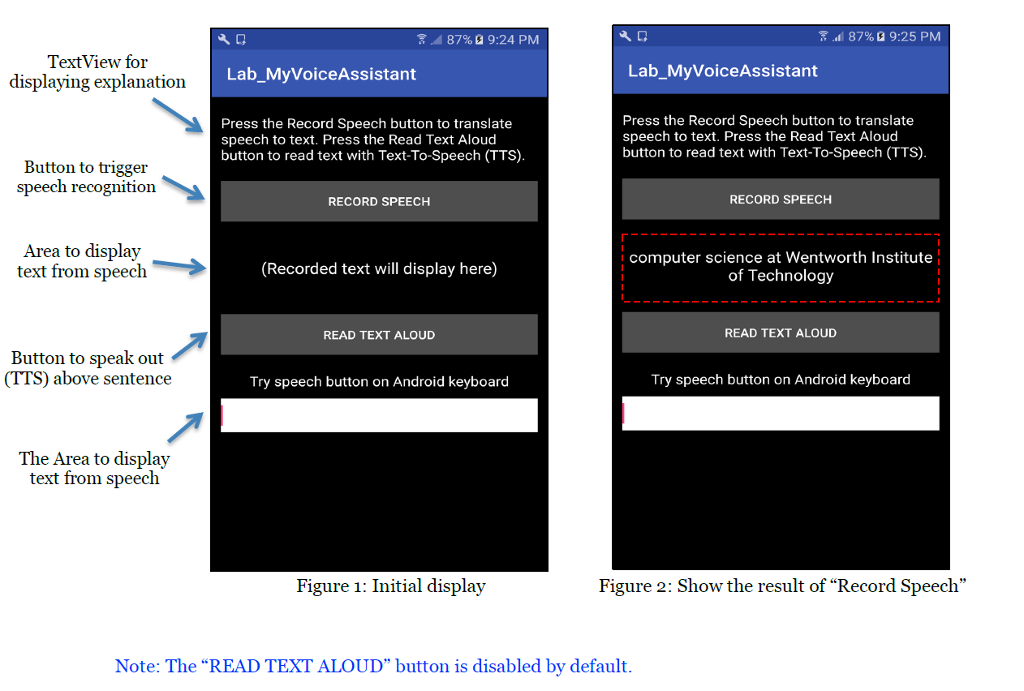
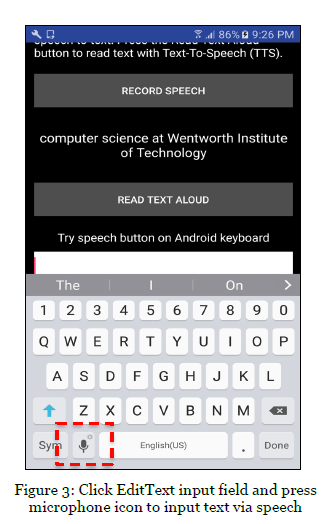
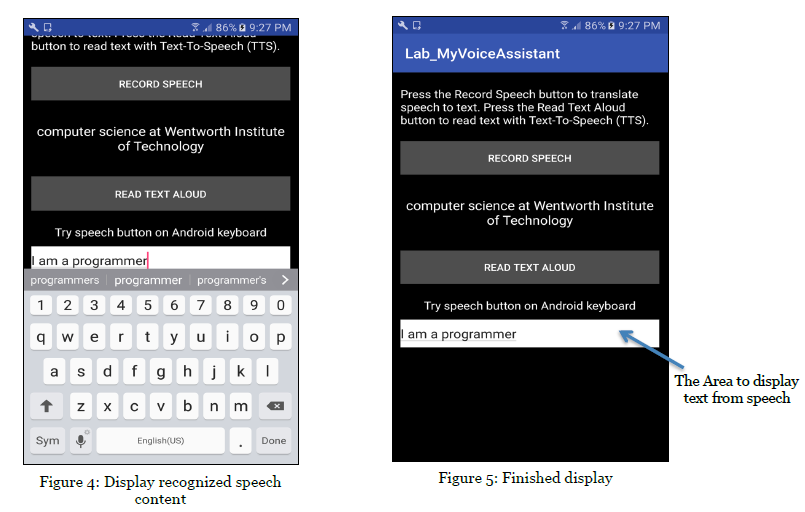
For my Android Studio assignment, the text to speech via the "Button Read or "Read Text Below" button does not work at all as it does not say out the recorded text from the speech recognition. Please help. Pictures and description of the assignment and my code can be found below.
TLDR: The speech recognition works, but not the text to speech. The "Read Text Aloud" or you can say "Button Read" needs fixing/implementing. Take a look at my codes below.
Note: Please do not edit the XML file, leave it as it is. To test my assignment from your Android device to a Computer, plug your Android device to a computer and hit the Play Button through Android Studio. Your Android device should appear for testing. MAKE SURE TO ENABLE USB DEBUGGING on your Android device.
MainActivity.Java
import android.content.ActivityNotFoundException; import android.content.Intent; import android.os.Bundle; import android.speech.RecognizerIntent; import android.speech.tts.TextToSpeech; import android.view.View; import android.widget.Button; import android.widget.TextView; import android.widget.Toast; import java.util.ArrayList; import java.util.Locale; import android.support.v7.app.AppCompatActivity;
public class MainActivity extends AppCompatActivity implements TextToSpeech.OnInitListener { private TextView recordButtonTextView; private Button recordButton; private Button readButton; private final int REQ_CODE_SPEECH_INPUT = 100; private TextToSpeech tts;
@Override protected void onCreate(Bundle savedInstanceState) { super.onCreate(savedInstanceState); setContentView(R.layout.activity_main);
recordButtonTextView = (TextView) findViewById(R.id.TextSaid); recordButton = (Button) findViewById(R.id.ButtonRecord); readButton = (Button) findViewById(R.id.ButtonRead); tts = new TextToSpeech(this,this);
recordButton.setOnClickListener(new View.OnClickListener() { @Override public void onClick(View v) { speechToText(); } }); readButton.setOnClickListener(new View.OnClickListener() { @Override public void onClick(View v) { textToSpeech(); } }); }
private void textToSpeech() { TextView recordedText = (TextView) findViewById(R.id.TextSaid); String speakOutText = recordedText.getText().toString(); tts.speak(speakOutText, TextToSpeech.QUEUE_FLUSH, null); }
@Override public void onInit(int status) { if(status == TextToSpeech.SUCCESS){ int result = tts.setLanguage(Locale.ENGLISH); if(result == TextToSpeech.LANG_NOT_SUPPORTED || result == TextToSpeech.LANG_MISSING_DATA){ Toast.makeText(this, "Unsupported Language", Toast.LENGTH_LONG).show(); } else{ textToSpeech(); speechToText(); } }else{ Toast.makeText(this, "Initialization Failed", Toast.LENGTH_LONG).show(); } }
public void onDestroy() { if (tts != null) { tts.stop(); tts.shutdown(); } super.onDestroy(); }
private void speechToText() { Intent intent = new Intent(RecognizerIntent.ACTION_RECOGNIZE_SPEECH); intent.putExtra(RecognizerIntent.EXTRA_LANGUAGE_MODEL, RecognizerIntent.LANGUAGE_MODEL_FREE_FORM); intent.putExtra(RecognizerIntent.EXTRA_LANGUAGE, Locale.getDefault()); intent.putExtra(RecognizerIntent.EXTRA_PROMPT, "Say Something"); try { startActivityForResult(intent, REQ_CODE_SPEECH_INPUT); } catch (ActivityNotFoundException a) { Toast.makeText(this, "Initialization Failed", Toast.LENGTH_LONG).show(); } }
protected void onActivityResult(int requestCode, int resultCode, Intent data) { super.onActivityResult(requestCode, resultCode, data); switch (requestCode) { case REQ_CODE_SPEECH_INPUT: { if (resultCode == RESULT_OK && null != data) { ArrayList result = data.getStringArrayListExtra(RecognizerIntent.EXTRA_RESULTS); recordButtonTextView.setText(result.get(0)); } break; } } } }
activity_main.xml
xmlns:android="http://schemas.android.com/apk/res/android" android:layout_width="fill_parent" android:layout_height="fill_parent" android:paddingLeft="10dp" android:paddingRight="10dp" android:gravity="top" android:orientation="vertical" android:background="#000000">
android:layout_width="fill_parent" android:layout_height="wrap_content" android:layout_marginTop="20dp" android:textColor="#ffffff" android:textSize="16sp" android:text="@string/help" /> android:id="@+id/ButtonRecord" android:layout_width="fill_parent" android:layout_height="wrap_content" android:layout_marginTop="20dp" android:onClick="recordSpeech" android:text="@string/button_record" android:textColor="#ffffff" android:background="#4d4d4d" />
android:id="@+id/TextSaid" android:layout_width="fill_parent" android:layout_height="wrap_content" android:gravity="center" android:lines="5" android:text="@string/recorded_text" android:textSize="18sp" android:textColor="#ffffff"/>
android:id="@+id/ButtonRead" android:layout_width="fill_parent" android:layout_height="wrap_content" android:onClick="readText" android:text="@string/button_read" android:textColor="#ffffff" android:background="#4d4d4d" />
android:layout_width="fill_parent" android:layout_height="wrap_content" android:layout_marginTop="20dp" android:gravity="center_horizontal" android:textSize="16sp" android:textColor="#ffffff" android:text="@string/try_help"/>
android:id="@+id/editTextField" android:layout_width="fill_parent" android:layout_height="40dp" android:layout_marginTop="10dp" android:inputType="textCapSentences" android:background="#ffffff"/>
87% 9:24 PM .dl 87% 9:25 PM TextView for displaying explanation Lab_MyVoiceAssistant Lab_MyVoiceAssistant Press the Record Speech button to translate speech to text. Press the Read Text Aloud button to read text with Text-To-Speech (TTS) Press the Record Speech button to translate speech to text. Press the Read Text Aloud button to read text with Text-To-Speech (TTS) Button to trigger speech recognition RECORD SPEECH RECORD SPEECH Area to display text from speech computer science at Wentworth Institute of Technology (Recorded text will display here) READ TEXT ALOUD READ TEXT ALOUD Button to speak out (TTS) above sentence Try speech button on Android keyboard Try speech button on Android keyboard The Area to display text from speech Figure 1: Initial display Figure 2: Show the result of "Record Speech" Note: The "READ TEXT ALOUD" button is disabled by default 87% 9:24 PM .dl 87% 9:25 PM TextView for displaying explanation Lab_MyVoiceAssistant Lab_MyVoiceAssistant Press the Record Speech button to translate speech to text. Press the Read Text Aloud button to read text with Text-To-Speech (TTS) Press the Record Speech button to translate speech to text. Press the Read Text Aloud button to read text with Text-To-Speech (TTS) Button to trigger speech recognition RECORD SPEECH RECORD SPEECH Area to display text from speech computer science at Wentworth Institute of Technology (Recorded text will display here) READ TEXT ALOUD READ TEXT ALOUD Button to speak out (TTS) above sentence Try speech button on Android keyboard Try speech button on Android keyboard The Area to display text from speech Figure 1: Initial display Figure 2: Show the result of "Record Speech" Note: The "READ TEXT ALOUD" button is disabled by default
Step by Step Solution
There are 3 Steps involved in it

Get step-by-step solutions from verified subject matter experts
 Study Help