







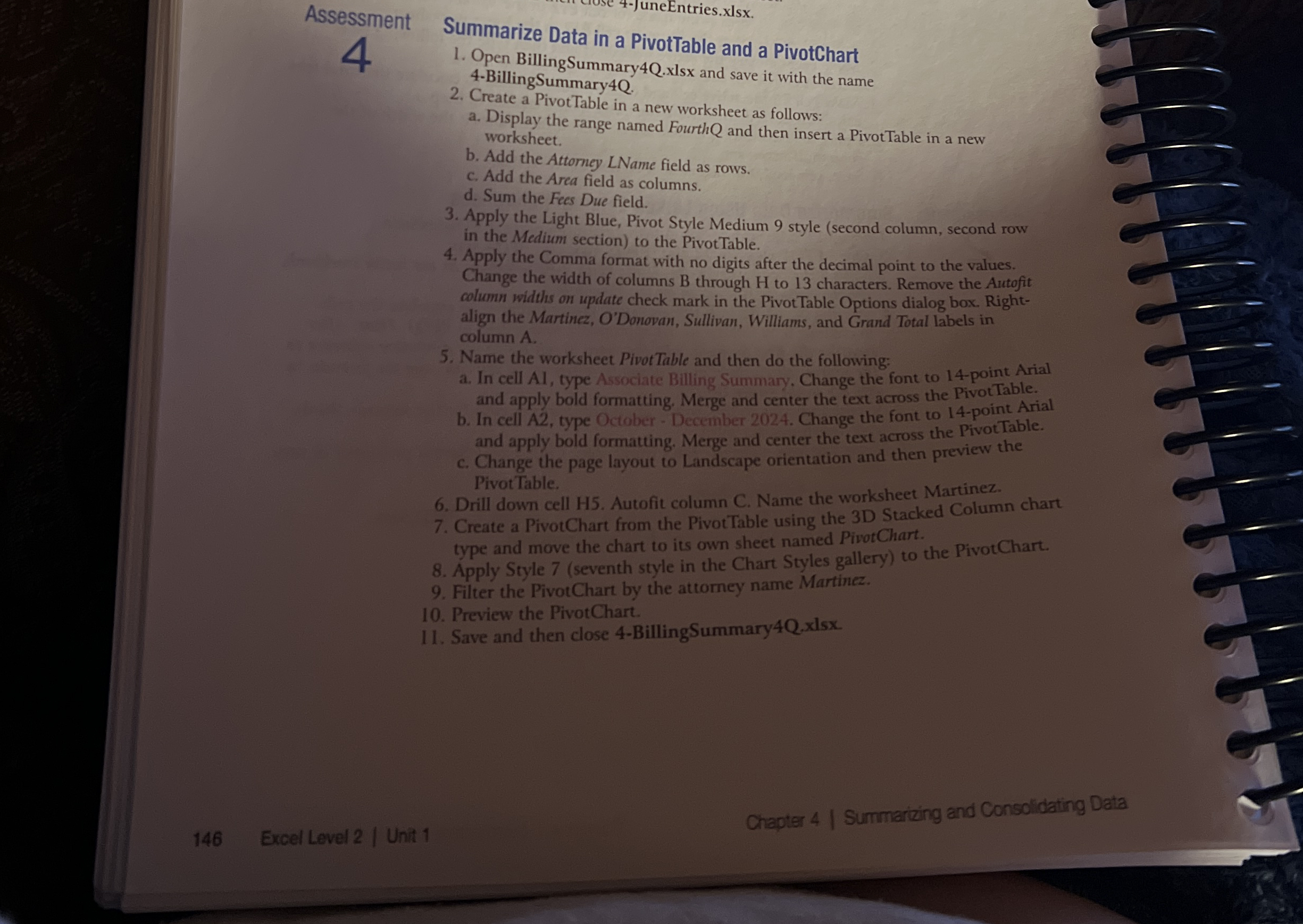
Question: Assessment 4 Summarize Data in a PivotTable and a PivotChart Open BillingSummary 4 Q . xlsx and save it with the name 4 - BillingSummary
Assessment
Summarize Data in a PivotTable and a PivotChart
Open BillingSummary Qxlsx and save it with the name BillingSummaryQ
Create a PivotTable in a new worksheet as follows:
a Display the range named Fourth and then insert a PivotTable in a new worksheet.
b Add the Attorney LName field as rows.
c Add the Area field as columns.
d Sum the Fees Due field.
Apply the Light Blue, Pivot Style Medium style second column, second row in the Medium section to the PivotTable.
Apply the Comma format with no digits after the decimal point to the values. Change the width of columns B through H to characters. Remove the Autofit column widths on update check mark in the PivotTable Options dialog box. Rightalign the Martinez, O'Donovan, Sullivan, Williams, and Grand Total labels in column A
Name the worksheet Pivot Table and then do the following:
a In cell AI type Associate Billing Summary. Change the font to point Arial and apply bold formatting. Merge and center the text across the Pivot Table.
b In cell A type October December Change the font to point Arial and apply bold formatting. Merge and center the text across the PivotTable.
c Change the page layout to Landscape orientation and then preview the Pivot Table.
Drill down cell H Autofit column C Name the worksheet Martinez.
Create a PivotChart from the PivotTable using the D Stacked Column chart type and move the chart to its own sheet named PivotChart.
Apply Style seventh style in the Chart Styles gallery to the PivotChart.
Filter the PivotChart by the attorney name Martinez.
Preview the PivotChart.
Save and then close BillingSummary xlsx
Excel Level Unit
Chapter
Surmarizing and Consolidating Data
Step by Step Solution
There are 3 Steps involved in it
1 Expert Approved Answer
Step: 1 Unlock

Question Has Been Solved by an Expert!
Get step-by-step solutions from verified subject matter experts
Step: 2 Unlock
Step: 3 Unlock
 Study Help