







Question: Assessment Use Conditional Logic r 1. Open UI-RSRHelpDesk. 2 2. Save the workbook with the name UI-RSRHelpDesk-2. 3. Create range names of your choosing for
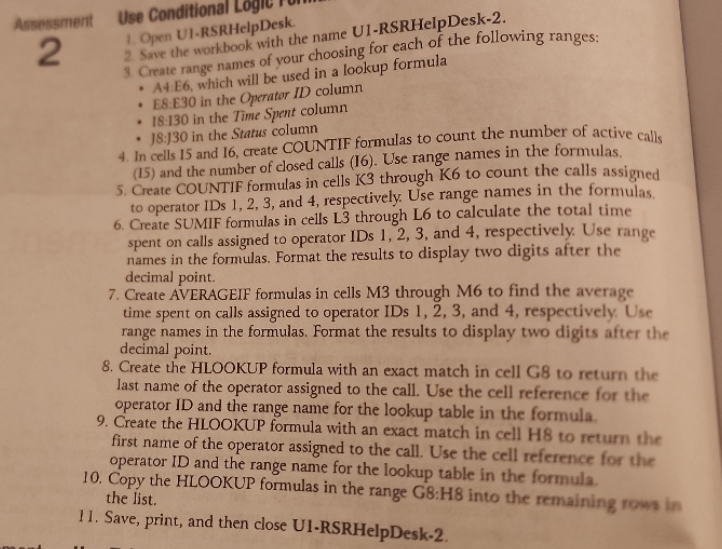
Assessment Use Conditional Logic r 1. Open UI-RSRHelpDesk. 2 2. Save the workbook with the name UI-RSRHelpDesk-2. 3. Create range names of your choosing for each of the following ranges: . A4:E6, which will be used in a lookup formula . ES:E30 in the Operator ID column . 18:130 in the Time Spent column . 18:130 in the Status column 4. In cells 15 and 16, create COUNTIF formulas to count the number of active calls (15) and the number of closed calls (16). Use range names in the formulas. 5. Create COUNTIF formulas in cells K3 through K6 to count the calls assigned to operator IDs 1, 2, 3, and 4, respectively. Use range names in the formulas. 6. Create SUMIF formulas in cells L3 through L6 to calculate the total time spent on calls assigned to operator IDs 1, 2, 3, and 4, respectively. Use range names in the formulas. Format the results to display two digits after the decimal point. 7. Create AVERAGEIF formulas in cells M3 through M6 to find the average time spent on calls assigned to operator IDs 1, 2, 3, and 4, respectively. Use decimal point. range names in the formulas. Format the results to display two digits after the 8. Create the HLOOKUP formula with an exact match in cell G8 to return the last name of the operator assigned to the call. Use the cell reference for the operator ID and the range name for the lookup table in the formula. 9. Create the HLOOKUP formula with an exact match in cell H8 to return the first name of the operator assigned to the call. Use the cell reference for the operator ID and the range name for the lookup table in the formula. the list. 10. Copy the HLOOKUP formulas in the range G8:H8 into the remaining rows in 1 1. Save, print, and then close UI-RSRHelpDesk-2
Step by Step Solution
There are 3 Steps involved in it

Get step-by-step solutions from verified subject matter experts
 Study Help