







Question: Case Projects Case Project 7-1: Use SSH in Ubuntu In this project, you learn to use SSH in Ubuntu. Using the Ubuntu VMs you created
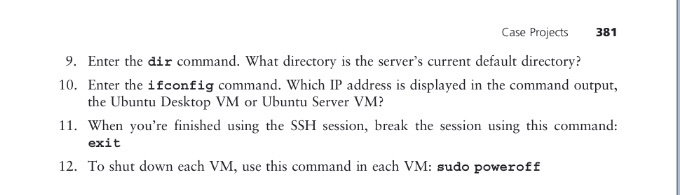
Case Projects Case Project 7-1: Use SSH in Ubuntu In this project, you learn to use SSH in Ubuntu. Using the Ubuntu VMs you created in the case projects in Chapters 2 and 3, follow the steps to use SSH. Using the VM that has Ubuntu Server installed, do the following: 1. Start the VM and log on 2. SSH is included in Ubuntu Server but is not installed. Enter this command to install and start SSH: sudo apt-get install ssh 3. Enter the command ifconfig and write down the IP address of the Ubuntu Server VM. Using the VM that has Ubuntu Desktop installed, do the following: 4. Start the VM and log on. Ubuntu Desktop launches. 5. Open a shell prompt. To do that, do one of the following o Click the search icon in the upper-left corner of the screen and then click Terminal in the list that appears. o Click the search icon, type gnome terminal in the search box, and press Enter o Press CTRL+ALT+T 6. Using the shell prompt, enter the command ifconfig and note the IP address of the Ubuntu Desktop VM. 7. Enter the ssh command with the IP address of the Ubuntu Server VM. For example, if the server IP address is 192.168.1.147, enter this command ssh 192.168.1.147 8. Enter your password on the server to log on to the server using SSH. You now have an SSH session established between the Ubuntu Desktop VM and the Ubuntu Server VM
Step by Step Solution
There are 3 Steps involved in it

Get step-by-step solutions from verified subject matter experts
 Study Help