







Question: Chapter 12-1 Lab Assignment: Create and use an Inventory Item class. In this exercise, youll add a class to an Inventory Maintenance application and then
Chapter 12-1 Lab Assignment: Create and use an Inventory Item class.
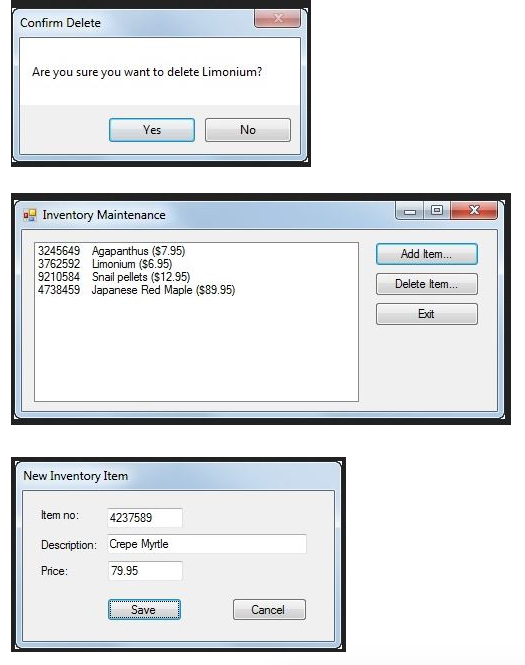
In this exercise, youll add a class to an Inventory Maintenance application and then add code to the two forms that use this class.
| Property | Description |
|---|---|
| ItemNo | Gets or sets an int that contains the items number. |
| Description | Gets or sets a string that contains the items description. |
| Price | Gets or sets a decimal that contains the items price. |
| Method | Description |
| GetDisplayText() | Returns a string that contains the items number, description, and price formatted like this: 3245649 Agapanthus ($7.95) (The item number and description are separated by four spaces.). |
| Constructor | Description |
| () | Creates an InvItem object with default values. |
| (itemNo, description, price) | Creates an InvItem object using the specified values |
1. Open the project and add an InvItem class: Download the Chapter12-1InventoryMaintenance project attached to this assignment into the Chapter12 folder.
2. Open the Chapter12-1InventoryMaintenance project in Visual Studio. Review the existing code for both of the forms so you get an idea of how this application should work.
3. Add a class named InvItem to this project, and add the properties, method, and constructors that are shown in the table above
4. Add code to implement the New Item form: Display the code for the New Item form, and declare a class variable named invItem of type InvItem with an initial value of null.
5. Add a public method named GetNewItem() that displays the form as a dialog box and returns an InvItem object.
6. Add code to the btnSave_Click event handler that creates a new InvItem object and closes the form if the data is valid.
7. Add code to implement the Inventory Maintenance form: Display the code for the Inventory Maintenance form, and declare a class variable named invItems of type List
8. Add a statement to the frmInvMaint_Load event handler that uses the GetItems method of the InvItemDB class to load the items list.
9. Add code to the FillItemListBox() method that adds the items in the list to the Items list box. Use the GetDisplayText() method of the InvItem class to format the item data.
10. Add code to the btnAdd_Click event handler that creates a new instance of the New Item form and executes the GetNewItem() method of that form. If the InvItem object thats returned by this method is not null, this event handler should add the new item to the list, call the SaveItems() method of the InvItemDB class to save the list, and then refresh the Items list box. Test the application to be sure this event handler works.
11. Add code to the btnDelete_Click event handler that removes the selected item from the list, calls the SaveItems() method of the InvItemDB class to save the list, and refreshes the Items list box. Be sure to confirm the delete operation. Then, thoroughly test the application to be sure this event handler works.
When youre done, press the Esc key to end the application.
**Code used in assignment is included below**
Program.cs
------------------------------------------------------------------------------
using System; using System.Collections.Generic; using System.Linq; using System.Threading.Tasks; using System.Windows.Forms;
namespace InventoryMaintenance { static class Program { ///
------------------------------------------------------------------------------
frmNewItem.designer.cs
-------------------------------------------------------------------------------
namespace InventoryMaintenance { partial class frmNewItem { ///
///
#region Windows Form Designer generated code
///
}
#endregion
private System.Windows.Forms.Label label1; private System.Windows.Forms.TextBox txtItemNo; private System.Windows.Forms.Label label2; private System.Windows.Forms.TextBox txtDescription; private System.Windows.Forms.Button btnSave; private System.Windows.Forms.Button btnCancel; private System.Windows.Forms.Label label3; private System.Windows.Forms.TextBox txtPrice; } }
--------------------------------------------------------------------------------------------
frmNewItem.cs
---------------------------------------------------------------------------------------------
using System; using System.Collections.Generic; using System.ComponentModel; using System.Data; using System.Drawing; using System.Linq; using System.Text; using System.Threading.Tasks; using System.Windows.Forms;
namespace InventoryMaintenance { public partial class frmNewItem : Form { public frmNewItem() { InitializeComponent(); }
// Add a statement here that declares the inventory item.
// Add a method here that gets and returns a new item.
private void btnSave_Click(object sender, EventArgs e) { if (IsValidData()) { // Add code here that creates a new item // and closes the form. } }
private bool IsValidData() { return Validator.IsPresent(txtItemNo) && Validator.IsInt32(txtItemNo) && Validator.IsPresent(txtDescription) && Validator.IsPresent(txtPrice) && Validator.IsDecimal(txtPrice); }
private void btnCancel_Click(object sender, EventArgs e) { this.Close(); } } }
Confirm Delete Are you sure you want to delete Limonium? Yes No Inventory Maintenance 3245649 3762592 9210584 4738459 Agapanthus (S7.95) Limonium ($6.95) Snail pellets ($12.95) Japanese Red Maple ($89.95) Add tem.. Delete ltem... Exit New Inventory Item tem no 4237589 Description: Crepe Myrtle Price 79.95 Save Cancel
Step by Step Solution
There are 3 Steps involved in it

Get step-by-step solutions from verified subject matter experts
 Study Help