







Question: | CIS 440 Hands-On Projects for Chapter 2 Spring 2021 Project 2-1 Use the ls -l command to view the content of the root file
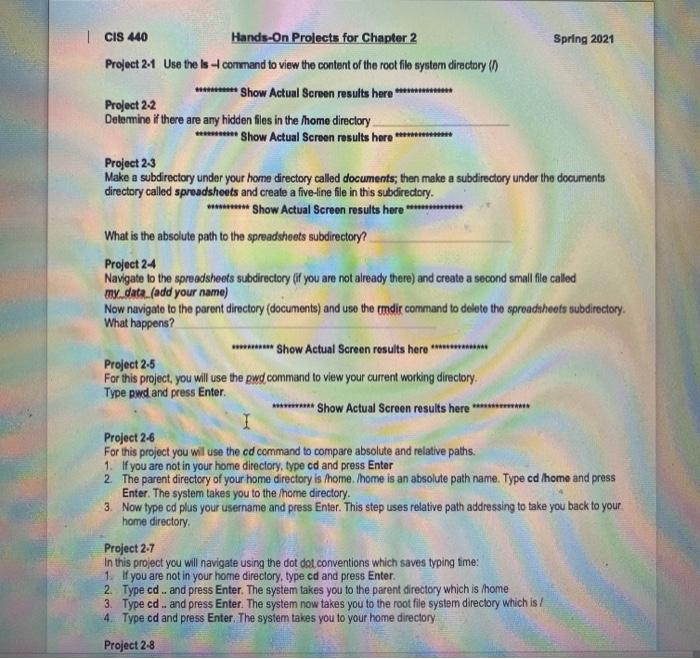
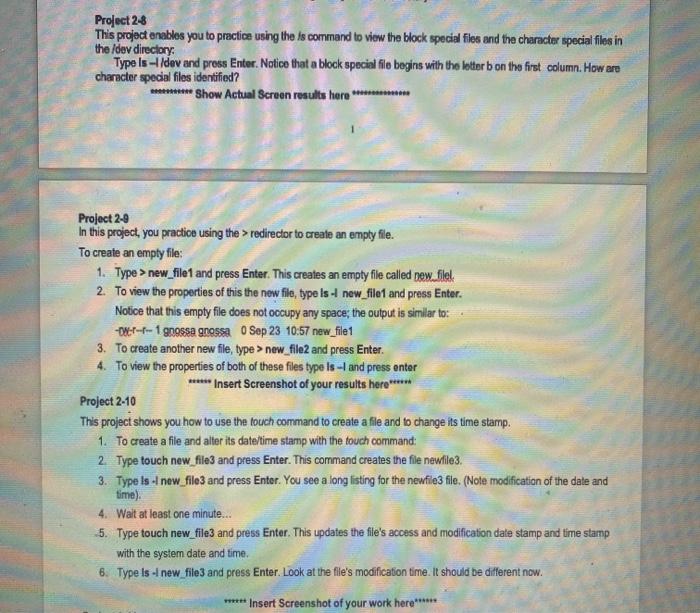
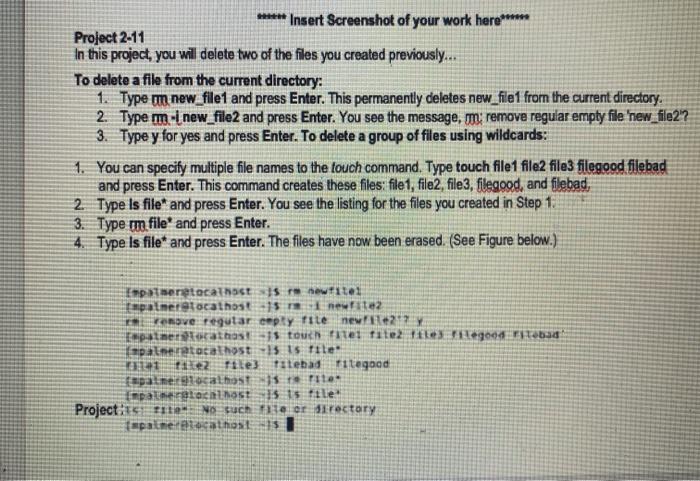
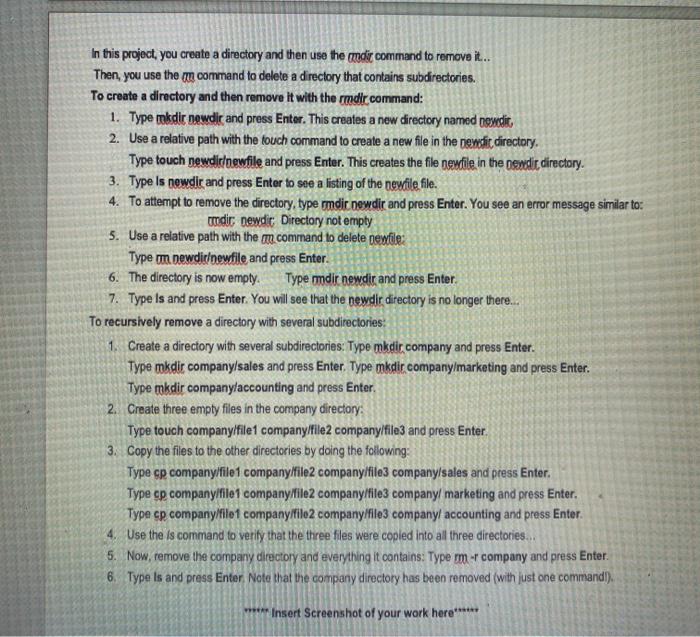
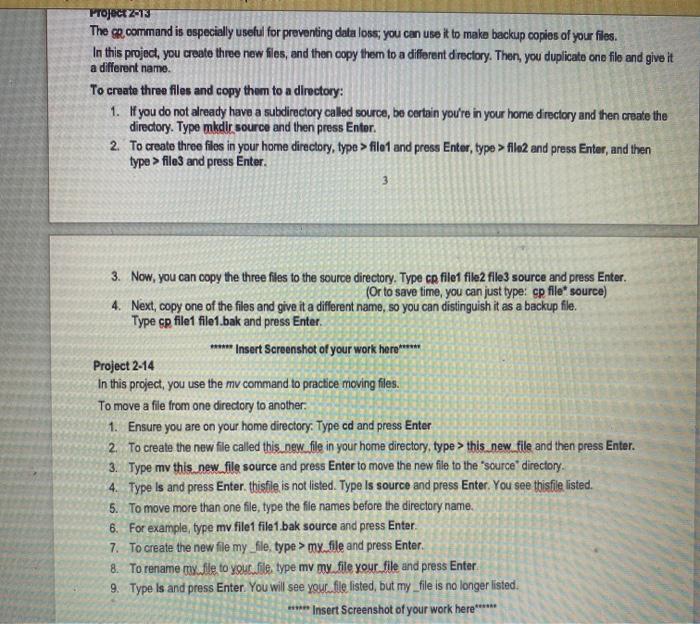
| CIS 440 Hands-On Projects for Chapter 2 Spring 2021 Project 2-1 Use the ls -l command to view the content of the root file system directory ) *** Show Actual Screen results here *** Project 2-2 Determine if there are any hidden files in the home directory ********* Show Actual Screen results here ********** Project 2-3 Make a subdirectory under your home directory called documents; then make a subdirectory under the documents directory called spreadsheets and create a five-line file in this subdirectory. ********* Show Actual Screen results here What is the absolute path to the spreadsheets subdirectory? Project 24 Navigate to the spreadsheets subdirectory if you are not already there) and create a second small file called my data (add your name) Now navigate to the parent directory (documents) and use the rmdir command to delete the spreadsheets subdirectory. What happens? **** Show Actual Screen results here *************** Project 2-5 For this project, you will use the pwd command to view your current working directory Type pwd and press Enter * Show Actual Screen results here ******** Project 2-6 For this project you will use the cd command to compare absolute and relative paths. 1. If you are not in your home directory, type od and press Enter 2 The parent directory of your home directory is home/home is an absolute path name. Type cd home and press Enter. The system takes you to the home directory 3. Now type cd plus your username and press Enter. This step uses relative path addressing to take you back to your home directory Project 2.7 In this project you will navigate using the dot dot conventions which saves typing time: 1. If you are not in your home directory, type cd and press Enter. 2. Type cd .. and press Enter. The system takes you to the parent directory which is home 3. Type cd. and press Enter. The system now takes you to the root file system directory which is / 4. Type od and press Enter. The system takes you to your home directory Project 2-8 Project 28 This project enables you to practice using the is command to view the block special files and the character special files in the dev directory Type Is-dev and press Enter. Notice that a block special filo begins with the letter b on the first column. How are character special files identified? ****** Show Actual Screen results here ***** Project 2-9 In this project, you practice using the > redirector to create an empty file. To create an empty file: 1. Type > new_file1 and press Enter. This creates an empty file called new.filok 2. To view the properties of this the new file, type ist new_filet and press Enter. Notice that this empty file does not occupy any space, the output is similar to: -Wwf-r- 1 gnossa gnossa O Sep 23 10:57 new_file1 3. To create another new file, type > new_file and press Enter. 4. To view the properties of both of these files type is - and press enter ***** Insert Screenshot of your results here ****** Project 2-10 This project shows you how to use the touch command to create a file and to change its time stamp. 1. To create a file and alter its date/time stamp with the touch command: 2. Type touch new_file and press Enter. This command creates the file newfile. 3. Type ls -l new_file and press Enter. You see a long listing for the newfile3 file. (Nole modification of the date and time) 4. Wait at least one minute... -5. Type touch new_file and press Enter. This updates the file's access and modification date stamp and time stamp with the system date and time. 6. Type Is -- new file and press Enter. Look at the file's modification time. It should be different now. ****** Insert Screenshot of your work here ****** ****** Insert Screenshot of your work here Project 2-11 In this project, you will delete two of the files you created previously... To delete a file from the current directory: 1. Type mm new_file1 and press Enter. This permanently deletes new_file1 from the current directory 2 Type m-1 new_file2 and press Enter. You see the message, m; remove regular empty file 'new_file2? 3. Type y for yes and press Enter. To delete a group of files using wildcards: 1. You can specify multiple file names to the touch command. Type touch file1 file2 file3 filegood filebad and press Enter. This command creates these files: file1, file2, file3, filegood, and flebad, 2. Type is file* and press Enter. You see the listing for the files you created in Step 1: 3. Type rm file and press Enter. 4. Type Is file and press Enter. The files have now been erased. (See Figure below.) Empaneriatecathost 15 newritei Inpatner tocathos 15 new ite2 nove regular cepty file new it? patenterattas! 15 touch te fute tiles Ile9094 FT06:34 pat host 15 15 file: tez ftte3 Titebad i tegood fapatme91balhost site Impalacios 15 15 file Project: 111 No such te or directory tapalmettecathost 131 In this project, you create a directory and then use the dir command to remove it... Then, you use the command to delete a directory that contains subdirectories. To create a directory and then remove it with the rmdir command: 1. Type mkdir newdir and press Enter. This creates a new directory named nowdir. 2. Use a relative path with the touch command to create a new file in the newdie directory. Type touch newdirewfile and press Enter. This creates the file newfile in the newdir, directory. 3. Type is newdir and press Enter to see a listing of the newfile file. 4. To attempt to remove the directory, type rmdir newdir and press Enter. You see an error message similar to: madic newdic Directory not empty 5. Use a relative path with them command to delete newfile: Type m. newdirewfile and press Enter. 6. The directory is now empty. Type mdir newdir and press Enter. 7. Type Is and press Enter. You will see that the newdir directory is no longer there... To recursively remove a directory with several subdirectories 1. Create a directory with several subdirectories: Type mkdir company and press Enter. Type mkdir company/sales and press Enter. Type mkdir company/marketing and press Enter. Type mkdir company accounting and press Enter. 2. Create three empty files in the company directory: Type touch company/file1 company/file2 company/file3 and press Enter 3. Copy the files to the other directories by doing the following: Type cp company/file1 company/file2 company/file3 company/sales and press Enter Type cp company/file1 company/file2 company/file3 company/ marketing and press Enter. Type cp company file company/file2 company/file3 company/ accounting and press Enter. 4. Use the is command to verify that the three files were copled into all three directories... 5. Now, remove the company directory and everything it contains: Type rm -r company and press Enter. 6. Type Is and press Enter. Note that the company directory has been removed (with just one command). Insert Screenshot of your work here ****** Project 2013 The or command is especially useful for preventing data loss; you can use it to make backup copies of your files. In this project, you create three new files, and then copy them to a different directory. Then, you duplicate one file and give it a different name To create three files and copy them to a directory: 1. If you do not already have a subdirectory called source, bo certain you're in your home directory and then create the directory. Type mkdir source and then press Enter 2. To create three files in your home directory, type > file and press Enter, type > filo2 and press Enter, and then type > file and press Enter 3 3. Now, you can copy the three files to the source directory. Type ce filet file2 file source and press Enter. (Or to save time, you can just type: cp file source) 4. Next, copy one of the files and give it a different name, so you can distinguish it as a backup file. Type cp filet file1.bak and press Enter. ****** Insert Screenshot of your work here ***** Project 2-14 In this project, you use the my command to practice moving files. To move a file from one directory to another 1. Ensure you are on your home directory: Type od and press Enter 2. To create the new file called this new.file in your home directory, type > this new file and then press Enter. 3. Type my this new file source and press Enter to move the new file to the "source" directory. 4. Type Is and press Enter thisfile is not listed. Type Is source and press Enter. You see thisfile listed. 5. To move more than one file, type the file names before the directory name. 6. For example, type my file1 file1 bak source and press Enter 7. To create the new file my_file, type > my.file and press Enter 8. To rename nuw.file to your file, type my my file your file and press Enter 9. Type Is and press Enter. You will see your.file listed, but my file is no longer listed. *** Insert Screenshot of your work here******
Step by Step Solution
There are 3 Steps involved in it

Get step-by-step solutions from verified subject matter experts
 Study Help