





Question: Create a mobile web site (Note: Create a new folder to hold all your files/folders). You will need to include: O o index.html All necessary
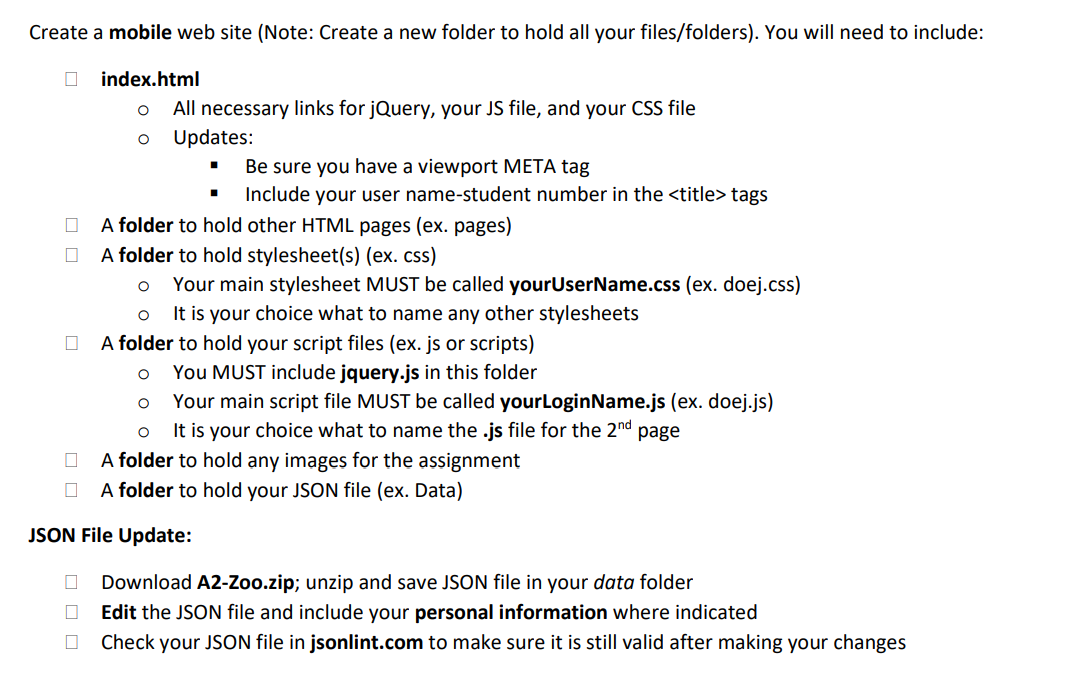
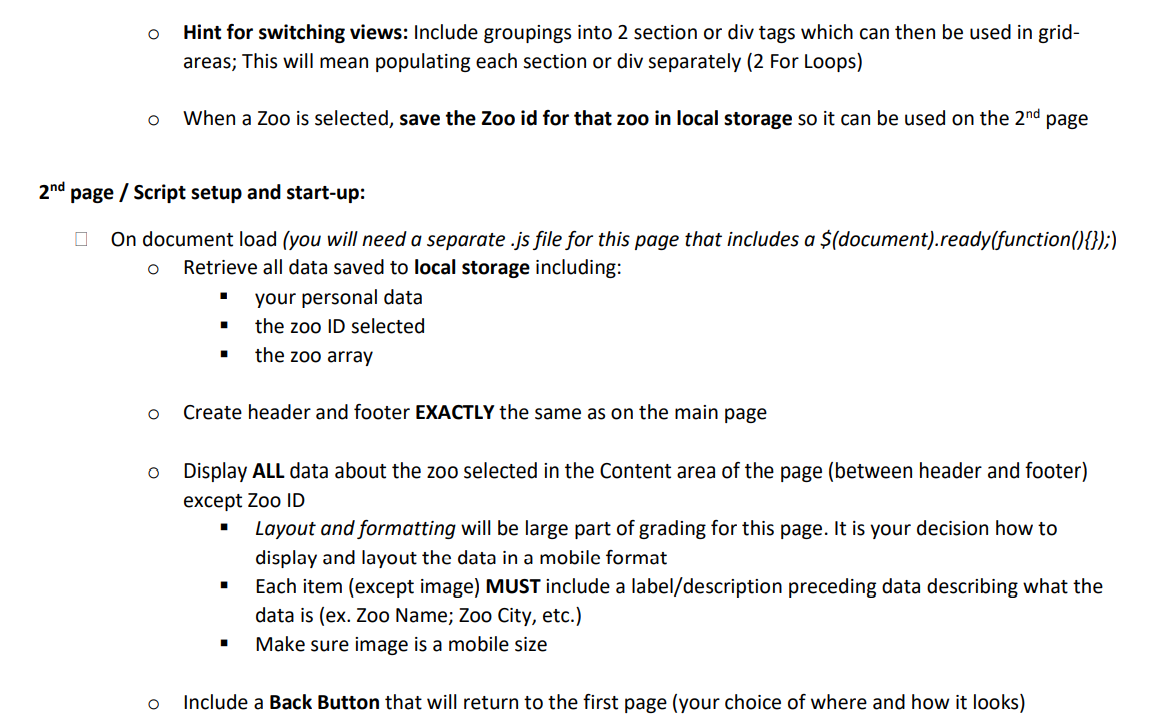
Create a mobile web site (Note: Create a new folder to hold all your files/folders). You will need to include: O o index.html All necessary links for jQuery, your JS file, and your CSS file Updates: Be sure you have a viewport META tag Include your user name-student number in the
) Personal information MUST be pulled from variables populated from the JSON file Template Literal MUST be used to build output string. MUST include some formatting for header area (your choice) so you can include the formatting on the tag or create a section or div with a unique ID for formatting and include header information inside Note: Be sure to use an appropriate font size so header lines do not take up too much of the mobile space (for example, do not use
unless you reformat to a smaller font size) . O o Footer section (same for both views) Displays on load using jQuery (multiple lines) Line 1: Include a horizontal line (
) Line 2: My Sheridan Program: sheridan Program Line 3: My Home Country: homeCountry Personal information MUST be pulled from variables populated from the JSON file Template Literal MUST be used to build output string. o MUST include some formatting for footer area (your choice) so you can include the formatting on the tag used or create a section or div with a unique ID for formatting and include footer information inside Note: Be sure to use an appropriate font size so header and footer lines do not take up too much of the mobile space (for example, do not use unless you reformat to a smaller font size) O O Content section displayed between header and footer: Portrait view Include a heading (your choice of wording and formatting) to let the user know to select a zoo to see more information All Zoos should be listed vertically (in a list) as anchor tags with formatting that link to 2nd page Each Zoo item MUST include Zoo name and Zoo city (ex. Zoo Name / Zoo City) with the Zoo ID as the unique ID for the output tag Template Literal MUST be used to build output string Remember: Mobile layout and scrolling will be used in grading Landscape view Include a heading (your choice of wording and formatting) to let the user know to select a zoo to see more information First 5 Zoos listed on left as anchor tags with formatting that link to 2nd page with the Zoo ID as the unique ID for the output tag Last 5 Zoos listed on right as anchor tags with formatting that link to 2nd page with the Zoo ID as the unique ID for the output tag Template Literal MUST be used to build output string Remember: Mobile layout and scrolling will be used in grading O . 2 O Hint for switching views: Include groupings into 2 section or div tags which can then be used in grid- areas; This will mean populating each section or div separately (2 For Loops) O When a Zoo is selected, save the Zoo id for that zoo in local storage so it can be used on the 2nd page 2nd page / Script setup and start-up: O On document load (you will need a separate .js file for this page that includes a $(document).ready(function(){});) Retrieve all data saved to local storage including: your personal data the zoo ID selected 1 the zoo array o Create header and footer EXACTLY the same as on the main page O Display ALL data about the zoo selected in the Content area of the page (between header and footer) except Zoo ID Layout and formatting will be large part of grading for this page. It is your decision how to display and layout the data in a mobile format Each item (except image) MUST include a label/description preceding data describing what the data is (ex. Zoo Name; Zoo City, etc.) Make sure image is a mobile size o Include a Back Button that will return to the first page (your choice of where and how it looks) Create a mobile web site (Note: Create a new folder to hold all your files/folders). You will need to include: O o index.html All necessary links for jQuery, your JS file, and your CSS file Updates: Be sure you have a viewport META tag Include your user name-student number in the tags A folder to hold other HTML pages (ex. pages) A folder to hold stylesheet(s) (ex. css) Your main stylesheet MUST be called yourUserName.css (ex. doej.css) It is your choice what to name any other stylesheets A folder to hold your script files (ex.js or scripts) You MUST include jquery.js in this folder Your main script file MUST be called yourLoginName.js (ex. doej.js) It is your choice what to name the .js file for the 2nd page A folder to hold any images for the assign A folder to hold your JSON file (ex. Data) O O o O O JSON File Update: Download A2-Zoo.zip; unzip and save JSON file in your data folder Edit the JSON file and include your personal information where indicated Check your JSON file in jsonlint.com to make sure it is still valid after making your changes D JSON File Update: Download A2-Zoo.zip; unzip and save JSON file in your data folder Edit the JSON file and include your personal information where indicated Check your JSON file in jsonlint.com to make sure it is still valid after making your changes Script setup (yourLoginName.js) and start-up: O Setup your $document.ready statement (jQuery) and include all declarations and scripts below Declare variables (your choice of variable names) and retrieve personal information from JSON file into these variables Save to all personal variables to Local Storage Create a Class for Zoo data (see JSON file) Populate an array (your choice of name) based on the Zoo Class using the data in the JSON file Save the Zoo array to Local Storage (Remember: arrays MUST be stringified before saving to local storage) O The layout of this site has 2 views: portrait and landscape: O O O Header section (same for both views) Displays on load using jQuery (multiple lines) Line 1: Assignment #2 for Winter 2021 Line 2: Your Full Name / Your Student Number / Your User Name o Line 3: Include a horizontal line (
) Personal information MUST be pulled from variables populated from the JSON file Template Literal MUST be used to build output string. MUST include some formatting for header area (your choice) so you can include the formatting on the tag or create a section or div with a unique ID for formatting and include header information inside Note: Be sure to use an appropriate font size so header lines do not take up too much of the mobile space (for example, do not use unless you reformat to a smaller font size) . O o Footer section (same for both views) Displays on load using jQuery (multiple lines) Line 1: Include a horizontal line (
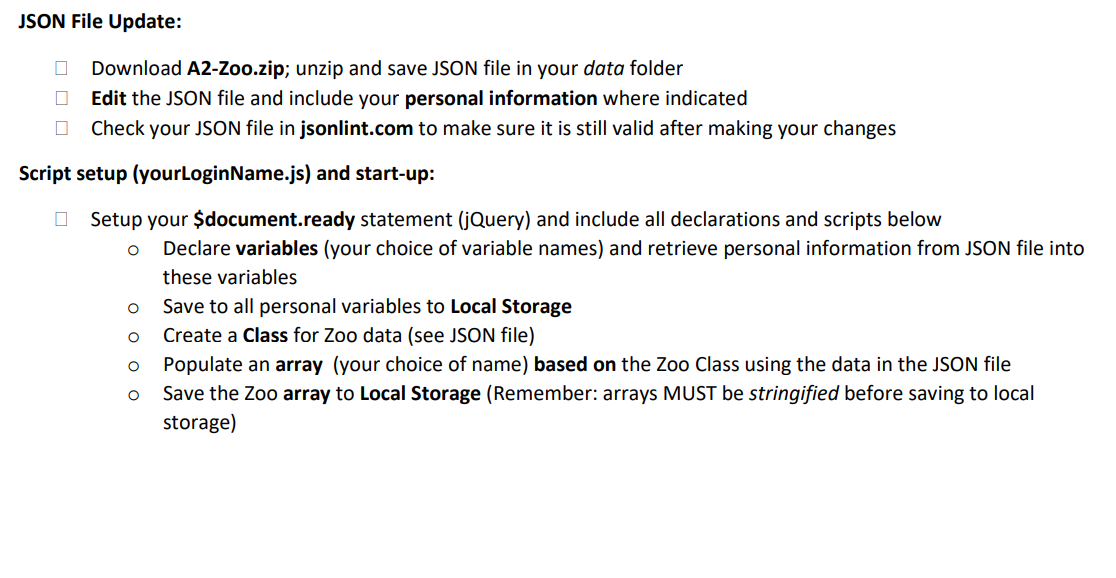
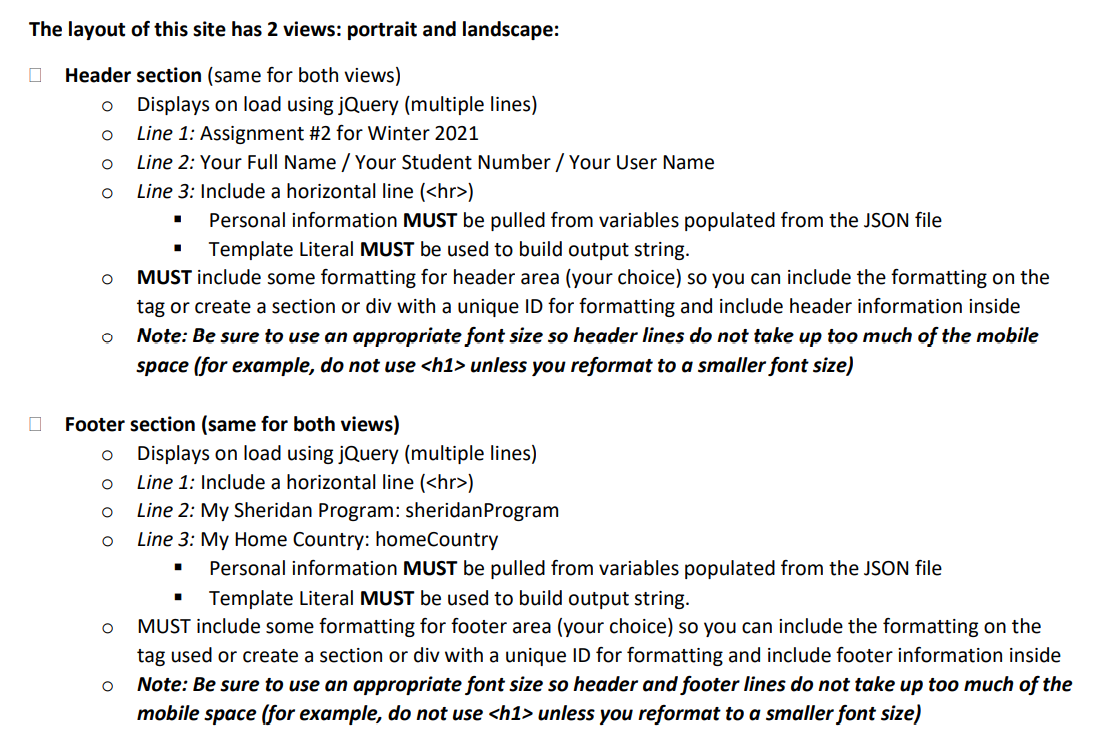
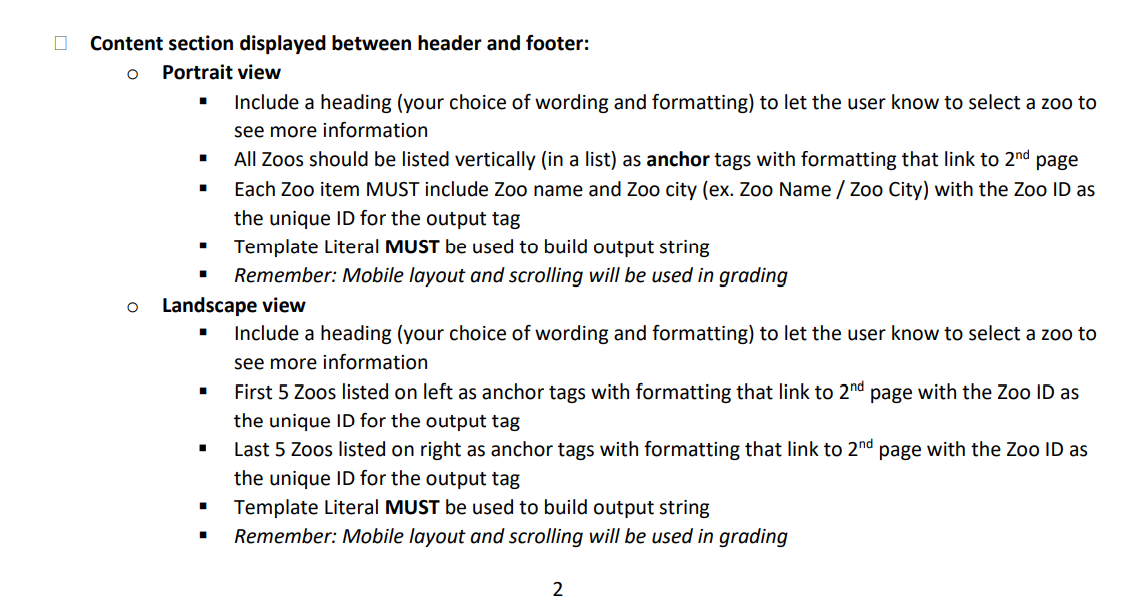
) Line 2: My Sheridan Program: sheridan Program Line 3: My Home Country: homeCountry Personal information MUST be pulled from variables populated from the JSON file Template Literal MUST be used to build output string. o MUST include some formatting for footer area (your choice) so you can include the formatting on the tag used or create a section or div with a unique ID for formatting and include footer information inside Note: Be sure to use an appropriate font size so header and footer lines do not take up too much of the mobile space (for example, do not use unless you reformat to a smaller font size) O O Content section displayed between header and footer: Portrait view Include a heading (your choice of wording and formatting) to let the user know to select a zoo to see more information All Zoos should be listed vertically (in a list) as anchor tags with formatting that link to 2nd page Each Zoo item MUST include Zoo name and Zoo city (ex. Zoo Name / Zoo City) with the Zoo ID as the unique ID for the output tag Template Literal MUST be used to build output string Remember: Mobile layout and scrolling will be used in grading Landscape view Include a heading (your choice of wording and formatting) to let the user know to select a zoo to see more information First 5 Zoos listed on left as anchor tags with formatting that link to 2nd page with the Zoo ID as the unique ID for the output tag Last 5 Zoos listed on right as anchor tags with formatting that link to 2nd page with the Zoo ID as the unique ID for the output tag Template Literal MUST be used to build output string Remember: Mobile layout and scrolling will be used in grading O . 2 O Hint for switching views: Include groupings into 2 section or div tags which can then be used in grid- areas; This will mean populating each section or div separately (2 For Loops) O When a Zoo is selected, save the Zoo id for that zoo in local storage so it can be used on the 2nd page 2nd page / Script setup and start-up: O On document load (you will need a separate .js file for this page that includes a $(document).ready(function(){});) Retrieve all data saved to local storage including: your personal data the zoo ID selected 1 the zoo array o Create header and footer EXACTLY the same as on the main page O Display ALL data about the zoo selected in the Content area of the page (between header and footer) except Zoo ID Layout and formatting will be large part of grading for this page. It is your decision how to display and layout the data in a mobile format Each item (except image) MUST include a label/description preceding data describing what the data is (ex. Zoo Name; Zoo City, etc.) Make sure image is a mobile size o Include a Back Button that will return to the first page (your choice of where and how it looks)
) Personal information MUST be pulled from variables populated from the JSON file Template Literal MUST be used to build output string. MUST include some formatting for header area (your choice) so you can include the formatting on the tag or create a section or div with a unique ID for formatting and include header information inside Note: Be sure to use an appropriate font size so header lines do not take up too much of the mobile space (for example, do not use
unless you reformat to a smaller font size) . O o Footer section (same for both views) Displays on load using jQuery (multiple lines) Line 1: Include a horizontal line (
) Line 2: My Sheridan Program: sheridan Program Line 3: My Home Country: homeCountry Personal information MUST be pulled from variables populated from the JSON file Template Literal MUST be used to build output string. o MUST include some formatting for footer area (your choice) so you can include the formatting on the tag used or create a section or div with a unique ID for formatting and include footer information inside Note: Be sure to use an appropriate font size so header and footer lines do not take up too much of the mobile space (for example, do not use unless you reformat to a smaller font size) O O Content section displayed between header and footer: Portrait view Include a heading (your choice of wording and formatting) to let the user know to select a zoo to see more information All Zoos should be listed vertically (in a list) as anchor tags with formatting that link to 2nd page Each Zoo item MUST include Zoo name and Zoo city (ex. Zoo Name / Zoo City) with the Zoo ID as the unique ID for the output tag Template Literal MUST be used to build output string Remember: Mobile layout and scrolling will be used in grading Landscape view Include a heading (your choice of wording and formatting) to let the user know to select a zoo to see more information First 5 Zoos listed on left as anchor tags with formatting that link to 2nd page with the Zoo ID as the unique ID for the output tag Last 5 Zoos listed on right as anchor tags with formatting that link to 2nd page with the Zoo ID as the unique ID for the output tag Template Literal MUST be used to build output string Remember: Mobile layout and scrolling will be used in grading O . 2 O Hint for switching views: Include groupings into 2 section or div tags which can then be used in grid- areas; This will mean populating each section or div separately (2 For Loops) O When a Zoo is selected, save the Zoo id for that zoo in local storage so it can be used on the 2nd page 2nd page / Script setup and start-up: O On document load (you will need a separate .js file for this page that includes a $(document).ready(function(){});) Retrieve all data saved to local storage including: your personal data the zoo ID selected 1 the zoo array o Create header and footer EXACTLY the same as on the main page O Display ALL data about the zoo selected in the Content area of the page (between header and footer) except Zoo ID Layout and formatting will be large part of grading for this page. It is your decision how to display and layout the data in a mobile format Each item (except image) MUST include a label/description preceding data describing what the data is (ex. Zoo Name; Zoo City, etc.) Make sure image is a mobile size o Include a Back Button that will return to the first page (your choice of where and how it looks)
Step by Step Solution
There are 3 Steps involved in it
Get step-by-step solutions from verified subject matter experts

