







Question: Download the DisplayClock.java, which has already add the basic framework you need. Do the following step by step: 1. Set the initial size of the
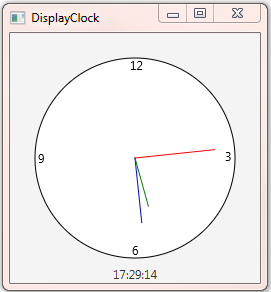
Download the DisplayClock.java, which has already add the basic framework you need. Do the following step by step:
1. Set the initial size of the scene to 200 x 200. This will make the following position computation easier.
2. Add a circle object into the center of the pane. Set the parameters appropriately according to the initial size of the pane.
3. Add the four numbers: 12, 3, 6, and 9 as Text objects into the pane. Again, compute and test the parameters to position them appropriately.
4. Add three lines, representing the hour, minute and second hands respectively. Use different color and length to distinguish them.
My code so far(displaying the wrong time)
***********************************************************************************************************************************************************************
import javafx.application.Application;
import javafx.scene.Scene;
import javafx.scene.layout.Pane;
import javafx.scene.paint.Color;
import javafx.scene.shape.Circle;
import javafx.scene.shape.Line;
import javafx.geometry.Insets;
import javafx.stage.Stage;
import javafx.scene.text.Text;
import javafx.scene.text.Font;
import javafx.scene.text.FontWeight;
import javafx.scene.text.FontPosture;
public class DisplayClock extends Application {
@Override // Override the start method in the Application class
public void start(Stage primaryStage) {
// Create a pane to hold the clock components
Pane pane = new Pane();
Circle c = new Circle(100,100,80);
c.setStroke(Color.BLACK);
c.setFill(Color.WHITE);
pane.getChildren().add(c);
Text text1 = new Text(95,35,"12");
text1.setFont(Font.font("Courier", FontWeight.BOLD,
FontPosture.ITALIC, 10));
pane.getChildren().add(text1);
Text text2 = new Text(165,100,"3");
text2.setFont(Font.font("Courier", FontWeight.BOLD,
FontPosture.ITALIC, 10));
pane.getChildren().add(text2);
Text text3 = new Text(95,170,"6");
text3.setFont(Font.font("Courier", FontWeight.BOLD,
FontPosture.ITALIC, 10));
pane.getChildren().add(text3);
Text text4 = new Text(30,100,"9");
text4.setFont(Font.font("Courier", FontWeight.BOLD,
FontPosture.ITALIC, 10));
pane.getChildren().add(text4);
Line line1 = new Line(100,100,145,100);
line1.setStrokeWidth(1.5);
line1.setStroke(Color.GREEN);
pane.getChildren().add(line1);
Line line2 = new Line(100,100,100,40);
line2.setStrokeWidth(1.5);
line2.setStroke(Color.BLUE);
pane.getChildren().add(line2);
Line line3 = new Line(100,100,140,160);
line3.setStrokeWidth(0.5);
line3.setStroke(Color.RED);
pane.getChildren().add(line3);
Text text5 = new Text(80,190, "17:29:14");
text5.setFont(Font.font("Courier", FontWeight.BOLD,
FontPosture.REGULAR, 10));
pane.getChildren().add(text5);
// Create a scene and place it in the stage, modify and set the size of the initial scene to 200 by 200
Scene scene = new Scene(pane,200,200);
primaryStage.setTitle("Clock"); // Set the stage title
primaryStage.setScene(scene); // Place the scene in the stage
primaryStage.show(); // Display the stage
}
public static void main(String[] args) {
launch(args);
}
}
DisplayClock 12 17:29:14 DisplayClock 12 17:29:14
Step by Step Solution
There are 3 Steps involved in it

Get step-by-step solutions from verified subject matter experts
 Study Help