



Question: Getting started 1. Create a directory to store all of the assignment's files. 2. Open Vivado 2018.2 and create a new project called computer_assignment 2
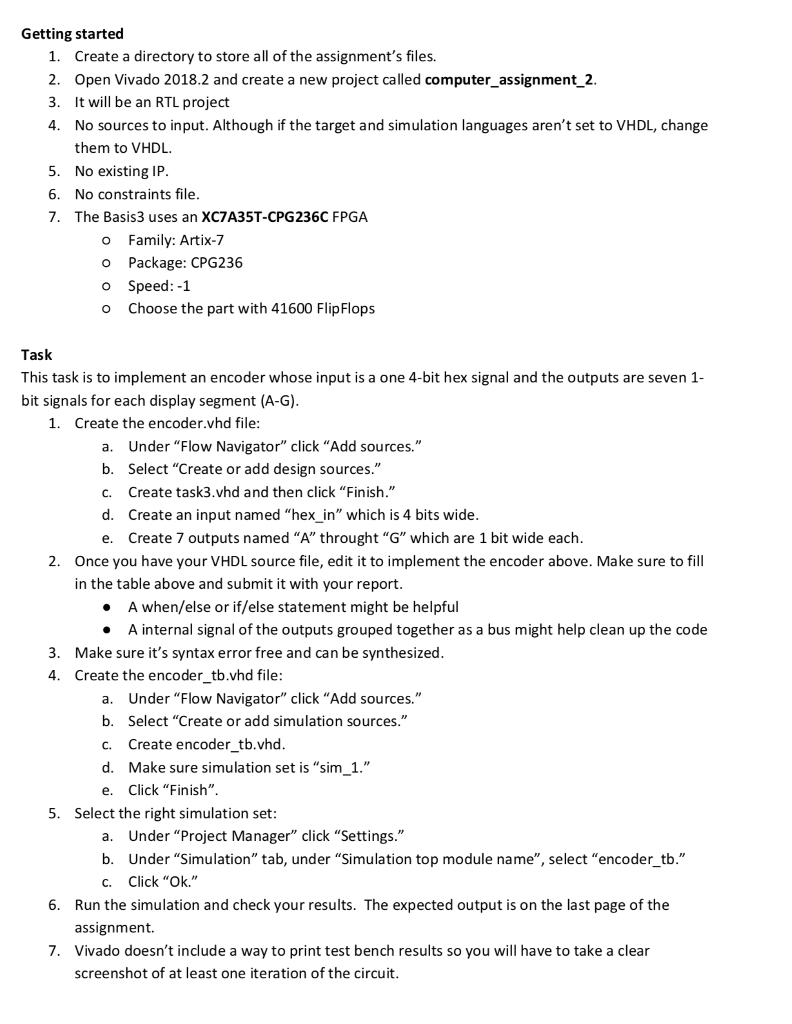
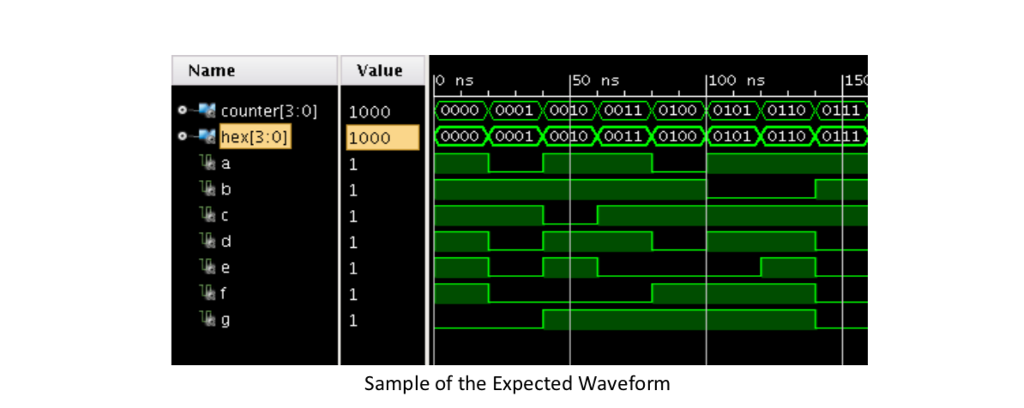
Getting started 1. Create a directory to store all of the assignment's files. 2. Open Vivado 2018.2 and create a new project called computer_assignment 2 3. It will be an RTL project 4. No sources to input. Although if the target and simulation languages aren't set to VHDL, change 5. 6. 7. them to VHDL No existing IP No constraints file The Basis3 uses an XC7A35T-CPG236C FPGA o Family: Artix-7 o Package: CPG236 o Speed:-1 o Choose the part with 41600 FlipFlops Task This task is to implement an encoder whose input is a one 4-bit hex signal and the outputs are seven 1 bit signals for each display segment (A-G) 1. Create the encoder.vhd file: a. b. c. d. e. Under "Flow Navigator" click "Add sources." Select "Create or add design sources." Create task3.vhd and then click "Finish." Create an input named "hex_in" which is 4 bits wide Create 7 outputs named "A" throught "G" which are 1 bit wide each 2. Once you have your VHDL source file, edit it to implement the encoder above. Make sure to fill in the table above and submit it with your report A when/else or if/else statement might be helpful A internal signal of the outputs grouped together as a bus might help clean up the code . 3. Make sure it's syntax error free and can be synthesized 4. Create the encoder_tb.vhd file a. Under "Flow Navigator" click "Add sources." b. Select "Create or add simulation sources." c. Create encoder tb.vhd d. Make sure simulation set is "sim 1." e. Click "Finish". 5. Select the right simulation set a. b. C. Under "Project Manager" click "Settings." Under "Simulation" tab, under "Simulation top module name", select "encoder_tb." Click"OK" 6. Run the simulation and check your results. The expected output is on the last page of the assignment. Vivado doesn't include a way to print test bench results so you will have to take a clear screenshot of at least one iteration of the circuit 7. Getting started 1. Create a directory to store all of the assignment's files. 2. Open Vivado 2018.2 and create a new project called computer_assignment 2 3. It will be an RTL project 4. No sources to input. Although if the target and simulation languages aren't set to VHDL, change 5. 6. 7. them to VHDL No existing IP No constraints file The Basis3 uses an XC7A35T-CPG236C FPGA o Family: Artix-7 o Package: CPG236 o Speed:-1 o Choose the part with 41600 FlipFlops Task This task is to implement an encoder whose input is a one 4-bit hex signal and the outputs are seven 1 bit signals for each display segment (A-G) 1. Create the encoder.vhd file: a. b. c. d. e. Under "Flow Navigator" click "Add sources." Select "Create or add design sources." Create task3.vhd and then click "Finish." Create an input named "hex_in" which is 4 bits wide Create 7 outputs named "A" throught "G" which are 1 bit wide each 2. Once you have your VHDL source file, edit it to implement the encoder above. Make sure to fill in the table above and submit it with your report A when/else or if/else statement might be helpful A internal signal of the outputs grouped together as a bus might help clean up the code . 3. Make sure it's syntax error free and can be synthesized 4. Create the encoder_tb.vhd file a. Under "Flow Navigator" click "Add sources." b. Select "Create or add simulation sources." c. Create encoder tb.vhd d. Make sure simulation set is "sim 1." e. Click "Finish". 5. Select the right simulation set a. b. C. Under "Project Manager" click "Settings." Under "Simulation" tab, under "Simulation top module name", select "encoder_tb." Click"OK" 6. Run the simulation and check your results. The expected output is on the last page of the assignment. Vivado doesn't include a way to print test bench results so you will have to take a clear screenshot of at least one iteration of the circuit 7
Step by Step Solution
There are 3 Steps involved in it

Get step-by-step solutions from verified subject matter experts