







Question: Mark the steps as checked when you complete them. Open the LASTemplate - 0 7 workbook and click the Enable Editing button. The file will
Mark the steps as checked when you complete them.
Open the LASTemplate workbook and click the Enable Editing button. The file will be renamed automatically to include your name. Change the project file name if directed to do so by your instructor, and save it
Click the Lists sheet tab and select cell A Use Smart Lookup to determine the county in which Bemidji is located. Type the county name in cell C Repeat these steps for the remaining cities in cells A:A For a city that does not display quickly in the Smart Lookup pane, enter the city name with the state Minnesota in an empty cell and try again using that cell. Delete the cell contents after you determine the county names.
Select the Adoptions sheet tab and select cells C:C Set list data validation for the "Species" column; the animal types are located on the Lists worksheet. Do not use an input or an error message.
Select cells F:F Set list data validation for the "City" column to use city names on the Lists worksheet without input or error messages.
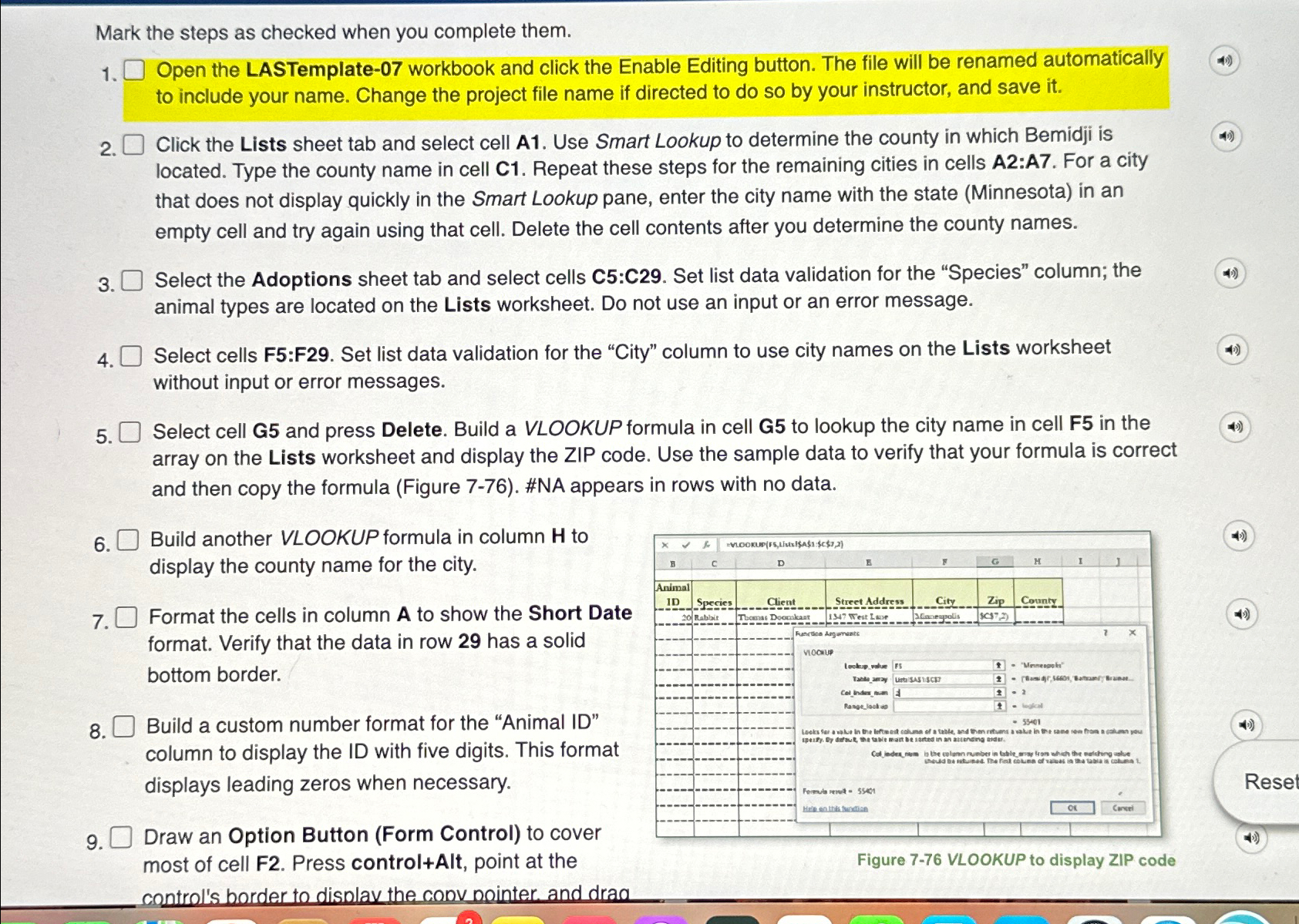
Select cell G and press Delete. Build a VLOOKUP formula in cell G to lookup the city name in cell F in the array on the Lists worksheet and display the ZIP code. Use the sample data to verify that your formula is correct and then copy the formula Figure #NA appears in rows with no data.
Build another VLOOKUP formula in column to display the county name for the city.
Format the cells in column to show the Short Date format. Verify that the data in row has a solid bottom border.
Build a custom number format for the "Animal ID column to display the ID with five digits. This format displays leading zeros when necessary.
Draw an Option Button Form Control to cover
Figure VLOOKUP to display ZIP code
Step by Step Solution
There are 3 Steps involved in it
1 Expert Approved Answer
Step: 1 Unlock

Question Has Been Solved by an Expert!
Get step-by-step solutions from verified subject matter experts
Step: 2 Unlock
Step: 3 Unlock
 Study Help