



Question: Part 1 Piezo Sounder In this lab exercise, student will attempt to work on examples that make use of a Piezo Speaker in order to
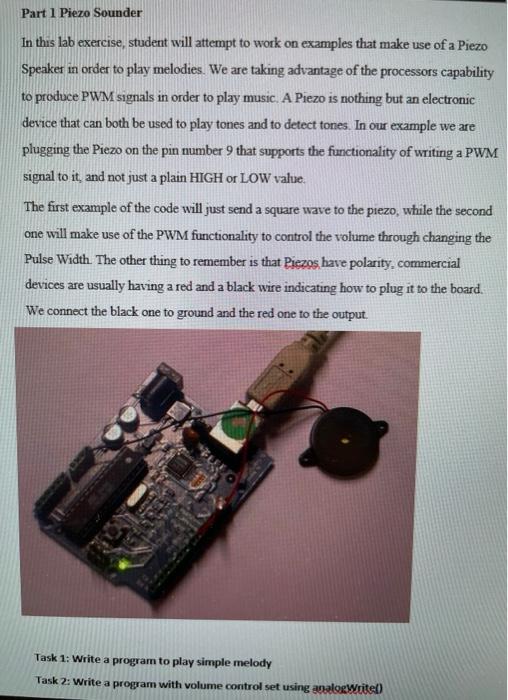
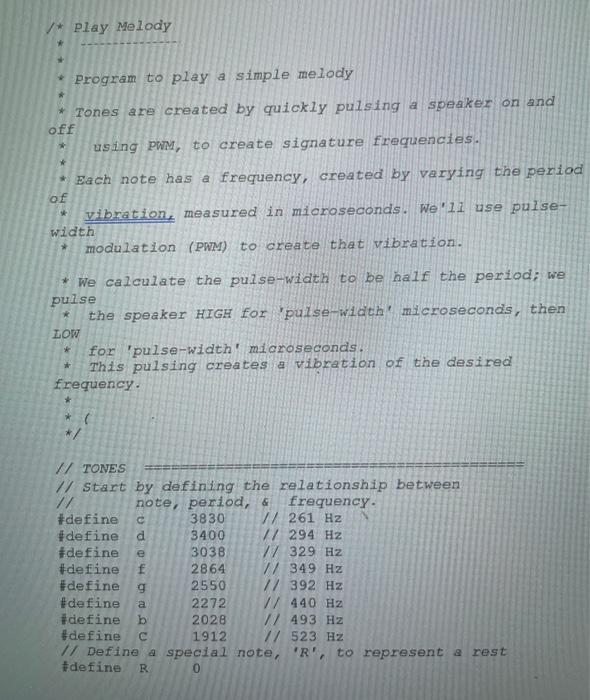
Part 1 Piezo Sounder In this lab exercise, student will attempt to work on examples that make use of a Piezo Speaker in order to play melodies. We are taking advantage of the processors capability to produce PWM signals in order to play music. A Piezo is nothing but an electronic device that can both be used to play tones and to detect tones. In our example we are plugging the Piezo on the pin number 9 that supports the functionality of writing a PWM signal to it, and not just a plain HIGH or LOW value. The first example of the code will just send a square wave to the piezo, while the second one will make use of the PWM functionality to control the volume through changing the Pulse Width. The other thing to remember is that Piezos have polarity, commercial devices are usually having a red and a black wire indicating how to plug it to the board. We connect the black one to ground and the red one to the output Task 1: Write a program to play simple melody Task 2: Write a program with volume control set using analogWritet) /* Play Melody * * Program to play a simple melody * Tones are created by quickly pulsing a speaker on and off using PWM, to create signature frequencies. * Each note has a frequency, created by varying the period of vibration, measured in microseconds. We'll use pulse- width modulation (PWM) to create that vibration. * We calculate the pulse-width to be half the period; we pulse the speaker HIGH for 'pulse-width microseconds, then LOW for 'pulse-width' microseconds. This pulsing creates a vibration of the desired frequency // TONES // Start by defining the relationship between // note, period, & frequency #define 3830 / 261 Hz #define d 3400 71 294 Hz #define 3038 77 329 Hz #define f 2864 1/ 349 Hz #define g 2550 // 392 Hz #define a 2272 W 440 Hz #define b 2028 W/ 493 Hz #define 1912 // 523 Hz // Define a special note, 'R', to represent a rest #define R 0 Part 1 Piezo Sounder In this lab exercise, student will attempt to work on examples that make use of a Piezo Speaker in order to play melodies. We are taking advantage of the processors capability to produce PWM signals in order to play music. A Piezo is nothing but an electronic device that can both be used to play tones and to detect tones. In our example we are plugging the Piezo on the pin number 9 that supports the functionality of writing a PWM signal to it, and not just a plain HIGH or LOW value. The first example of the code will just send a square wave to the piezo, while the second one will make use of the PWM functionality to control the volume through changing the Pulse Width. The other thing to remember is that Piezos have polarity, commercial devices are usually having a red and a black wire indicating how to plug it to the board. We connect the black one to ground and the red one to the output Task 1: Write a program to play simple melody Task 2: Write a program with volume control set using analogWritet) /* Play Melody * * Program to play a simple melody * Tones are created by quickly pulsing a speaker on and off using PWM, to create signature frequencies. * Each note has a frequency, created by varying the period of vibration, measured in microseconds. We'll use pulse- width modulation (PWM) to create that vibration. * We calculate the pulse-width to be half the period; we pulse the speaker HIGH for 'pulse-width microseconds, then LOW for 'pulse-width' microseconds. This pulsing creates a vibration of the desired frequency // TONES // Start by defining the relationship between // note, period, & frequency #define 3830 / 261 Hz #define d 3400 71 294 Hz #define 3038 77 329 Hz #define f 2864 1/ 349 Hz #define g 2550 // 392 Hz #define a 2272 W 440 Hz #define b 2028 W/ 493 Hz #define 1912 // 523 Hz // Define a special note, 'R', to represent a rest #define R 0
Step by Step Solution
There are 3 Steps involved in it

Get step-by-step solutions from verified subject matter experts