







Question: Please help! Chapter 8 Path of Light Yoga Studio. Here is my code for yoga.css: body { background-color: #3f2860; color: #3f2860; font-family: verdana, arial,sans-serif; margin:
Please help!
Chapter 8 Path of Light Yoga Studio.
Here is my code for yoga.css:
body { background-color: #3f2860;
color: #3f2860;
font-family: verdana, arial,sans-serif; margin: 0; padding:0;
}
header { background-color: #9bc1c2;
background-image: url(lilyheader.jpg);
background-repeat: no-repeat;
background-position: right;
height: 150px; padding-top:1px;
}
h1 { padding-top: 1em;
padding-left: 2em;
}
nav { float: none;;
width: auto;
font-weight: bold; padding-left:2em;
}
nav a { text-decoration: none;
border-color: #cccccc;
border-width: 3px;
border-style: outset;
text-align: center;
font-size:90%; font-weight: bold;
display: block;
padding: 2.5em 1em;
margin: 0; float:clear;
}
nav a:link { color: #3f2860;
}
nav a:visited { color: #497777;
}
nav a:hover { color: #a26100;
border: 3px inset #333333;
}
nav ul { list-style-type: none;
}
footer { background-color: #9bc1c2;
font-size: .60em;
font-style: italic;
text-align: center;
}
.studio { font-style: italic;
}
#wrapper {margin-left: auto;
margin-right: auto;
width: 100%;
background-color: #f5f5f5;
min-width: 0px;
max-width: 1480px; margin : 0px; padding:0px;
}
main { padding-left: 2em;
padding-right: 2em;
margin-left: 170px;
padding-top: 1em;
}
* { box-sizing: border-box;
}
.floatleft { float: left;
margin-right: 4em;
}
.clear { clear: both;
}
header, nav, main, footer { display: block;
}
#mobile { display: none;
}
#desktop { display: inline;
}
@media only screen and (max-width: 1024px) {
body { margin: 0;
padding: 0;
}
#wrapper { width: 100%;
min-width: 0;
margin: 0;
padding: 0;
}
header { padding-top: 1px;
}
h1 { padding-top: 1em;
}
nav { float: none;
width: auto;
padding-left: 2em;
}
nav a { padding: 0.2em;
margin-left: 0.3em;
float: left;
width: 23%;
}
main { padding-top: 2.5em;
padding-bottom: 2.5em;
padding-left: 1em;
padding-right: 1em;
margin: 0;
font-size: 90%;
clear: both;
}
#hero img{width: 100%;
height: auto;
}
h2 { padding-left: 2em;
padding-right: 2em;
}
h3 { padding-left: 2em;
padding-right: 2em;
}
p { padding-left: 2em;
padding-right: 2em;
}
dl { padding-left: 2em;
padding-right: 2em;
}
main ul { margin-left: 2em;
}
.floatleft { margin-left: 2em;
margin-bottom: 1em;
}
.clear { padding-left: 2em;
}
}
@media only all and (max-width: 768px) {
h1 { font-size: 2em;
padding-top: 0.25em;
padding-left: 1.5em;
width: 85%;
text-align: center;
}
nav a { padding: 0.5em;
width: 45%;
float: left;
min-width: 6em;
margin-left: 0.5em;
}
main { padding-top: 0;
}
.floatleft { float: none;
display: none;
}
#hero { display: none;
}
footer { padding: 0.5em;
margin: 0;
}
#mobile { display: inline; }
#desktop { display: none; }
}
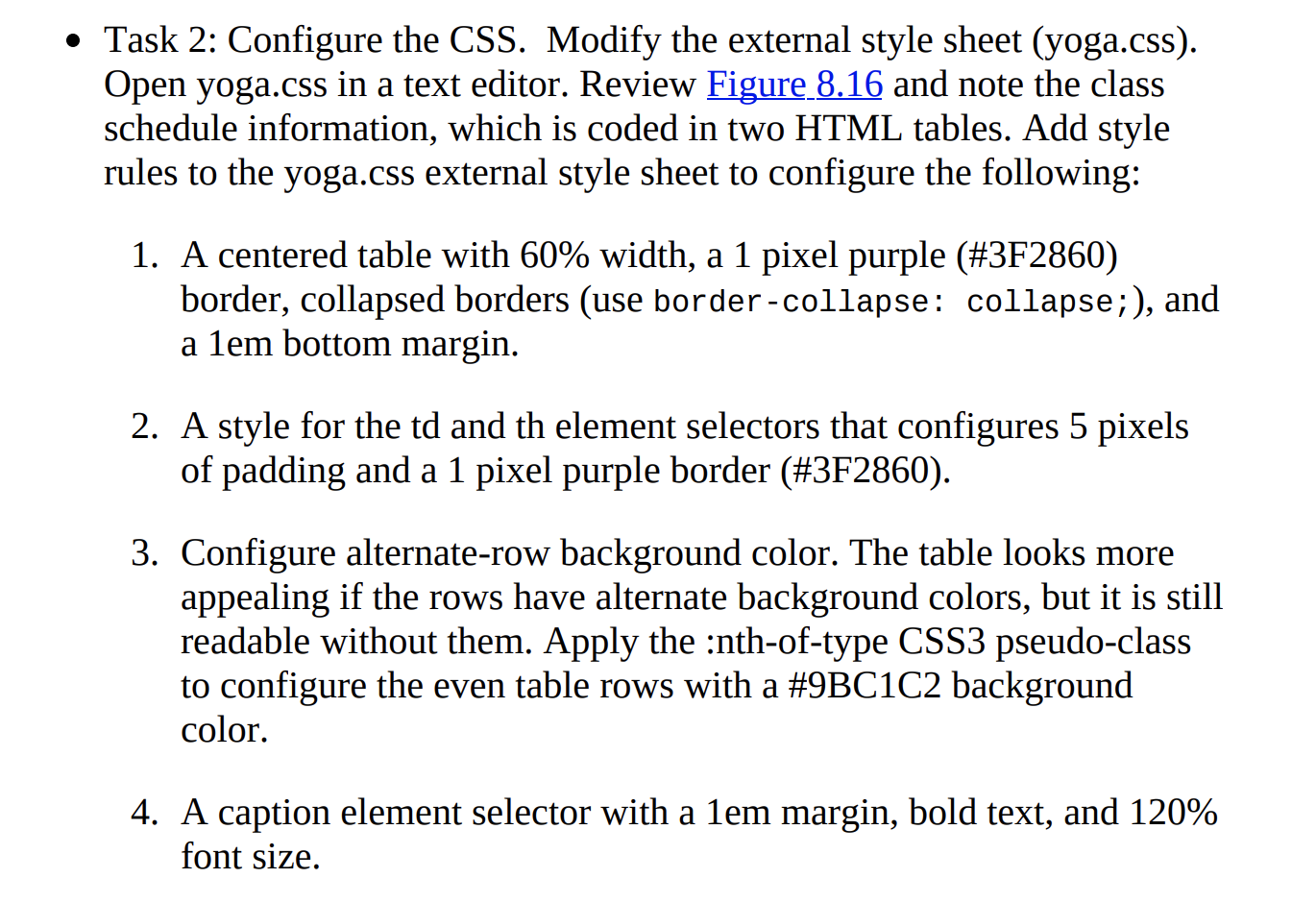
Task 2: Configure the CSS. Modify the external style sheet (yoga.css). Open yoga.css in a text editor. Review Figure 8.16 and note the class schedule information, which is coded in two HTML tables. Add style rules to the yoga.css external style sheet to configure the following: 1. A centered table with 60% width, a 1 pixel purple (#3F2860) border, collapsed borders (use border-collapse: collapse;), and a lem bottom margin. 2. A style for the td and th element selectors that configures 5 pixels of padding and a 1 pixel purple border (#3F2860). 3. Configure alternate-row background color. The table looks more appealing if the rows have alternate background colors, but it is still readable without them. Apply the :nth-of-type CSS3 pseudo-class to configure the even table rows with a #9BC1C2 background color. 4. A caption element selector with a lem margin, bold text, and 120% font size
Step by Step Solution
There are 3 Steps involved in it

Get step-by-step solutions from verified subject matter experts
 Study Help