







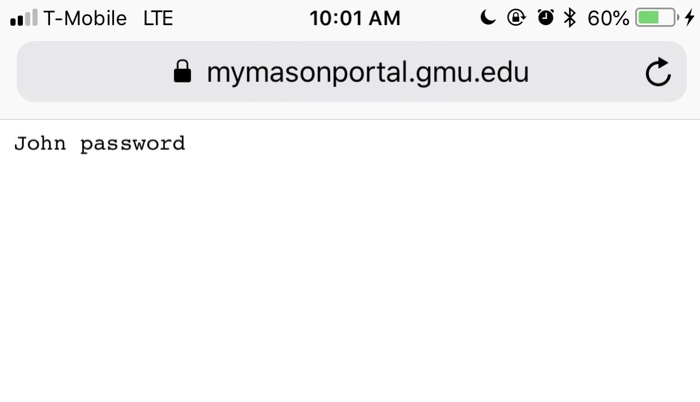
Question: Python GUI: Output sample: authenticate.txt : Due: due in lab In-lab assignment #8 Topics: Python GUI Problem Statement: The purpose of this lab assignment is
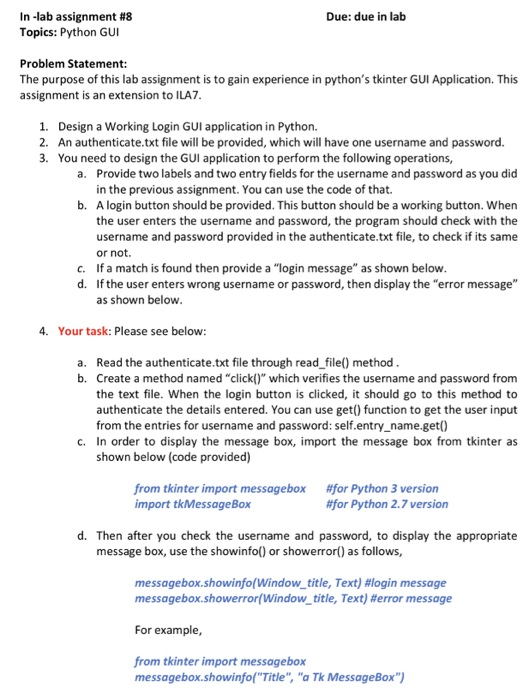
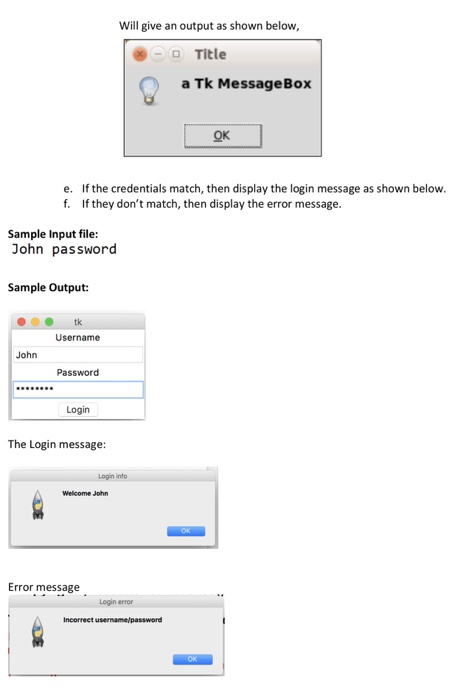
Due: due in lab In-lab assignment #8 Topics: Python GUI Problem Statement: The purpose of this lab assignment is to gain experience in python's tkinter GUI Application. This assignment is an extension to ILA7 1. 2. 3. Design a Working Login GUI application in Python. An authenticate.txt file will be provided, which will have one username and password. You need to design the GUI application to perform the following operations, Provide two labels and two entry fields for the username and password as you did in the previous assignment. You can use the code of that. A login button should be provided. This button should be a working button. When the user enters the username and password, the program should check with the username and password provided in the authenticate.txt file, to check if its same or not. a. b. c. If a match is found then provide a "login message" as shown below d. If the user enters wrong username or password, then display the "error message" as shown below 4. Your task: Please see below: a. Read the authenticate.txt file through read file) method b. Create a method named "click()" which verifies the username and password from the text file. When the login button is clicked, it should go to this method to authenticate the details entered. You can use get) function to get the user input from the entries for username and password: self.entry_name.get0) c. In order to display the message box, import the message box from tkinter as shown below (code provided) from tkinter import messagebox import tkMessageBox #5or Python 3 version #for Python 2.7 version d. Then after you check the username and password, to display the appropriate message box, use the showinfo() or showerror) as follows, messagebox.showinfo(window-title, Text) #login message messagebox.showerror(window title, Text) #error message For example from tkinter import messagebox messagebox.showinfol Title", "a Tk MessageBox")
Step by Step Solution
There are 3 Steps involved in it

Get step-by-step solutions from verified subject matter experts
 Study Help