



Question: Reinforce Your Skills 215 EAZ-R2 Create a Payroll Register for H.F. Landscaping In this exercise, you will create a payroll register for H.F. Landscaping using
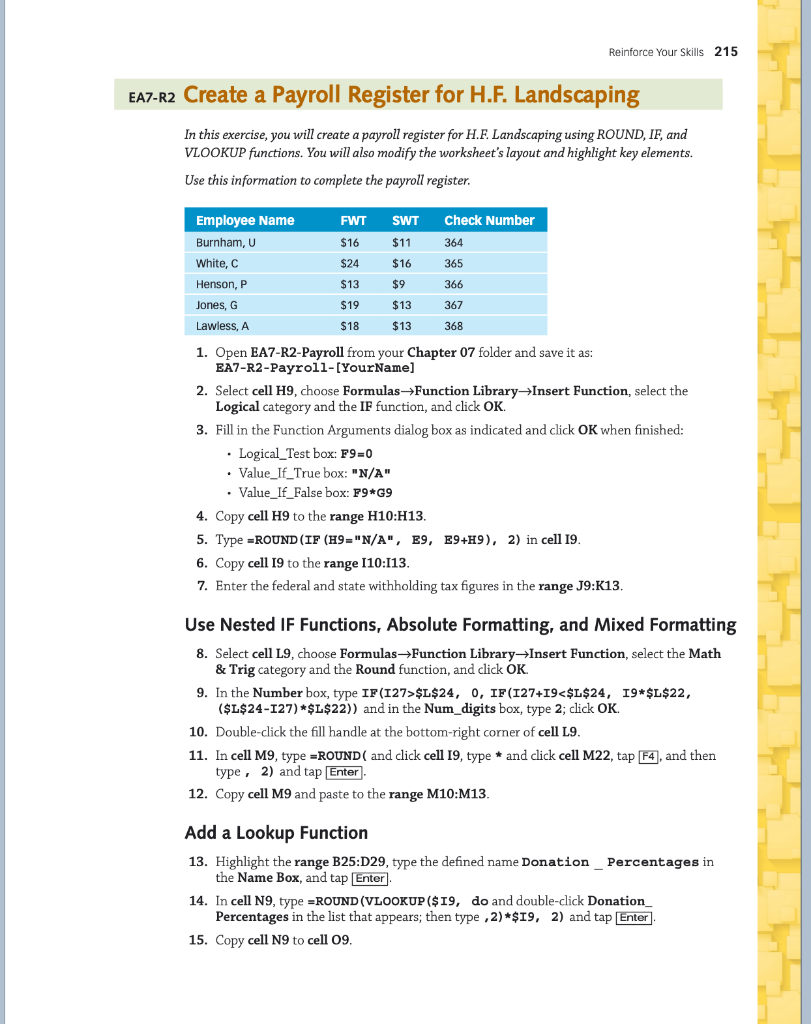
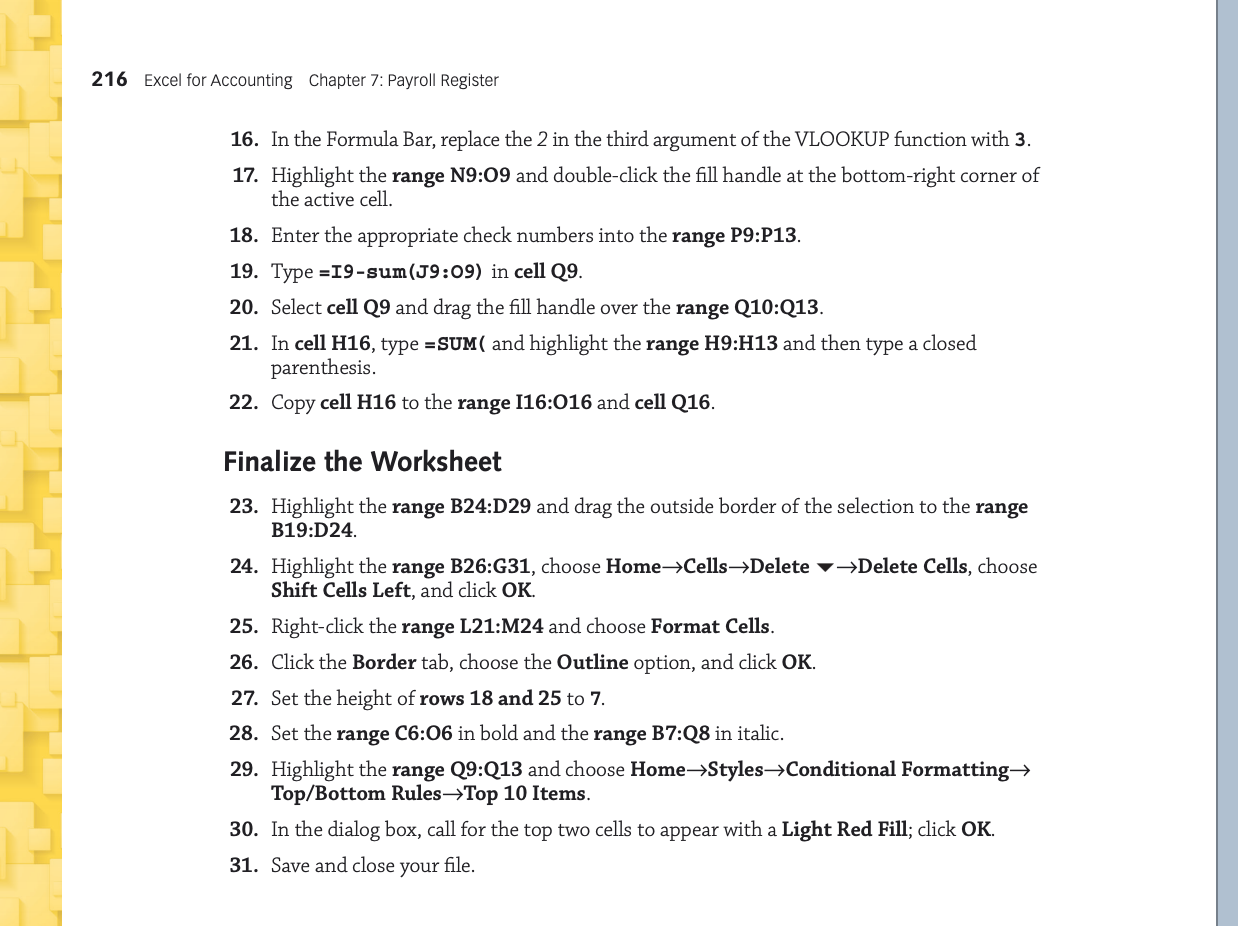
Reinforce Your Skills 215 EAZ-R2 Create a Payroll Register for H.F. Landscaping In this exercise, you will create a payroll register for H.F. Landscaping using ROUND, IF, and VLOOKUP functions. You will also modify the worksheet's layout and highlight key elements. Use this information to complete the payroll register. FWT SWT Check Number $16 $11 364 $24 $16 365 Employee Name Burnham, U White, C Henson, P Jones, G Lawless, A $13 $9 366 $19 $13 367 368 $18 $13 1. Open EA7-R2-Payroll from your Chapter 07 folder and save it as: EA7-R2-Payroll-[YourName] 2. Select cell H9, choose Formulas Function Library Insert Function, select the Logical category and the IF function, and click OK. 3. Fill in the Function Arguments dialog box as indicated and click OK when finished: Logical_Test box: F9=0 Value_If_True box: "N/A" Value_IF_False box: F9+G9 4. Copy cell H9 to the range H10:H13. 5. Type =ROUND (IF (19="N/A", E9, E9+H9), 2) in cell 19. 6. Copy cell 19 to the range 110:113. 7. Enter the federal and state withholding tax figures in the range J9:K13. Use Nested IF Functions, Absolute Formatting, and Mixed Formatting 8. Select cell L9, choose Formulas Function Library Insert Function, select the Math & Trig category and the Round function, and click OK. 9. In the Number box, type IF(127>$L$24, 0, IF(127+19Delete Delete Cells, choose Shift Cells Left, and click OK. 25. Right-click the range L21:M24 and choose Format Cells. 26. Click the Border tab, choose the Outline option, and click OK. 27. Set the height of rows 18 and 25 to 7. 28. Set the range C6:06 in bold and the range B7:Q8 in italic. 29. Highlight the range Q9:Q13 and choose Home->Styles Conditional Formatting Top/Bottom Rules-Top 10 Items. 30. In the dialog box, call for the top two cells to appear with a Light Red Fill; click OK. 31. Save and close your file. Reinforce Your Skills 215 EAZ-R2 Create a Payroll Register for H.F. Landscaping In this exercise, you will create a payroll register for H.F. Landscaping using ROUND, IF, and VLOOKUP functions. You will also modify the worksheet's layout and highlight key elements. Use this information to complete the payroll register. FWT SWT Check Number $16 $11 364 $24 $16 365 Employee Name Burnham, U White, C Henson, P Jones, G Lawless, A $13 $9 366 $19 $13 367 368 $18 $13 1. Open EA7-R2-Payroll from your Chapter 07 folder and save it as: EA7-R2-Payroll-[YourName] 2. Select cell H9, choose Formulas Function Library Insert Function, select the Logical category and the IF function, and click OK. 3. Fill in the Function Arguments dialog box as indicated and click OK when finished: Logical_Test box: F9=0 Value_If_True box: "N/A" Value_IF_False box: F9+G9 4. Copy cell H9 to the range H10:H13. 5. Type =ROUND (IF (19="N/A", E9, E9+H9), 2) in cell 19. 6. Copy cell 19 to the range 110:113. 7. Enter the federal and state withholding tax figures in the range J9:K13. Use Nested IF Functions, Absolute Formatting, and Mixed Formatting 8. Select cell L9, choose Formulas Function Library Insert Function, select the Math & Trig category and the Round function, and click OK. 9. In the Number box, type IF(127>$L$24, 0, IF(127+19Delete Delete Cells, choose Shift Cells Left, and click OK. 25. Right-click the range L21:M24 and choose Format Cells. 26. Click the Border tab, choose the Outline option, and click OK. 27. Set the height of rows 18 and 25 to 7. 28. Set the range C6:06 in bold and the range B7:Q8 in italic. 29. Highlight the range Q9:Q13 and choose Home->Styles Conditional Formatting Top/Bottom Rules-Top 10 Items. 30. In the dialog box, call for the top two cells to appear with a Light Red Fill; click OK. 31. Save and close your file
Step by Step Solution
There are 3 Steps involved in it

Get step-by-step solutions from verified subject matter experts