







Question: SQL Relational Assignment I Primary Keys / Foreign Keys / Default Bring up your previous 2 assignments with the sql code: 1. Write the statements
SQL Relational Assignment
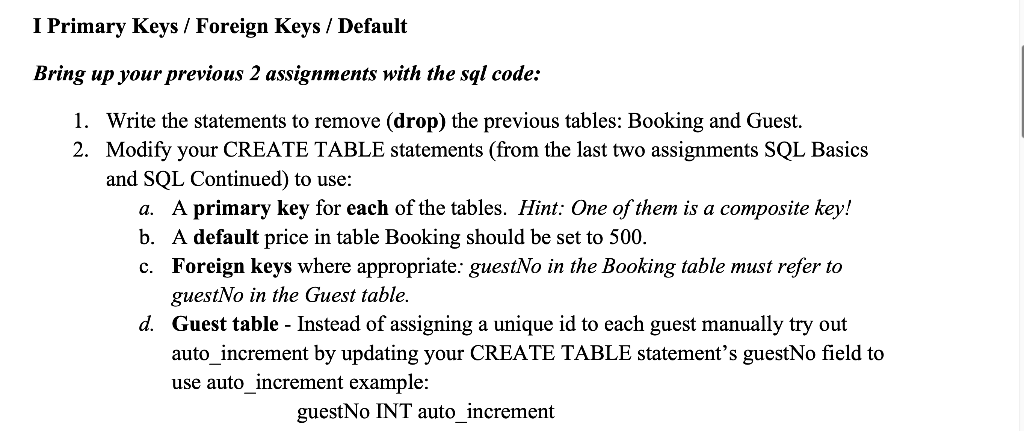
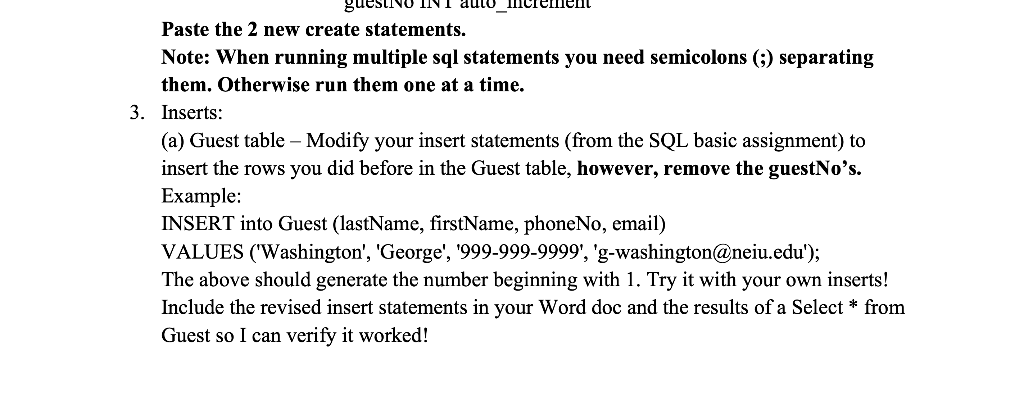
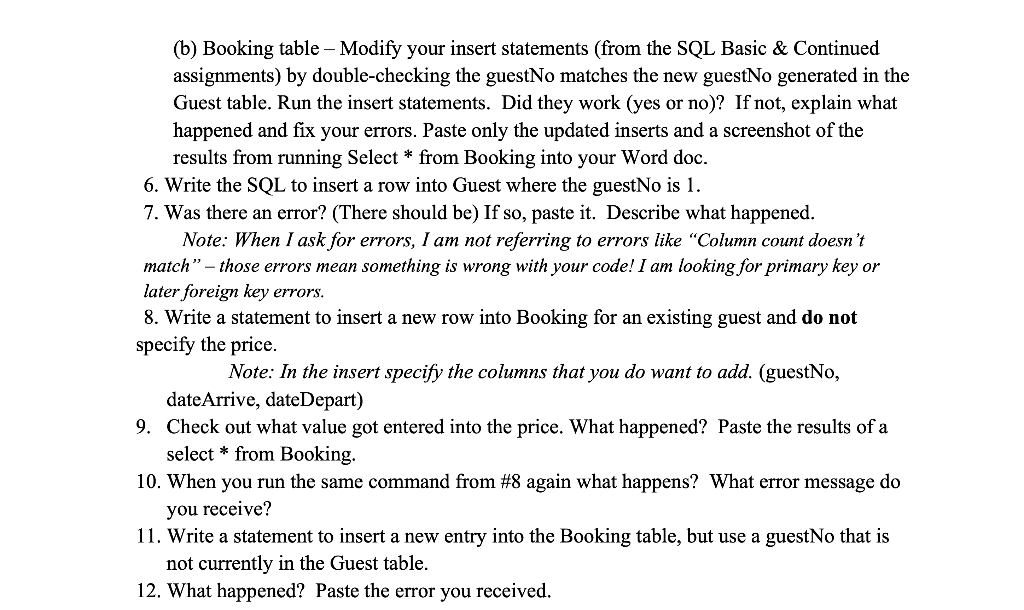
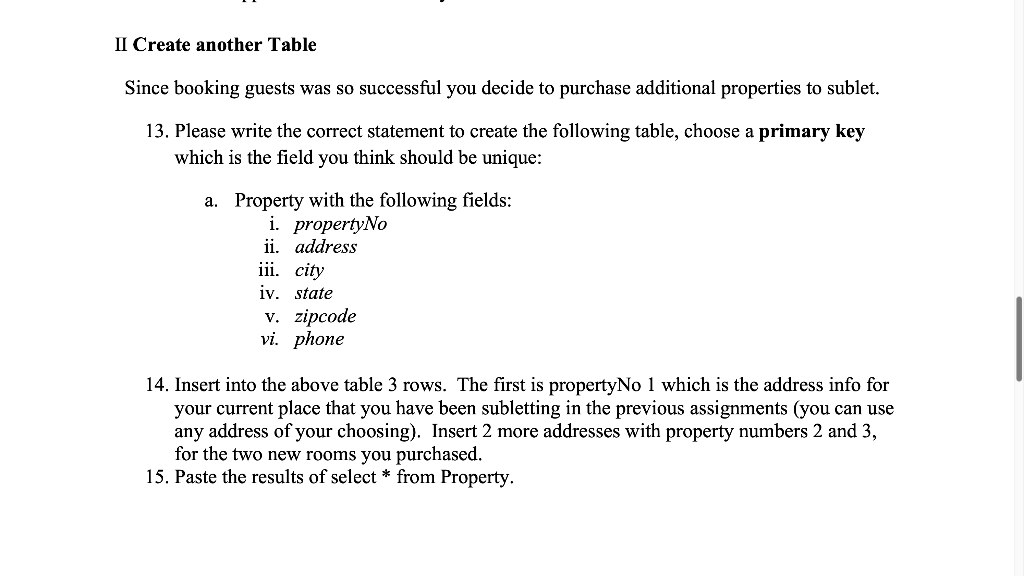
I Primary Keys / Foreign Keys / Default Bring up your previous 2 assignments with the sql code: 1. Write the statements to remove (drop) the previous tables: Booking and Guest. 2. Modify your CREATE TABLE statements (from the last two assignments SQL Basics and SQL Continued) to use: a. A primary key for each of the tables. Hint: One of them is a composite key! b. A default price in table Booking should be set to 500 . c. Foreign keys where appropriate: guestNo in the Booking table must refer to guest No in the Guest table. d. Guest table - Instead of assigning a unique id to each guest manually try out auto_increment by updating your CREATE TABLE statement's guestNo field to use auto_increment example: guestNo INT auto_increment Paste the 2 new create statements. Note: When running multiple sql statements you need semicolons (;) separating them. Otherwise run them one at a time. 3. Inserts: (a) Guest table - Modify your insert statements (from the SQL basic assignment) to insert the rows you did before in the Guest table, however, remove the guestNo's. Example: INSERT into Guest (lastName, firstName, phoneNo, email) VALUES ('Washington', 'George', '999-999-9999', 'g-washington@neiu.edu'); The above should generate the number beginning with 1 . Try it with your own inserts! Include the revised insert statements in your Word doc and the results of a Select * from Guest so I can verify it worked! (b) Booking table - Modify your insert statements (from the SQL Basic \& Continued assignments) by double-checking the guestNo matches the new guestNo generated in the Guest table. Run the insert statements. Did they work (yes or no)? If not, explain what happened and fix your errors. Paste only the updated inserts and a screenshot of the results from running Select from Booking into your Word doc. 6. Write the SQL to insert a row into Guest where the guestNo is 1. 7. Was there an error? (There should be) If so, paste it. Describe what happened. Note: When I ask for errors, I am not referring to errors like "Column count doesn't match" - those errors mean something is wrong with your code! I am looking for primary key or later foreign key errors. 8. Write a statement to insert a new row into Booking for an existing guest and do not specify the price. Note: In the insert specify the columns that you do want to add. (guestNo, dateArrive, dateDepart) 9. Check out what value got entered into the price. What happened? Paste the results of a select * from Booking. 10. When you run the same command from \#8 again what happens? What error message do you receive? 11. Write a statement to insert a new entry into the Booking table, but use a guestNo that is not currently in the Guest table. 12. What happened? Paste the error you received. Since booking guests was so successful you decide to purchase additional properties to sublet. 13. Please write the correct statement to create the following table, choose a primary key which is the field you think should be unique: a. Property with the following fields: i. propertyNo ii. address iii. city iv. state v. zipcode vi. phone 14. Insert into the above table 3 rows. The first is propertyNo 1 which is the address info for your current place that you have been subletting in the previous assignments (you can use any address of your choosing). Insert 2 more addresses with property numbers 2 and 3 , for the two new rooms you purchased. 15. Paste the results of select from Property
Step by Step Solution
There are 3 Steps involved in it

Get step-by-step solutions from verified subject matter experts
 Study Help