







Question: Start Access. Open the downloaded Access file named Exp 1 9 _ Access _ Ch 0 4 _ Cap _ Foodies.accdb. Grader has automatically added
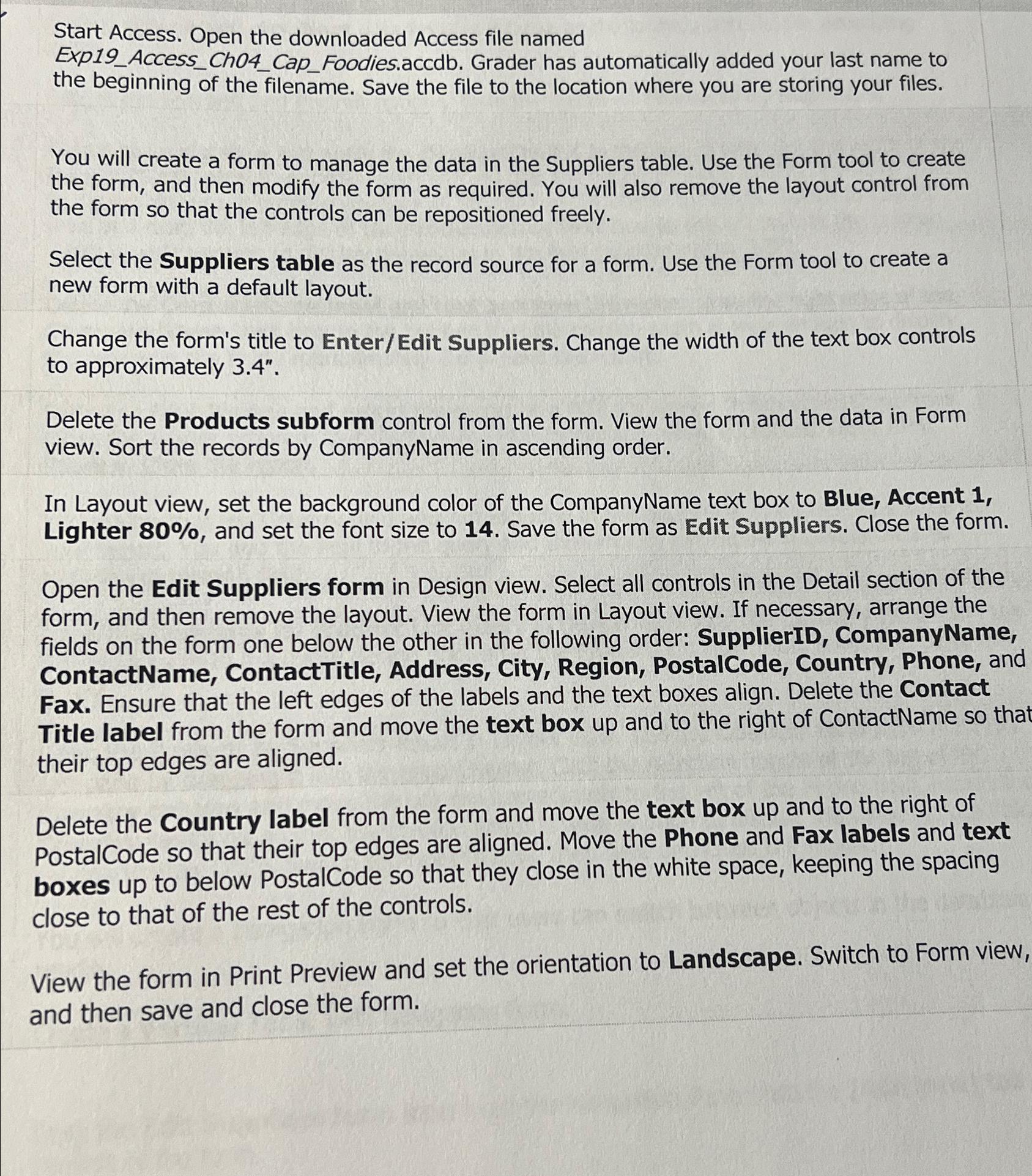
Start Access. Open the downloaded Access file named
ExpAccessChCapFoodies.accdb. Grader has automatically added your last name to the beginning of the filename. Save the file to the location where you are storing your files.
You will create a form to manage the data in the Suppliers table. Use the Form tool to create the form, and then modify the form as required. You will also remove the layout control from the form so that the controls can be repositioned freely.
Select the Suppliers table as the record source for a form. Use the Form tool to create a new form with a default layout.
Change the form's title to EnterEdit Suppliers. Change the width of the text box controls to approximately
Delete the Products subform control from the form. View the form and the data in Form view. Sort the records by CompanyName in ascending order.
In Layout view, set the background color of the CompanyName text box to Blue, Accent Lighter and set the font size to Save the form as Edit Suppliers. Close the form.
Open the Edit Suppliers form in Design view. Select all controls in the Detail section of the form, and then remove the layout. View the form in Layout view. If necessary, arrange the fields on the form one below the other in the following order: SupplierID, CompanyName, ContactName, ContactTitle, Address, City, Region, PostalCode, Country, Phone, and Fax. Ensure that the left edges of the labels and the text boxes align. Delete the Contact Title label from the form and move the text box up and to the right of ContactName so that their top edges are aligned.
Delete the Country label from the form and move the text box up and to the right of PostalCode so that their top edges are aligned. Move the Phone and Fax labels and text boxes up to below PostalCode so that they close in the white space, keeping the spacing close to that of the rest of the controls.
View the form in Print Preview and set the orientation to Landscape. Switch to Form view, and then save and close the form.
Step by Step Solution
There are 3 Steps involved in it
1 Expert Approved Answer
Step: 1 Unlock

Question Has Been Solved by an Expert!
Get step-by-step solutions from verified subject matter experts
Step: 2 Unlock
Step: 3 Unlock
 Study Help