







Question: Step 1 Instructions Complete the steps below using cell references to given data or previous calculations. In some cases, a simple cell reference is
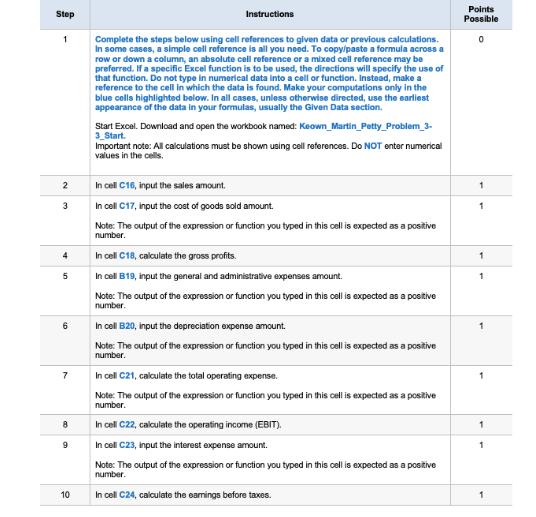
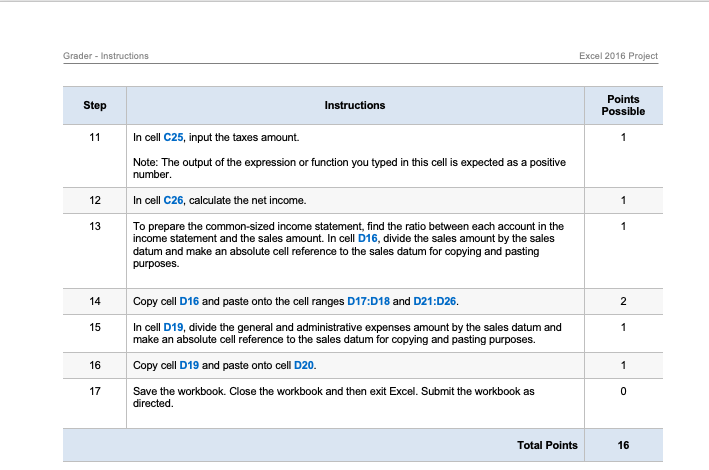
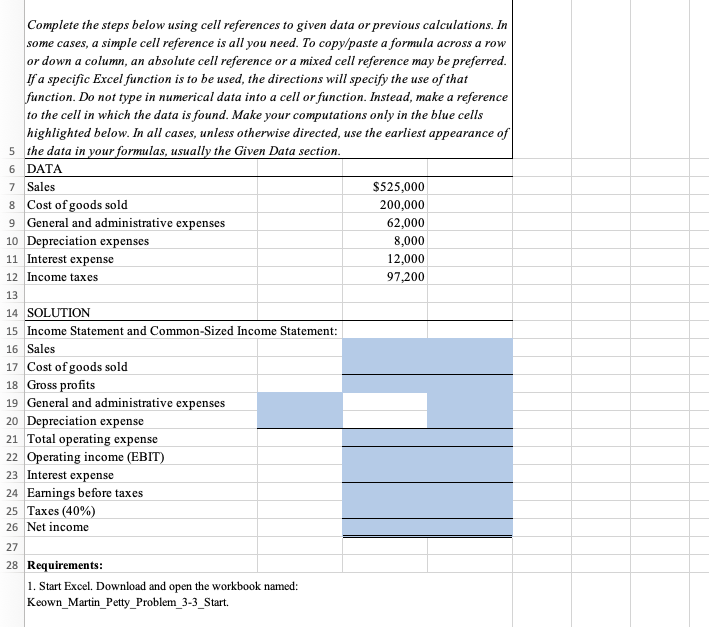
Step 1 Instructions Complete the steps below using cell references to given data or previous calculations. In some cases, a simple cell reference is all you need. To copy/paste a formula across a row or down a column, an absolute cell reference or a mixed cell reference may be preferred. If a specific Excel function is to be used, the directions will specify the use of that function. Do not type in numerical data into a cell or function. Instead, make a reference to the cell in which the data is found. Make your computations only in the blue colls highlighted below. In all cases, unless otherwise directed, use the earliest appearance of the data in your formulas, usually the Given Data section. Start Excel. Download and open the workbook named: Keown Martin Petty_Problem 3- 3_Start. Important note: All calculations must be shown using cell references. Do NOT enter numerical values in the cells. Points Possible 0 2 In cell C16, input the sales amount. 1 3 In cell C17, input the cost of goods sold amount. 1 Note: The output of the expression or function you typed in this cell is expected as a positive number. 4 In cell C18, calculate the gross profits. 1 5 In cell B19, input the general and administrative expenses amount. 1 Note: The output of the expression or function you typed in this cell is expected as a positive number. 6 In cell B20, input the depreciation expense amount. Note: The output of the expression or function you typed in this cell is expected as a positive number. 7 In cell C21, calculate the total operating expense. 1 Note: The output of the expression or function you typed in this cell is expected as a positive number. 8 In cell C22, calculate the operating income (EBIT). 1 9 In cell C23, input the interest expense amount. 1 Note: The output of the expression or function you typed in this cell is expected as a positive number. 10 In cell C24, calculate the earnings before taxes. 1 Grader - Instructions Step 11 12 13 Instructions In cell C25, input the taxes amount. Note: The output of the expression or function you typed in this cell is expected as a positive number. In cell C26, calculate the net income. To prepare the common-sized income statement, find the ratio between each account in the income statement and the sales amount. In cell D16, divide the sales amount by the sales datum and make an absolute cell reference to the sales datum for copying and pasting purposes. Excel 2016 Project Points Possible 1 1 1 14 Copy cell D16 and paste onto the cell ranges D17:D18 and D21:D26. 2 15 In cell D19, divide the general and administrative expenses amount by the sales datum and make an absolute cell reference to the sales datum for copying and pasting purposes. 1 16 Copy cell D19 and paste onto cell D20. 1 17 Save the workbook. Close the workbook and then exit Excel. Submit the workbook as directed. 0 Total Points 16 Complete the steps below using cell references to given data or previous calculations. In some cases, a simple cell reference is all you need. To copy/paste a formula across a row or down a column, an absolute cell reference or a mixed cell reference may be preferred. If a specific Excel function is to be used, the directions will specify the use of that function. Do not type in numerical data into a cell or function. Instead, make a reference to the cell in which the data is found. Make your computations only in the blue cells highlighted below. In all cases, unless otherwise directed, use the earliest appearance of 5 the data in your formulas, usually the Given Data section. 6 DATA 7 Sales 8 Cost of goods sold 9 General and administrative expenses 10 Depreciation expenses 11 Interest expense 12 Income taxes 13 14 SOLUTION 15 Income Statement and Common-Sized Income Statement: 16 Sales 17 Cost of goods sold 18 Gross profits 19 General and administrative expenses 20 Depreciation expense 21 Total operating expense 22 Operating income (EBIT) 23 Interest expense 24 Earnings before taxes 25 Taxes (40%) 26 Net income 27 28 Requirements: 1. Start Excel. Download and open the workbook named: Keown Martin_Petty_Problem_3-3_Start. $525,000 200,000 62,000 8,000 12,000 97,200
Step by Step Solution
There are 3 Steps involved in it
Based on the instructions provided lets go through each step In cell C16 input the sales amount Cell C16 Reference the given data cell containing the ... View full answer

Get step-by-step solutions from verified subject matter experts
 Study Help