







Question: Steps for: In your Windows VM open a command prompt in administrative mode: Display your computer hostname only Display the Physical ( MAC ) address
Steps for:
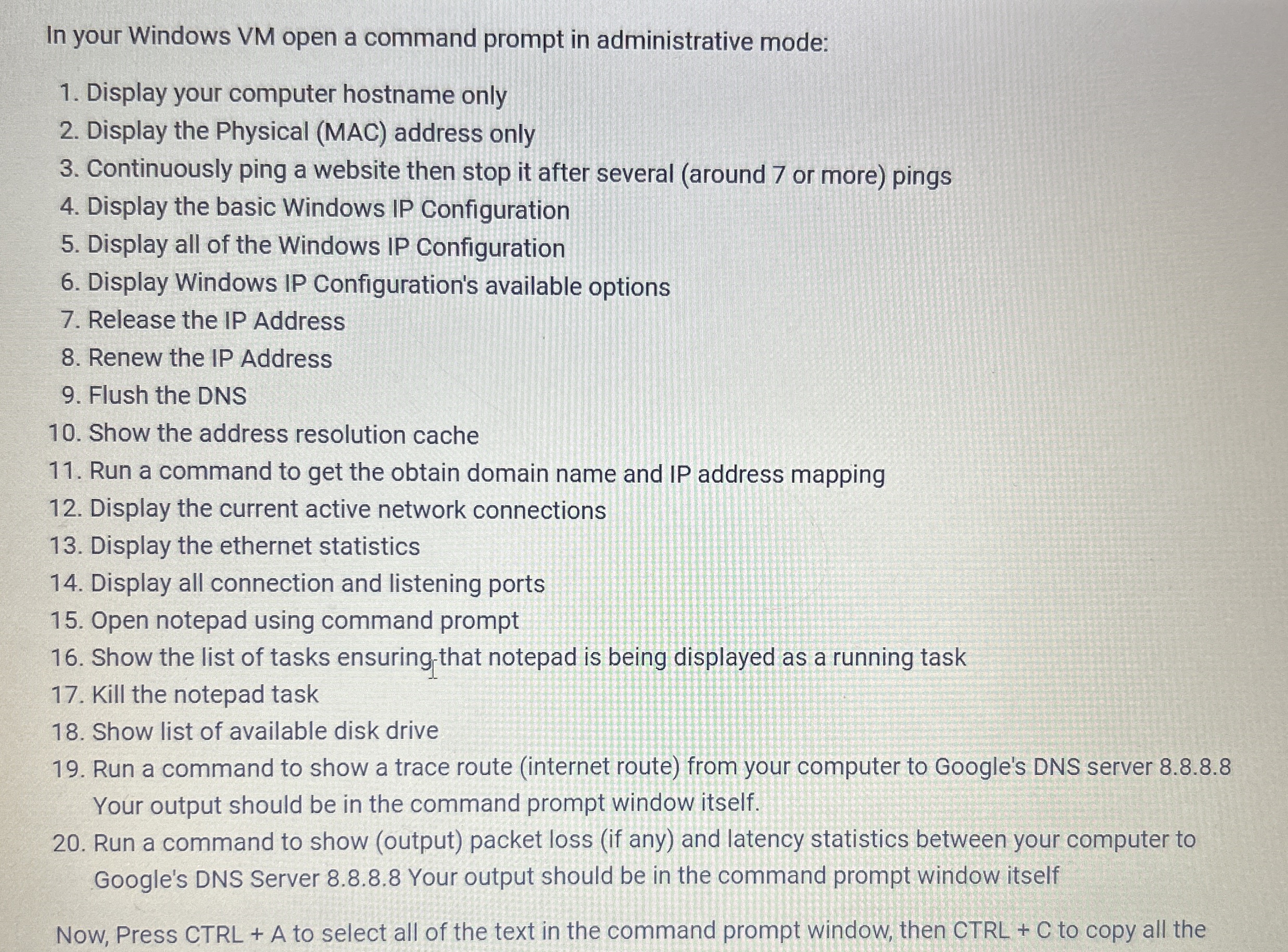
In your Windows VM open a command prompt in administrative mode:
Display your computer hostname only
Display the Physical MAC address only
Continuously ping a website then stop it after several around or more pings
Display the basic Windows IP Configuration
Display all of the Windows IP Configuration
Display Windows IP Configuration's available options
Release the IP Address
Renew the IP Address
Flush the DNS
Show the address resolution cache
Run a command to get the obtain domain name and IP address mapping
Display the current active network connections
Display the ethernet statistics
Display all connection and listening ports
Open notepad using command prompt
Show the list of tasks ensuring that notepad is being displayed as a running task
Kill the notepad task
Show list of available disk drive
Run a command to show a trace route internet route from your computer to Google's DNS server Your output should be in the command prompt window itself.
Run a command to show output packet loss if any and latency statistics between your computer to Google's DNS Server Your output should be in the command prompt window itself
Now, Press CTRL A to select all of the text in the command prompt window, then CTRL to copy all the
Step by Step Solution
There are 3 Steps involved in it
1 Expert Approved Answer
Step: 1 Unlock

Question Has Been Solved by an Expert!
Get step-by-step solutions from verified subject matter experts
Step: 2 Unlock
Step: 3 Unlock
 Study Help