







Question: Tic Tac Toe Matlab function varargout = ticTacToe(varargin) % This code sets up your GUI - DO NOT EDIT gui_Singleton = 1; gui_State = struct('gui_Name',
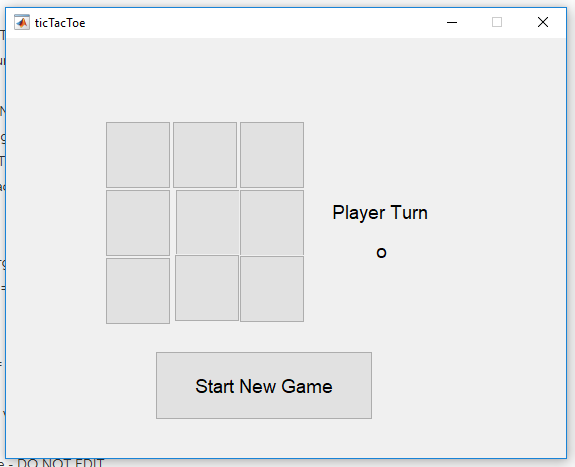
Tic Tac Toe Matlab
function varargout = ticTacToe(varargin)
% This code sets up your GUI - DO NOT EDIT
gui_Singleton = 1;
gui_State = struct('gui_Name', mfilename, ...
'gui_Singleton', gui_Singleton, ...
'gui_OpeningFcn', @ticTacToe_OpeningFcn, ...
'gui_OutputFcn', @ticTacToe_OutputFcn, ...
'gui_LayoutFcn', [] , ...
'gui_Callback', []);
if nargin && ischar(varargin{1})
gui_State.gui_Callback = str2func(varargin{1});
end
if nargout
[varargout{1:nargout}] = gui_mainfcn(gui_State, varargin{:});
else
gui_mainfcn(gui_State, varargin{:});
end
% End initialization code - DO NOT EDIT
% --- This code sets up initial conditions of your GUI
function ticTacToe_OpeningFcn(hObject, eventdata, handles, varargin)
% Choose default command line output for ticTacToe
handles.output = hObject;
%I've created the following code to do a few things. The first is to
create
%two handles properties (rows and cols) to correspond with the tic tac toe
%squares, and how they are named:
%
% A1 A2 A3
% B1 B2 B3
% C1 C2 C3
%
%Characters correspoinding to these rows and columns are stored in Cell
%Arrays. Cell Arrays are a data type that can store "arrays" where each
%element can be ANY data type. In this case, I am using them to store
%strings.
handles.rows = {'A', 'B', 'C'};
handles.cols = {'1', '2', '3'};
%The nested loops are performing a few task. The first is to make the
%buttons evenly spaced. Note that it's hard to drag and drop buttons in
the
%guide interface such that they are evenly spaced. The variables x, y, wd,
%and ht corresponde to the positions, heights, and widths of each button.
%The loops go through all of the buttons, and place each button in evenly
%spaced locations, with uniform height and width.
y = 20;
wd = 13.2;
ht = 5;
for i = 1:3
x = 20;
for j = 1:3
% Inside the loops, I am using the counting variables to index the
% two cell arrays that define the grid system for my pushbuttons.
I
% can then create a string that matches the name of each button
% using the following code:
%
%[handles.rows{i} handles.cols{j}]
%
%Note that the square brackets conctenate (join together) the two
%strings located inside of the cell arrays at index i and j. For
%example, if i was 2 and j was 3, [handles.rows{i}
handles.cols{j}]
%will produce the string 'B3'. This is the name of the button in
%the second row, third column of the tic tac toe game!
handles.([handles.rows{i} handles.cols{j}]).Position = [x y wd
ht];
%Once we have a string with the name of a button (or any other
%property of any structure in MATLAB) we can use that string to
%access the button but putting that string inside of parentheses
%within the usual syntax that we use for strucutrs. In the code in
%this loop, you can see that I write handles.(button).Proprty,
%where "button" is replaced with the code that generates a string
%with the name of a button, and Proprty is replaced by the
property
%I am editting. The code above changes the position of the button.
%The code below places a blank space as the string of eahc button,
%and sets the font size of eac button to 14.
handles.([handles.rows{i} handles.cols{j}]).String = ' ';
handles.([handles.rows{i} handles.cols{j}]).FontSize = 14;
x = x + wd;
end
y = y - ht;
end
%The handles structure can also be used to store any data you want. Here I
%create a variable that you can use to keep track of how many turns have
%passed.
handles.turnNumber = 1;
%Any time you add new variables to the handles structure, you have to use
%the following code to tell MATLAB to make that new proprty permenant.
This
%is only necessary when the property did NOT already exist, but if you
%aren't sure, it can't hurt to include this code.
guidata(hObject, handles);
%This function would help your GUI output someting. You will not add
%anything to it in this assignment.
function varargout = ticTacToe_OutputFcn(hObject, eventdata, handles)
varargout{1} = handles.output;
%IMPORTANT NOTE - The Tic Tac Toe grid pushbuttons should all have
callback
%functions that doe the following:
%
%- Call the function buttonPress
%- Call the function checkWinner
%
%IF YOU WRITE DIFFERENT CODE INSIDE OF EACH OF THE FOLLOWING CALLBACK
%FUNCTIONS YOU ARE DOING IT WRONG!
% --- Executes on button press in A1.
function A1_Callback(hObject, eventdata, handles)
% --- Executes on button press in B1.
function B1_Callback(hObject, eventdata, handles)
% --- Executes on button press in C1.
function C1_Callback(hObject, eventdata, handles)
% --- Executes on button press in A2.
function A2_Callback(hObject, eventdata, handles)
% --- Executes on button press in B2.
function B2_Callback(hObject, eventdata, handles)
% --- Executes on button press in C2.
function C2_Callback(hObject, eventdata, handles)
% --- Executes on button press in A3.
function A3_Callback(hObject, eventdata, handles)
% --- Executes on button press in B3.
function B3_Callback(hObject, eventdata, handles)
% --- Executes on button press in C3.
function C3_Callback(hObject, eventdata, handles)
% --- Executes on button press in newGame.
function newGame_Callback(hObject, eventdata, handles)
%This is the last bit of code I have written for you. It initializes a new
%game when the user presses the "New Game" button.
handles.turnNumber = 1;
for i = 1:3
for j = 1:3
handles.([handles.rows{i} handles.cols{j}]).String = ' ';
end
end
%THESE ARE THE TWO FUNCTIONS YOU HAVE TO WRITE. WHEN YOU SUBMIT THIS MINI
%PROJECT, ONLY SUBMIT THE CODE FOR THESE TWO FUNCTIONS, NOT ANY OF THE
%ABOVE CODE. MAKE SURE YOU COMMENT YOUR CODE, AND USE GOOD STYLE.
function handles = buttonPress(hObject,handles)
function handles = checkWinner(handles)
-ticTacToe Player Turn Start New Game -ticTacToe Player Turn Start New Game
Step by Step Solution
There are 3 Steps involved in it

Get step-by-step solutions from verified subject matter experts
 Study Help