







Question: Using Linux and the Picture provided above answer these questions. 1.Enter on Blackboard Will the following command execute successfully or will it produce an error
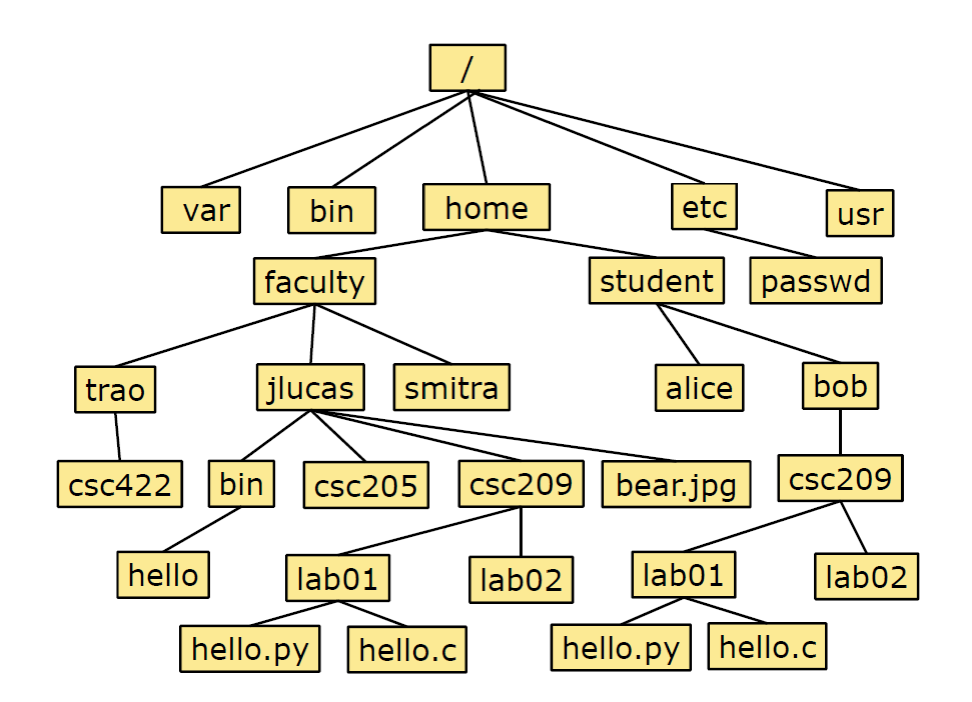
Using Linux and the Picture provided above answer these questions.
1.Enter on Blackboard Will the following command execute successfully or will it produce an error message? Assume that the current working directory is ~jlucas
cp /etc/passwd /home/faculty/smitra
2. Enter on Blackboard Will the following command execute successfully or will it produce an error message? Assume that the current working directory is ~jlucas
cp /etc/passwd /home/faculty/smitra/passwords
3. Enter on Blackboard Will the following command execute successfully or will it produce an error message? Assume that the current working directory is ~jlucas
cp /etc/passwd /home/faculty/trao/csc209
4. Enter on Blackboard Will the following command execute successfully or will it produce an error message? Assume that the current working directory is ~jlucas
cp /etc/passwd ~alice/csc209/passwords
5.Enter on Blackboard Will the following command execute successfully or will it produce an error message? Assume that the current working directory is ~jlucas
cp ~trao /usr
6.Enter on Blackboard Will the following command execute successfully or will it produce an error message? Assume that the current working directory is ~jlucas
cp -R ~jlucas ../../
7.Enter on Blackboard Will the following command execute successfully or will it produce an error message? Assume that the current working directory is ~jlucas
mv bear.jpg /student/alice/myPhoto.jpg
8.Enter on Blackboard Will the following command execute successfully or will it produce an error message? Assume that the current working directory is ~jlucas
mv bear.jpg bin/hello
9. Enter on Blackboard Will the following command execute successfully or will it produce an error message? Assume that the current working directory is ~jlucas
mv bear.jpg /var
10. Enter on Blackboard Will the following command execute successfully or will it produce an error message? Assume that the current working directory is ~jlucas
rmdir ~bob
11.Enter on Blackboard You are located now in the bob directory. If you execute the command:
cp csc209/lab01/hello.c ../../../
where will the new copy of that file be located?
12.Enter on Blackboard You are located now in the bob directory. If you execute the command:
cp csc209/lab01/hello.c ./
where will the new copy of that file be located?
13.Enter on Blackboard You are located now in the bob directory. If you execute the command:
cp csc209/lab01/hello.c ../
where will the new copy of that file be located?
14.Enter on Blackboard You are located now in the bob directory. If you execute the command:
cp csc209/lab01/hello.c ../../faculty/jlucas/csc422
where will the new copy of that file be located?
Earlier you executed the commands:
cd ~/csc209/lab02
touch foo/bar
and there was an error message.
15.Enter on Blackboard Are there any possible circumstances where this touch command would be legal? Explain why or why not.
We are working in bash. bash has several environment variables which affect the way it behaves. You can determine the values of some of those variables as follows:
echo $USER
echo $HOME
Note that the $ (dollar sign) character is the variable substitution special character.
If you want to view all currently set environmental variables, you can execute:
printenv
PATH is another shell variable, and it is a simple String that consist of a list of directories. Execute the command:
echo $PATH
16.Enter on Blackboard Copy and paste the one-line output of the command echo $PATH. How many directories are listed? What character is used as the separator character in this list?
List all the directories in the output of
echo $PATH
that are specified with a relative pathname.
var bin home etc usr faculty student passwd trao jlucas smitra alice bob CSC422 bin CSC205 CSC209 bear.jpg CSC209 hello lab01 lab02 lab01 lab02 hello.py hello.c hello.py hello.c
Step by Step Solution
There are 3 Steps involved in it

Get step-by-step solutions from verified subject matter experts
 Study Help