







Question: USING PYTHON COMPLETE THE CODE 1 import tkinter as tk GUI Layout Example II We're continuing the theme of laying out buttons in a frame.
USING PYTHON COMPLETE THE CODE
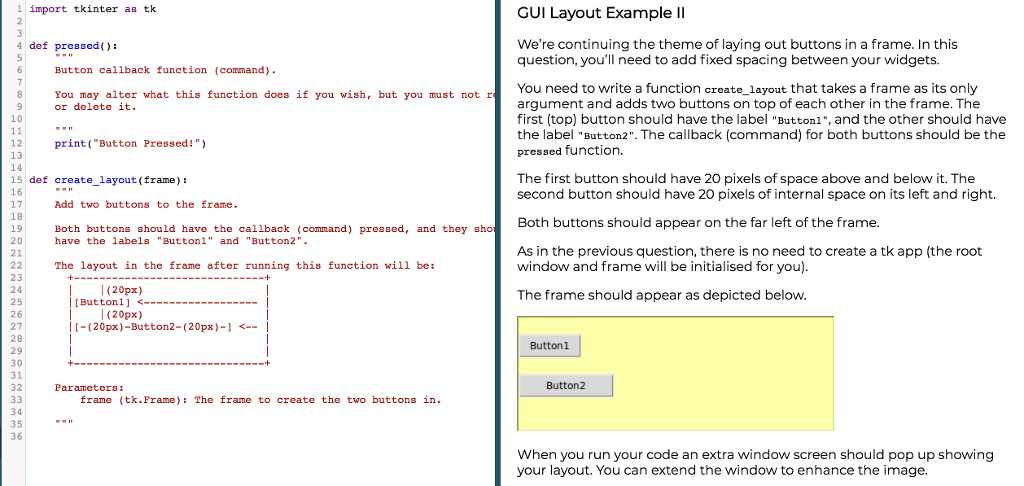
1 import tkinter as tk GUI Layout Example II We're continuing the theme of laying out buttons in a frame. In this question, you'll need to add fixed spacing between your widgets. 4 def pressed(: Button callback function (command) You need to write a function create_layout that takes a frame as its only argument and adds two buttons on top of each other in the frame. The first (top) button should have the label "Buttonl", and the other should have the label "Button2". The callback (command) for both buttons should be the pressed function. You may alter what this function does if you wish, but you must not r or delete it. 10 12 13 14 15 def createlayout (frame): 16 17 18 19 20 21 print ( "Button Pressed!" The first button should have 20 pixels of space above and below it. The second button should have 20 pixels of internal space on its left and right. Add two buttons to the frame Both buttons should appear on the far left of the frame Both buttons should have the callback (command) pressed, and they sho have the labels "Buttoni" and "Button2" As in the previous question, there is no need to create a tk app (the root window and frame will be initialised for you) The layout in the frame after running this function will be: 23 24 25 26 27 28 29 30 31 32 | (20px) The frame should appear as depicted below [ Button 1 ] l (20px) [-(20px)-Button2-(20px )-)
Step by Step Solution
There are 3 Steps involved in it

Get step-by-step solutions from verified subject matter experts
 Study Help