







Question: Using SQL*Plus on OMEGA, access the tables you created in Project 2 and complete the following SQL transactions. Log your statements and results by spooling
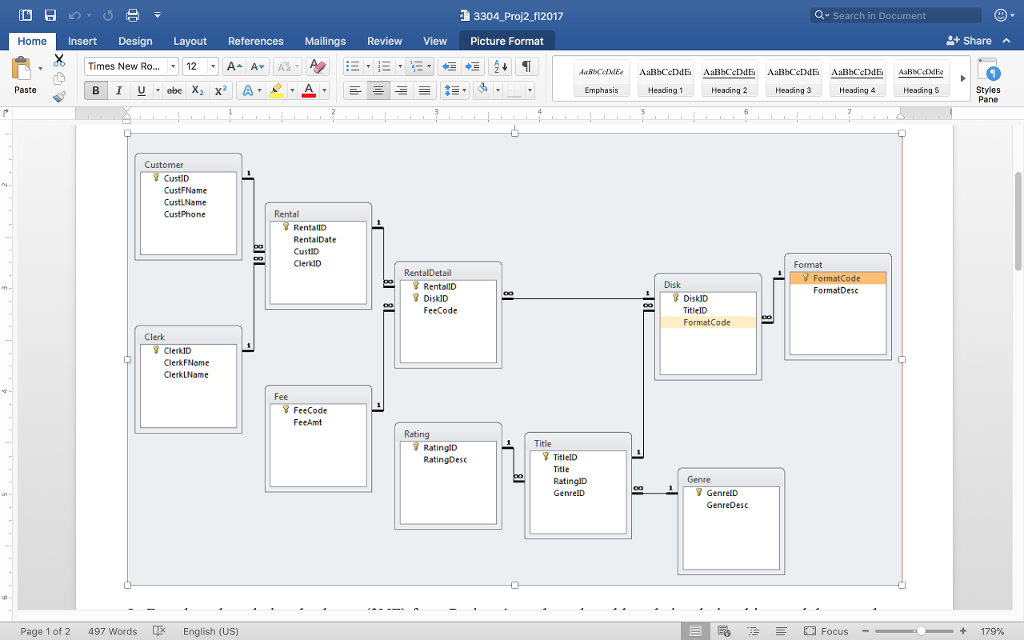 Using SQL*Plus on OMEGA, access the tables you created in Project 2 and complete the following SQL transactions. Log your statements and results by spooling your file (with echo on). Directions for creating and running SQL files are available in the Assignments and Exams page in Blackboard (in the Project 2 group of files). All column headings must show in their entirety. Be sure to include a cover sheet with your full name, section, and date submitted.
1 point
Add the following new row to the Fee Code table:
Fee Code Fee Amount
C 2.50
1 point
Change the Fee Code to A for Disk ID 191 in Rental 1.
1 point
Change the Fee Code to C for Disk ID 421 in Rental 11.
1 point
Update the following row in the Rating table:
Rating RatingDesc
PG-13 May Not be Suitable for Children Under 13
Note: This will require that your RatingDesc column accepts at least 45 characters. If it was defined with less than that, you will first need to use an alter table statement to increase the character length for that column.
2 points
Add a new customer to the Customer table. The customer ID should be one more than the max customer ID in the customer table. Hint: Use a nested SELECT and the MAX function. The remaining attributes for the new row are as follows: CustFName CustLName ___CustPh__
Mary Jones 214-555-2020
2 points
List the customer ID, first name, and last name for all customers for whom no phone number exists. Sort the output by customer ID.
2 points
List the average fee for all rows in the Fee table. Use AvgFee as the column heading.
3304 Proj2_f12017 Q Search in Document Home Insert Design Layout References Mailings Review View Picture Format Share X Times New Ro 12 A AvIA a. , 1-,-, E T Paste Heading 1 Heading 2 Heading 3 Heading Heading 5 Styles Pane Customer CustiD CustiD Disk FormatDesc DiskID FeeCode DiskID TitlelD FormatCode Clerk ClerkID ClerkFName ClerkLName FeeCode Title TitlelD Title 7 GenrelD Page 1 of 2 497 Words English (US) Focus 179%
Step by Step Solution
There are 3 Steps involved in it

Get step-by-step solutions from verified subject matter experts
 Study Help