



Question: VBA code pls!! 17 Exam Scores a) Manually select the range rectangle containing the data from Cell A2 to Cell C11. We will learn how
VBA code pls!! 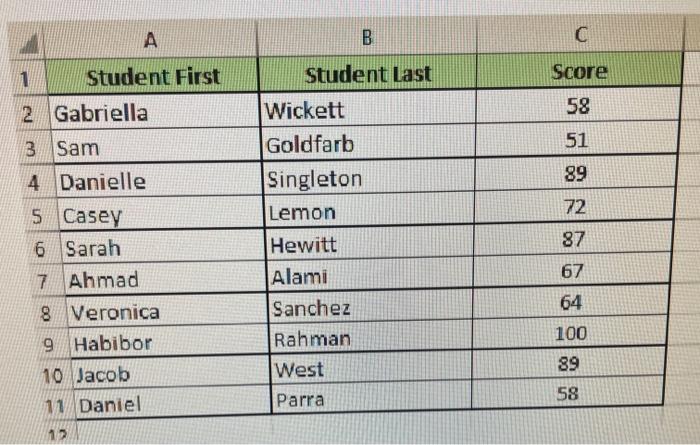
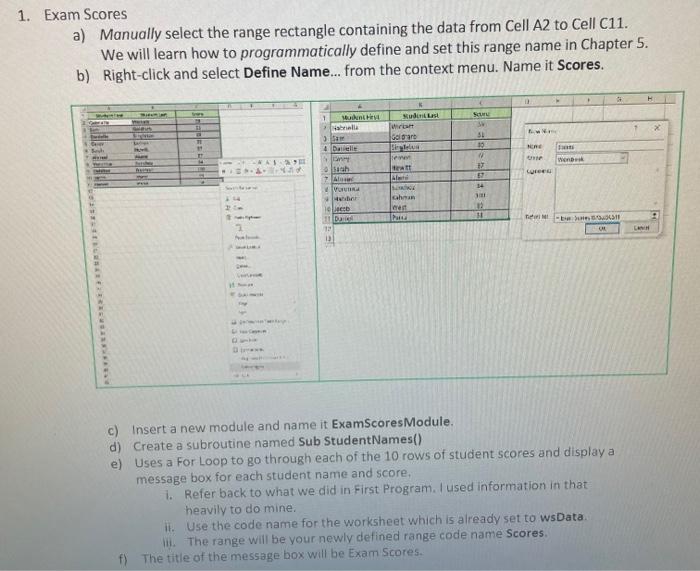
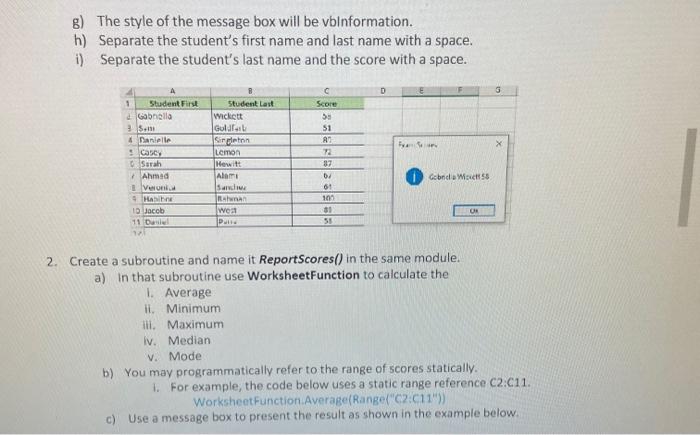
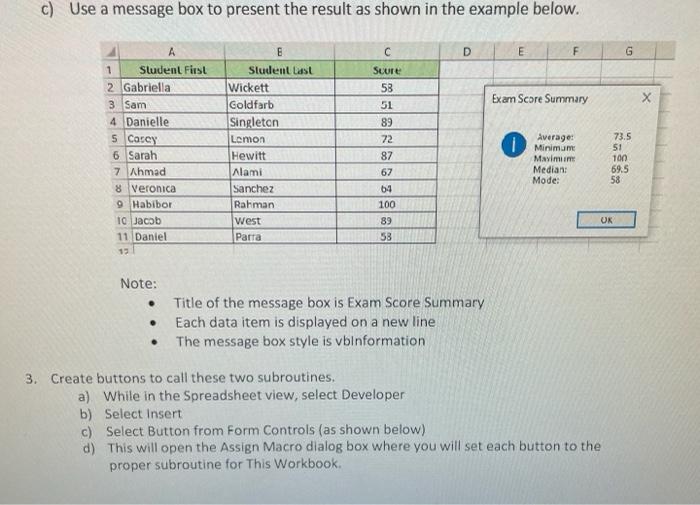
17 Exam Scores a) Manually select the range rectangle containing the data from Cell A2 to Cell C11. We will learn how to programmatically define and set this range name in Chapter 5. b) Right-click and select Define Name... from the context menu. Name it Scores. c) Insert a new module and name it ExamscoresModule. d) Create a subroutine named Sub StudentNames() e) Uses a for Loop to go through each of the 10 rows of student scores and display a message box for each student name and score, i. Refer back to what we did in First Program, I used information in that heavily to do mine. ii. Use the code name for the worksheet which is already set to wsData. iii. The range will be your newly defined range code name Scores. f) The title of the message box will be Exam Scores. g) The style of the message box will be vbinformation. h) Separate the student's first name and last name with a space. i) Separate the student's last name and the score with a space. 2. Create a subroutine and name it Reportscores() in the same module. a) In that subroutine use WorksheetFunction to calculate the I. Average ii. Minimum iii. Maximum Iv. Median v. Mode b) You may programmatically refer to the range of scores statically. i. For example, the code below uses a static range reference C2::c11. Worksheotfunction.Average(Range(" (2:(114)) c) Use a message box to present the result as shown in the example below. c) Use a message box to present the result as shown in the example below. Note: - Title of the message box is Exam Score Summary - Each data item is displayed on a new line - The message box style is vbinformation 3. Create buttons to call these two subroutines. a) While in the Spreadsheet view, select Developer b) Select Insert c) Select Button from form Controls (as shown below) d) This will open the Assign Macro dialog box where you will set each button to the proper subroutine for This Workbook
Step by Step Solution
There are 3 Steps involved in it
1 Expert Approved Answer
Step: 1 Unlock

Question Has Been Solved by an Expert!
Get step-by-step solutions from verified subject matter experts
Step: 2 Unlock
Step: 3 Unlock