







Question: VISA CREDIT CARD Type Trans Date Post Date Description Amount Sale 01/14/2022 01/14/2022 LUMINESSE LINK -144.00 Sale 01/13/2022 01/13/2022 LUMINESSE LINK -200.00 Deposit 01/07/2022 01/08/2022
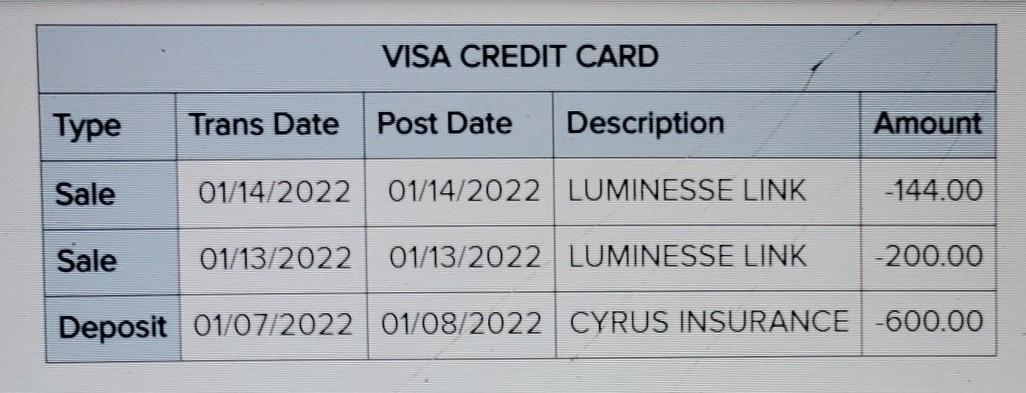
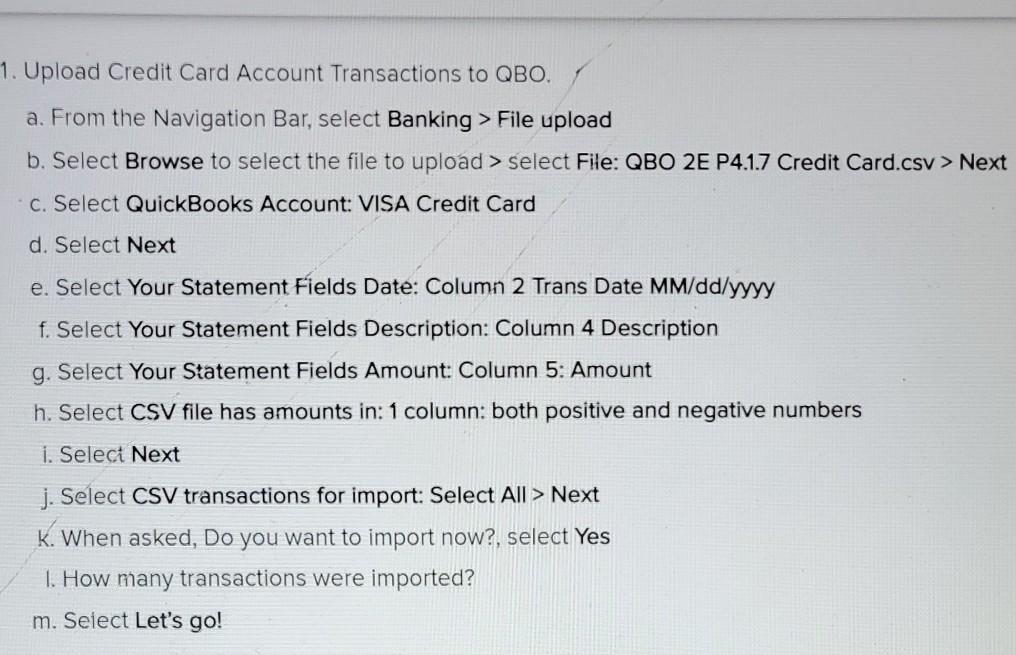
VISA CREDIT CARD Type Trans Date Post Date Description Amount Sale 01/14/2022 01/14/2022 LUMINESSE LINK -144.00 Sale 01/13/2022 01/13/2022 LUMINESSE LINK -200.00 Deposit 01/07/2022 01/08/2022 CYRUS INSURANCE -600.00 1. Upload Credit Card Account Transactions to QBO. a. From the Navigation Bar, select Banking > File upload b. Select Browse to select the file to upload > select File: QBO 2E P4.1.7 Credit Card.csv > Next c. Select QuickBooks Account: VISA Credit Card d. Select Next e. Select Your Statement Fields Date: Column 2 Trans Date MM/dd/yyyy f. Select Your Statement Fields Description: Column 4 Description g. Select Your Statement Fields Amount: Column 5: Amount h. Select CSV file has amounts in: 1 column: both positive and negative numbers i. Select Next j. Select CSV transactions for import: Select All > Next k. When asked, Do you want to import now?, select Yes 1. How many transactions were imported? m. Select Let's go! VISA CREDIT CARD Type Trans Date Post Date Description Amount Sale 01/14/2022 01/14/2022 LUMINESSE LINK -144.00 Sale 01/13/2022 01/13/2022 LUMINESSE LINK -200.00 Deposit 01/07/2022 01/08/2022 CYRUS INSURANCE -600.00 1. Upload Credit Card Account Transactions to QBO. a. From the Navigation Bar, select Banking > File upload b. Select Browse to select the file to upload > select File: QBO 2E P4.1.7 Credit Card.csv > Next c. Select QuickBooks Account: VISA Credit Card d. Select Next e. Select Your Statement Fields Date: Column 2 Trans Date MM/dd/yyyy f. Select Your Statement Fields Description: Column 4 Description g. Select Your Statement Fields Amount: Column 5: Amount h. Select CSV file has amounts in: 1 column: both positive and negative numbers i. Select Next j. Select CSV transactions for import: Select All > Next k. When asked, Do you want to import now?, select Yes 1. How many transactions were imported? m. Select Let's go
Step by Step Solution
There are 3 Steps involved in it
The question you asked relates to uploading credit card account transactions to QuickBooks Online QB... View full answer

Get step-by-step solutions from verified subject matter experts
 Study Help