







Question: Visual Basic windows forms.net help! Problem 2 has two parts. We want to break apart an input string to facilitate extraction of target information. Right
Visual Basic windows forms.net help!
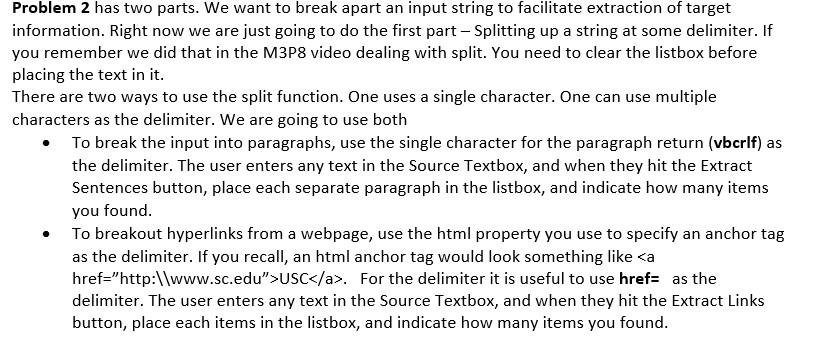
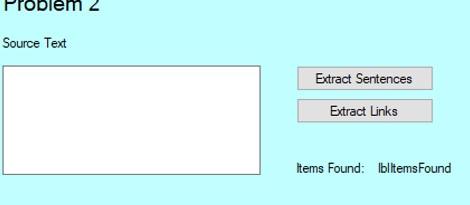
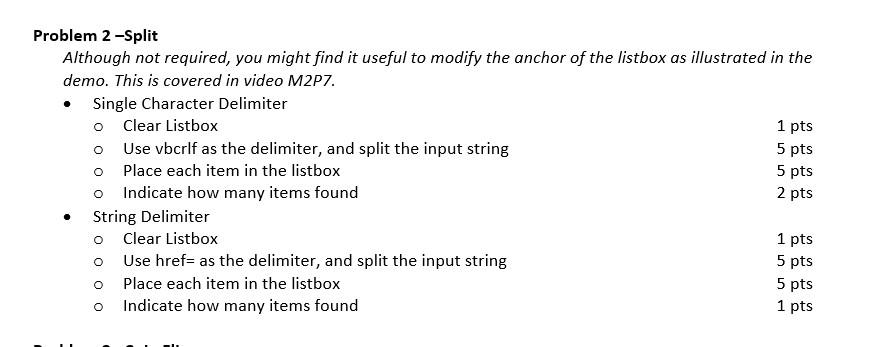
Problem 2 has two parts. We want to break apart an input string to facilitate extraction of target information. Right now we are just going to do the first part - Splitting up a string at some delimiter. If you remember we did that in the M3P8 video dealing with split. You need to clear the listbox before placing the text in it. There are two ways to use the split function. One uses a single character. One can use multiple characters as the delimiter. We are going to use both To break the input into paragraphs, use the single character for the paragraph return (vbcrlf) as the delimiter. The user enters any text in the Source Textbox, and when they hit the Extract Sentences button, place each separate paragraph in the listbox, and indicate how many items you found. To breakout hyperlinks from a webpage, use the html property you use to specify an anchor tag as the delimiter. If you recall, an html anchor tag would look something like USC. For the delimiter it is useful to use href= as the delimiter. The user enters any text in the Source Textbox, and when they hit the Extract Links button, place each items in the listbox, and indicate how many items you found. roblem z Source Text Extract Sentences Extract Links Items Found: blltemsFound 5 pts Problem 2-Split Although not required, you might find it useful to modify the anchor of the listbox as illustrated in the demo. This is covered in video M2P7. Single Character Delimiter o Clear Listbox 1 pts o Use vbcrlf as the delimiter, and split the input string o Place each item in the listbox 5 pts Indicate how many items found String Delimiter Clear Listbox 1 pts Use href= as the delimiter, and split the input string Place each item in the listbox o Indicate how many items found 0 2 pts 0 0 5 pts 5 pts 1 pts
Step by Step Solution
There are 3 Steps involved in it

Get step-by-step solutions from verified subject matter experts
 Study Help