







Question: 6. Create a new query in Query Design View using the Properties and StateAbbreviations tables. Join the Properties and StateAbbreviations tables using the State field
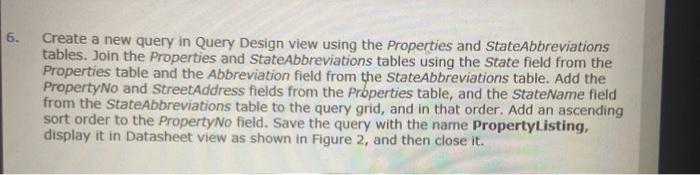

6. Create a new query in Query Design View using the Properties and StateAbbreviations tables. Join the Properties and StateAbbreviations tables using the State field from the Properties table and the Abbreviation field from the StateAbbreviations table. Add the PropertyNo and StreetAddress fields from the Prbperties table, and the StateName field from the StateAbbreviations table to the query grid, and in that order. Add an ascending sort order to the Property No field. Save the query with the name Property Listing, display it in Datasheet view as shown in Figure 2, and then close it. Open the Home Styles form in Design View, select the TypeID label and Description label in the Detail section, and change the font color to Automatic (Black). (Hint: Be careful to select the labels and not the text boxes.) Save the Home Styles form. Display the Home Styles form in Form View as shown in Figure 3, then close the Home Styles form. 6. Create a new query in Query Design View using the Properties and StateAbbreviations tables. Join the Properties and StateAbbreviations tables using the State field from the Properties table and the Abbreviation field from the StateAbbreviations table. Add the PropertyNo and StreetAddress fields from the Prbperties table, and the StateName field from the StateAbbreviations table to the query grid, and in that order. Add an ascending sort order to the Property No field. Save the query with the name Property Listing, display it in Datasheet view as shown in Figure 2, and then close it. Open the Home Styles form in Design View, select the TypeID label and Description label in the Detail section, and change the font color to Automatic (Black). (Hint: Be careful to select the labels and not the text boxes.) Save the Home Styles form. Display the Home Styles form in Form View as shown in Figure 3, then close the Home Styles form
Step by Step Solution
There are 3 Steps involved in it

Get step-by-step solutions from verified subject matter experts
 Study Help