







Question: Hands-On Practice Case Study Task 1: Create a Folder. Create a folder called pacific7. Copy all of the files fro Chapter 6 pacific6 folder into
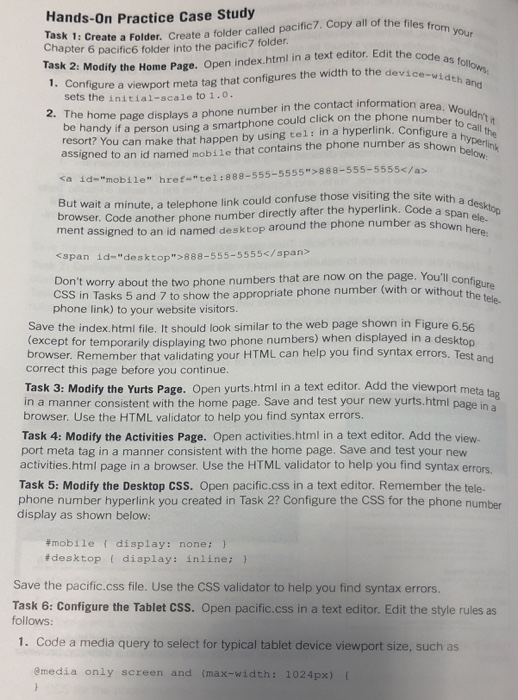
Hands-On Practice Case Study Task 1: Create a Folder. Create a folder called pacific7. Copy all of the files fro Chapter 6 pacific6 folder into the pacific7 folder Task 2: Modity the Home Page. Open index.html in a text editor. Edit the code 1. Configure a viewport meta tag that configures the width to the device-y ollows sets the initial-scale to 1.0 be handy if a person using a smartphone could click on the phone number touldn' resort? You can make that happen by using tel; in a hyperlink. Configure ao all the assigned to an id named mobile that contains the phone numberasn Deri 2. The home page displays a phone number in the contact information area .w a id-"mobile" href-"tel:888-555-5555" 888-555-5555g the site with a desktop ut wait a minute, a telephone link could confuse those visiting the site w rowser. Code another phone number directly after the hyperlink. Code ent assigned to an id named desktop around the phone number as a span ele- span id-"d desktop">888-555-5555 Don't worry about the two phone numbers that are now on the page. You CSS in Tasks 5 and 7 to show the appropriate phone number (with or without the te phone link) to your website visitors Save the index.html file. It should look similar to the web page shown in Figure 6.56 except for temporarily displaying two phone numbers) when displayed in a desktop browser. Remember that validating your HTML can help you find syntax errors. Test and correct this page before you continue. Task 3: Modify the Yurts Page. Open yur browser. Use the HTML validator to help you find syntax errors. port meta tag in a manner consistent with the home page. Save and test your nevw rts html in a text editor. Add the viewport meta tag in a manner consistent with the home page. Save and test your new yurts.html page Task 4: Modify the Activities Page. Open activities.html in a text editor. Add the view- activities.html page in a browser. Use the HTML validator to help you find syntax errors Task 5: Modify the Desktop CSS. Open pacific.css in a text editor. Remember the tele- phone number hyperlink you created in Task 2? Configure the CSS for the phone number display as shown below: mobile { display: none; } #desktop { display: inline; } Save the pacific.css file. Use the CSS validator to help you find syntax errors Task 6: Configure the Tablet CSS. Open pacific.css in a text editor. Edit the style rules as follows 1. Code a media query to select for typical tablet device viewport size, such as media only screen and (max-widt Hands-On Practice Case Study Task 1: Create a Folder. Create a folder called pacific7. Copy all of the files fro Chapter 6 pacific6 folder into the pacific7 folder Task 2: Modity the Home Page. Open index.html in a text editor. Edit the code 1. Configure a viewport meta tag that configures the width to the device-y ollows sets the initial-scale to 1.0 be handy if a person using a smartphone could click on the phone number touldn' resort? You can make that happen by using tel; in a hyperlink. Configure ao all the assigned to an id named mobile that contains the phone numberasn Deri 2. The home page displays a phone number in the contact information area .w a id-"mobile" href-"tel:888-555-5555" 888-555-5555g the site with a desktop ut wait a minute, a telephone link could confuse those visiting the site w rowser. Code another phone number directly after the hyperlink. Code ent assigned to an id named desktop around the phone number as a span ele- span id-"d desktop">888-555-5555 Don't worry about the two phone numbers that are now on the page. You CSS in Tasks 5 and 7 to show the appropriate phone number (with or without the te phone link) to your website visitors Save the index.html file. It should look similar to the web page shown in Figure 6.56 except for temporarily displaying two phone numbers) when displayed in a desktop browser. Remember that validating your HTML can help you find syntax errors. Test and correct this page before you continue. Task 3: Modify the Yurts Page. Open yur browser. Use the HTML validator to help you find syntax errors. port meta tag in a manner consistent with the home page. Save and test your nevw rts html in a text editor. Add the viewport meta tag in a manner consistent with the home page. Save and test your new yurts.html page Task 4: Modify the Activities Page. Open activities.html in a text editor. Add the view- activities.html page in a browser. Use the HTML validator to help you find syntax errors Task 5: Modify the Desktop CSS. Open pacific.css in a text editor. Remember the tele- phone number hyperlink you created in Task 2? Configure the CSS for the phone number display as shown below: mobile { display: none; } #desktop { display: inline; } Save the pacific.css file. Use the CSS validator to help you find syntax errors Task 6: Configure the Tablet CSS. Open pacific.css in a text editor. Edit the style rules as follows 1. Code a media query to select for typical tablet device viewport size, such as media only screen and (max-widt
Step by Step Solution
There are 3 Steps involved in it

Get step-by-step solutions from verified subject matter experts
 Study Help