







Question: I need some help with my code in Python Here is what I have so far: import tkinter as tk current_line_index = 0 def next_line():
I need some help with my code in Python
Here is what I have so far:
import tkinter as tk current_line_index = 0 def next_line(): global current_line_index text = ip_text_box.get('1.0', 'end-1c').split(' ') if current_line_index >= len(text) - 1: return ip_line_tb.delete(0, tk.END) # This will insert the value of the current line ip_line_tb.insert(tk.END, current_line_index + 1) op_text_box.insert(tk.END, text[current_line_index] + ' ') current_line_index += 1 def quit(): # quits the app app.quit() #Here is the main windows app = tk.Tk() app.title('Lexical Analyzer for TinyPie') app.geometry("1500x700+20+50") app.resizable(False, False) # This will input side widgets ip_container = tk.Frame(app, width=1, height=1) ip_container.grid_propagate(False) ip_container.pack(side="left", fill="both", expand=True) ip_label = tk.Label(app, text='Source Code Input:') ip_label.place(x=50, y=50) ip_text_box = tk.Text(ip_container) ip_text_box.place(x=50, y=80) ip_line_label = tk.Label(app, text='Current Processing Line:') ip_line_label.place(x=400, y=500) ip_line_tb = tk.Entry(app) ip_line_tb.size() ip_line_tb.place(x=550, y=500) ip_next_button = tk.Button(app, text='Next', command=next_line) ip_next_button.place(x=550, y=550) # This will output the side widgets op_container = tk.Frame(app, width=10, height=10) op_container.grid_propagate(False) op_container.pack(side="right", fill="both", expand=True) op_label = tk.Label(app, text='Tokens') op_label.place(x=790, y=50) op_text_box = tk.Text(op_container) op_text_box.place(x=50,y=80) op_next_button = tk.Button(app, text='Quit', command=quit) op_next_button.place(x=1350, y=550) #calling the main function if __name__ == '__main__': app.mainloop()and I need you to change it so that the output will be something like this:
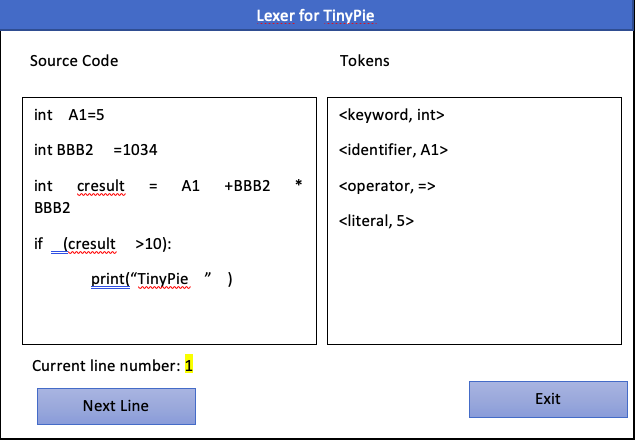
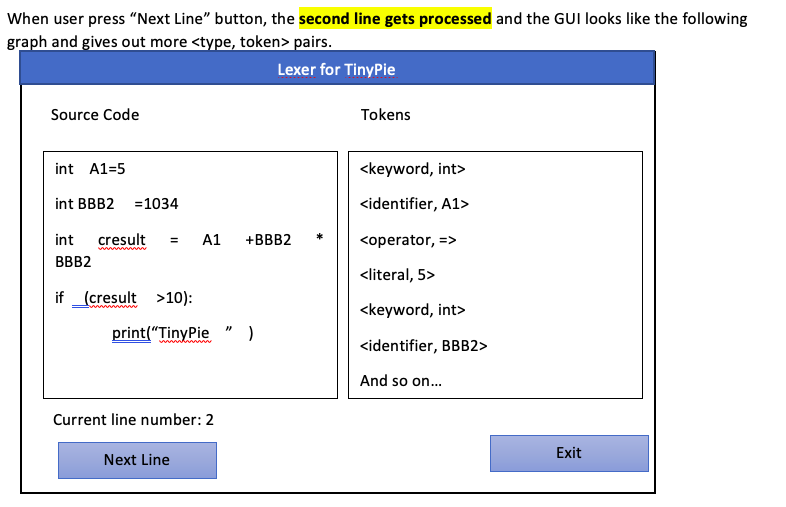
user can choose to type any number of spaces between an identifier, literal and the = sign or + sign or > sign, etc.
The lexer can have different appearance from this example output.
Thank you so much! Any help is appreciated!
I believe the function that needs to be called to find the Tokens will look something like this
import re def cutOneLineTokens(line): token="[" while 1: line=line.strip() if len(line)==0: break x=re.match("(if|int|else|float)",line) if x is not None: token+=f',' line=line[:x.span()[0]]+line[x.span()[1]:] x=re.match(r"(=|\+|>|\*)",line) if x is not None: token+=f',' line=line[:x.span()[0]]+line[x.span()[1]:] x=re.match(r"(\(|\)|:|\"|;)",line) if x is not None: token+=f',' line=line[:x.span()[0]]+line[x.span()[1]:] x=re.match(r"\d+\.\d+",line) if x is not None: token+=f',' line=line[:x.span()[0]]+line[x.span()[1]:] x=re.match(r"(\d+)",line) if x is not None: token+=f',' line=line[:x.span()[0]]+line[x.span()[1]:] x=re.match(r"\w([a-zA-z0-9])*",line) if x is not None: token+=f',' line=line[:x.span()[0]]+line[x.span()[1]:] token=token[:-1] token+="]" print(token) cutOneLineTokens("int A1=5") cutOneLineTokens("float red = 1.5 * 6 + 11") Lexer for TinyPie Source Code Tokens int A1=5
Step by Step Solution
There are 3 Steps involved in it

Get step-by-step solutions from verified subject matter experts
 Study Help