







Question: Lab 10.1 Creating Partitions STEP 1. Open a terminal window. STEP 2 Use the su command to switch to the root user. and Filesystems ecute
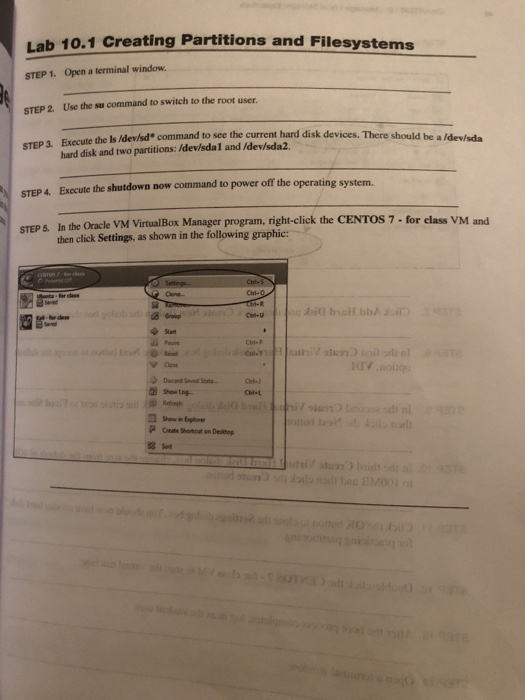
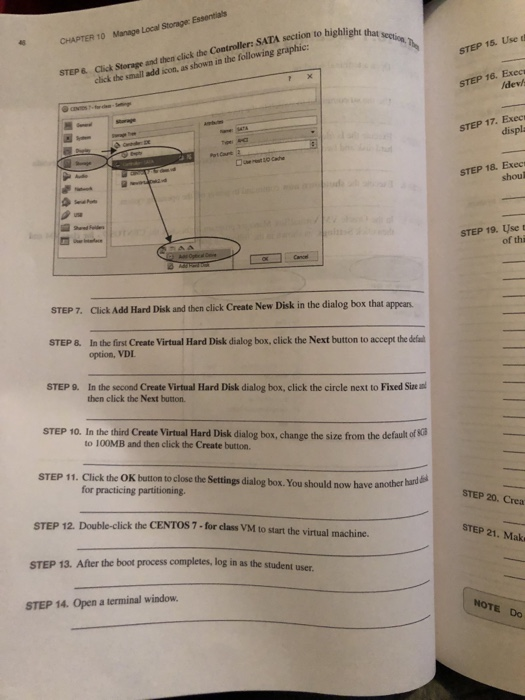
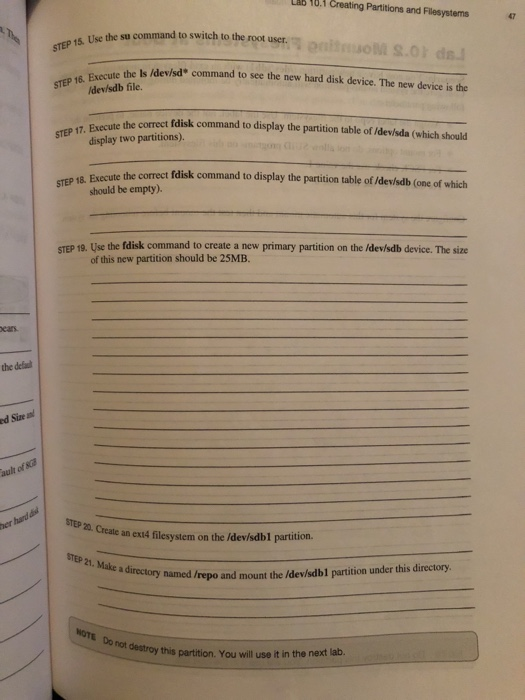
Lab 10.1 Creating Partitions STEP 1. Open a terminal window. STEP 2 Use the su command to switch to the root user. and Filesystems ecute the ls /dev/sd command to see the current hard disk devices. There should be a ldev/sda hard disk and two partitions: /dev/sda1 and /dev/sda2. STEP 4. Execute the shutdown now command to power off the operating system. STEP5 5. In the Oracle VM Virtual Box Manager program, right-click the CENTOS 7-for class VM and then click Settings, as shown in the following graphic: Show in Epor Manage Local Storage: Essentials CHAPTER 10 STEP 15. Use t STEP &. Click Storage and then elick the Controller SATA section to highli click the small add icon, as shown in the following graphic: STEP 16. Exec /dev/ STEP 17. Exec displa STEP 18. Exec shoul STEP 19. Use t of thi STEP 7. Click Add Hard Disk and then click Create New Disk in the dialog box that appears STEP &. In the first Create Virtual Hard Disk dialog box, click the Next button to accept the defal option, VDIL STEP 9. In the second Create Virtual Hard Disk dialog box, click the circle next to Fixed Size then click the Next button. STEP 10. In the third Create Virtual Hard Disk dialog box, change the size from the default of sto STEP 11. Click the OK buton to clse e Sttings dialog box. You should now have anotbher STEP 12. Double-click the CENTOS7- for class VM to start the virtual machine. to 100MB and then click the Create button. for practicing partitioning. STEP 20. Crea STEP 21. Mak STEP 13. After the boot process completes, log in as the student user. STEP 14. Open a terminal window. NOTE Do LAB 16.1 Creating Partitions and Filesystems 47 the su command to switch to the root user. Exccute the Is idev/sd command to see the new hard disk device. The new device is the /dev/sdb file the correct fdisk command to display the partition table of Idevlsda (which should the correct fdisk command to display the partition table of Idev/sdb (one of which STEP 18. Execute should be empty). STEP 19. Use the fdisk command to create a new primary partition on the /dev/sdb device. The size of this new partition should be 25MB. ears. the defau d Size al a Ceale an exu4 filesystem on the Idev/idbl parition. hamed /repo and mount the /dev/sdbl partition under this directory Do hot destroy this partition. You will use it in the next lab. Lab 10.1 Creating Partitions STEP 1. Open a terminal window. STEP 2 Use the su command to switch to the root user. and Filesystems ecute the ls /dev/sd command to see the current hard disk devices. There should be a ldev/sda hard disk and two partitions: /dev/sda1 and /dev/sda2. STEP 4. Execute the shutdown now command to power off the operating system. STEP5 5. In the Oracle VM Virtual Box Manager program, right-click the CENTOS 7-for class VM and then click Settings, as shown in the following graphic: Show in Epor Manage Local Storage: Essentials CHAPTER 10 STEP 15. Use t STEP &. Click Storage and then elick the Controller SATA section to highli click the small add icon, as shown in the following graphic: STEP 16. Exec /dev/ STEP 17. Exec displa STEP 18. Exec shoul STEP 19. Use t of thi STEP 7. Click Add Hard Disk and then click Create New Disk in the dialog box that appears STEP &. In the first Create Virtual Hard Disk dialog box, click the Next button to accept the defal option, VDIL STEP 9. In the second Create Virtual Hard Disk dialog box, click the circle next to Fixed Size then click the Next button. STEP 10. In the third Create Virtual Hard Disk dialog box, change the size from the default of sto STEP 11. Click the OK buton to clse e Sttings dialog box. You should now have anotbher STEP 12. Double-click the CENTOS7- for class VM to start the virtual machine. to 100MB and then click the Create button. for practicing partitioning. STEP 20. Crea STEP 21. Mak STEP 13. After the boot process completes, log in as the student user. STEP 14. Open a terminal window. NOTE Do LAB 16.1 Creating Partitions and Filesystems 47 the su command to switch to the root user. Exccute the Is idev/sd command to see the new hard disk device. The new device is the /dev/sdb file the correct fdisk command to display the partition table of Idevlsda (which should the correct fdisk command to display the partition table of Idev/sdb (one of which STEP 18. Execute should be empty). STEP 19. Use the fdisk command to create a new primary partition on the /dev/sdb device. The size of this new partition should be 25MB. ears. the defau d Size al a Ceale an exu4 filesystem on the Idev/idbl parition. hamed /repo and mount the /dev/sdbl partition under this directory Do hot destroy this partition. You will use it in the next lab
Step by Step Solution
There are 3 Steps involved in it

Get step-by-step solutions from verified subject matter experts
 Study Help