







Question: Lab 5.2 Configuring User Notifications STEP 1. Open a terminal window STEP 2 Use the su command to switch to the root user account (using
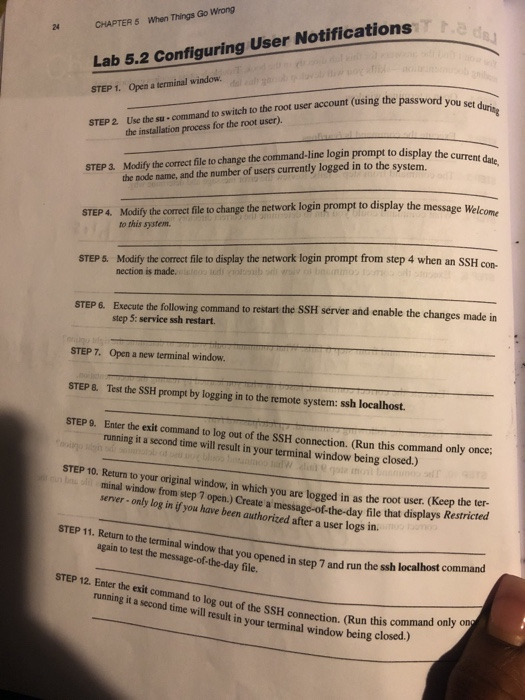
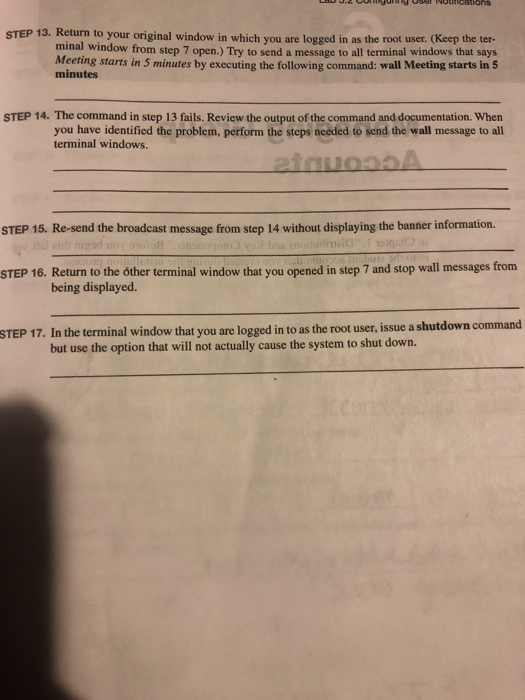
Lab 5.2 Configuring User Notifications STEP 1. Open a terminal window STEP 2 Use the su command to switch to the root user account (using the password STEP 3. Modify the correct file to change the command-line login prompt to display the curren 2 CHAPTER 5 When Things Go Wrong the installation process for the root user). the node name, and the number of users currently logged in to the system. STEP 4. Modify the correct file to change the network login prompt to display the message Welcome to this system. Modify the correct file to display the network login prompt from step 4 when an SSH con nection is made. STEP. STEP &. Execute the following command to restart the SSH server and enable the changes made in step 5: service ssh restart STEP 7. Open a new terminal window STEP8. Test the SSH prompt by logging in to the remote system: ssh localhost. STEP 9. Enter the exit command to log out of the SSH connection. (Run this command only once; STEP 10. Return to your original window, in which you are logged in as the root user. (Keep the ter running it a second time will result in your terminal window being closed.) minal window from step 7 open.) Create a message-of-the-day file that displays Restricted server- only log in if you have been authorized after a user logs in. STEP11. Return to the terminal window that you opened in step 7 again to test the message-of-the-day file STEP 12. Enter the exit command to log out of the SSH connection. (Run running it a second time will result in your terminal window being c this command only on STEP 13. Return to your original window in which you are logged in as the root user. (Keep the ter- minal window from step 7 open.) Try to send a message to all terminal windows that says Meeting starts in 5 minutes by executing the following command: wall Meeting starts in 5 minutes STEP 14. The command in step 13 fails. Review the output of the command and documentation. Whern you have identified the problem, perform the steps needed to send the wall message to all terminal windows. STEP 15. Re-send the broadcast message from step 14 without displaying the banner information. STEP 16. Return to the other terminal window that you opened in step 7 and stop wall messages from being displayed. STEP 17. In the terminal window that you are logged in to as the root user, issue a shutdown command but use the option that will not actually cause the system to shut down. Lab 5.2 Configuring User Notifications STEP 1. Open a terminal window STEP 2 Use the su command to switch to the root user account (using the password STEP 3. Modify the correct file to change the command-line login prompt to display the curren 2 CHAPTER 5 When Things Go Wrong the installation process for the root user). the node name, and the number of users currently logged in to the system. STEP 4. Modify the correct file to change the network login prompt to display the message Welcome to this system. Modify the correct file to display the network login prompt from step 4 when an SSH con nection is made. STEP. STEP &. Execute the following command to restart the SSH server and enable the changes made in step 5: service ssh restart STEP 7. Open a new terminal window STEP8. Test the SSH prompt by logging in to the remote system: ssh localhost. STEP 9. Enter the exit command to log out of the SSH connection. (Run this command only once; STEP 10. Return to your original window, in which you are logged in as the root user. (Keep the ter running it a second time will result in your terminal window being closed.) minal window from step 7 open.) Create a message-of-the-day file that displays Restricted server- only log in if you have been authorized after a user logs in. STEP11. Return to the terminal window that you opened in step 7 again to test the message-of-the-day file STEP 12. Enter the exit command to log out of the SSH connection. (Run running it a second time will result in your terminal window being c this command only on STEP 13. Return to your original window in which you are logged in as the root user. (Keep the ter- minal window from step 7 open.) Try to send a message to all terminal windows that says Meeting starts in 5 minutes by executing the following command: wall Meeting starts in 5 minutes STEP 14. The command in step 13 fails. Review the output of the command and documentation. Whern you have identified the problem, perform the steps needed to send the wall message to all terminal windows. STEP 15. Re-send the broadcast message from step 14 without displaying the banner information. STEP 16. Return to the other terminal window that you opened in step 7 and stop wall messages from being displayed. STEP 17. In the terminal window that you are logged in to as the root user, issue a shutdown command but use the option that will not actually cause the system to shut down
Step by Step Solution
There are 3 Steps involved in it

Get step-by-step solutions from verified subject matter experts
 Study Help