



Question: Lab 7.1 Managing User Accounts STEP 1. Open a terminal window. STEP 2. Execute the correct command to display user account infornation (including the login
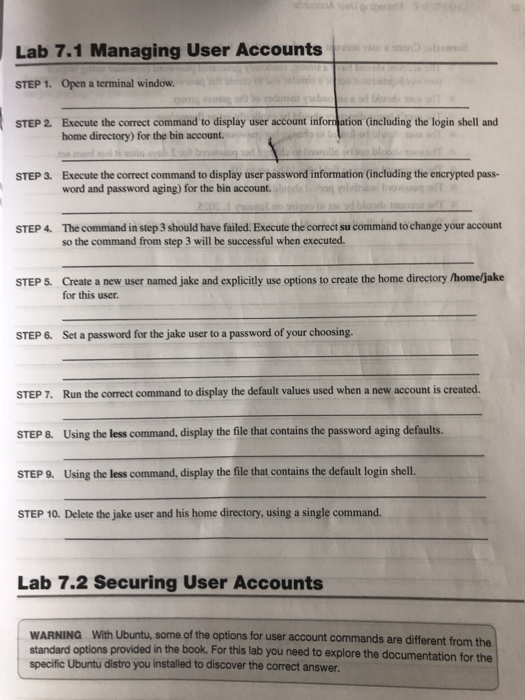
Lab 7.1 Managing User Accounts STEP 1. Open a terminal window. STEP 2. Execute the correct command to display user account infornation (including the login shell and home directory) for the bin account. STEP 3. Execute the correct command to display user password information (including the encrypted pass- word and password aging) for the bin account. STEP 4. The command in step 3 should have failed. Execute the correct su command to change your account so the command from step 3 will be successful when executed. STEP 5 Create a new user named jake and explicitly use options to create the home directory /home/jake for this user. STEP 6. Set a password for the jake user to a password of your choosing. STEP 7. Run the correct command to display the default values used when a new account is created STEP 8 Using the less command, display the file that contains the password aging defaults. STEP 9. Using the less command, display the file that contains the default login shell. STEP 10. Delete the jake user and his home directory, using a single command Lab 7.2 Securing User Accounts WARNING With Ubuntu, some of the options for user account commands are different from the standard options specific Ubuntu distro you installed to discover the correct answer provided in the book. For this lab you need to explore the documentation for the
Step by Step Solution
There are 3 Steps involved in it

Get step-by-step solutions from verified subject matter experts