







Question: Lab 8, PowerShell. Please complete all steps. Thank you! For this lab, you need any computer running PowerShell v 3 or later. This chapter has
Lab 8, PowerShell. Please complete all steps. Thank you!
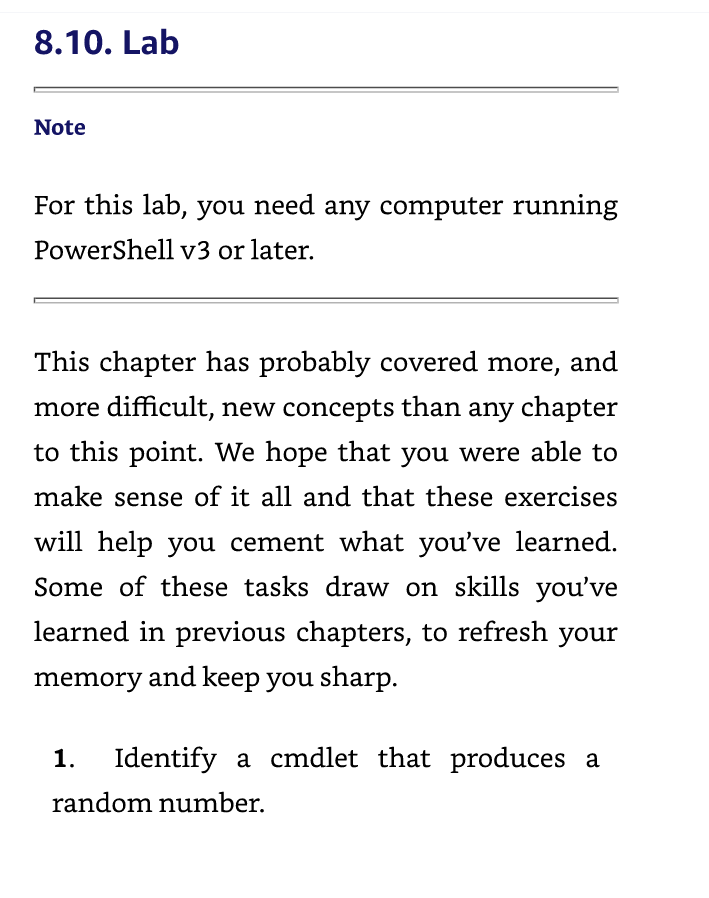
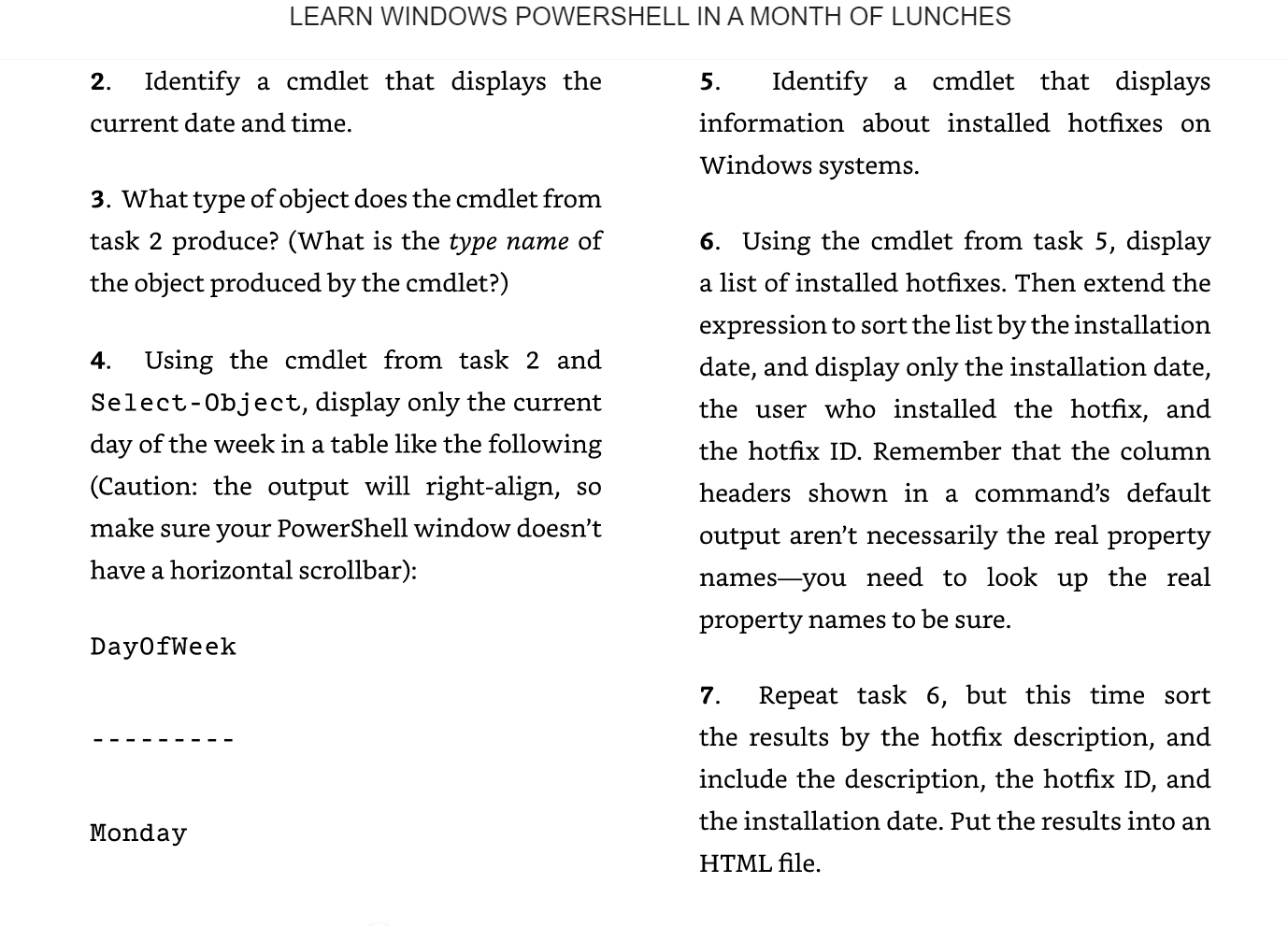
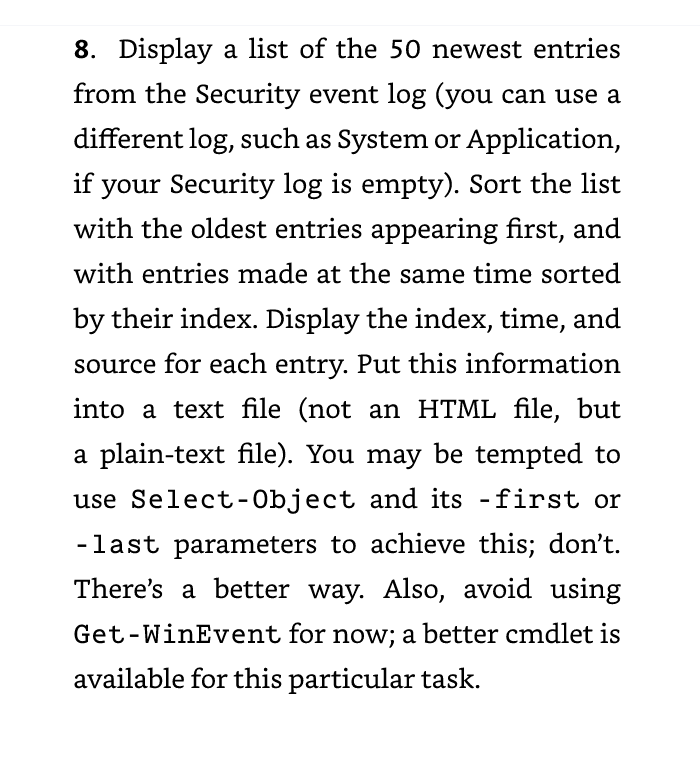
For this lab, you need any computer running PowerShell v 3 or later. This chapter has probably covered more, and more difficult, new concepts than any chapter to this point. We hope that you were able to make sense of it all and that these exercises will help you cement what you've learned. Some of these tasks draw on skills you've learned in previous chapters, to refresh your memory and keep you sharp. 1. Identify a cmdlet that produces a random number. LEARN WINDOWS POWERSHELL IN A MONTH OF LUNCHES 2. Identify a cmdlet that displays the 5. Identify a cmdlet that displays current date and time. information about installed hotfixes on Windows systems. 3. What type of object does the cmdlet from task 2 produce? (What is the type name of 6. Using the cmdlet from task 5 , display the object produced by the cmdlet?) a list of installed hotfixes. Then extend the expression to sort the list by the installation 4. Using the cmdlet from task 2 and date, and display only the installation date, Select-Object, display only the current the user who installed the hotfix, and day of the week in a table like the following the hotfix ID. Remember that the column (Caution: the output will right-align, so headers shown in a command's default make sure your PowerShell window doesn't output aren't necessarily the real property have a horizontal scrollbar): names-you need to look up the real property names to be sure. Day0fWeek 7. Repeat task 6, but this time sort the results by the hotfix description, and include the description, the hotfix ID, and Monday the installation date. Put the results into an HTML file. 8. Display a list of the 50 newest entries from the Security event log (you can use a different log, such as System or Application, if your Security log is empty). Sort the list with the oldest entries appearing first, and with entries made at the same time sorted by their index. Display the index, time, and source for each entry. Put this information into a text file (not an HTML file, but a plain-text file). You may be tempted to use Select-Object and its -first or - last parameters to achieve this; don't. There's a better way. Also, avoid using Get-WinEvent for now; a better cmdlet is available for this particular task
Step by Step Solution
There are 3 Steps involved in it

Get step-by-step solutions from verified subject matter experts
 Study Help