







Question: Microsoft excel- guided project 3-3 1. Open the BluelakeSports-03 start file. If the workbook opens in Protected View, click the Enable p 1: nload Editing
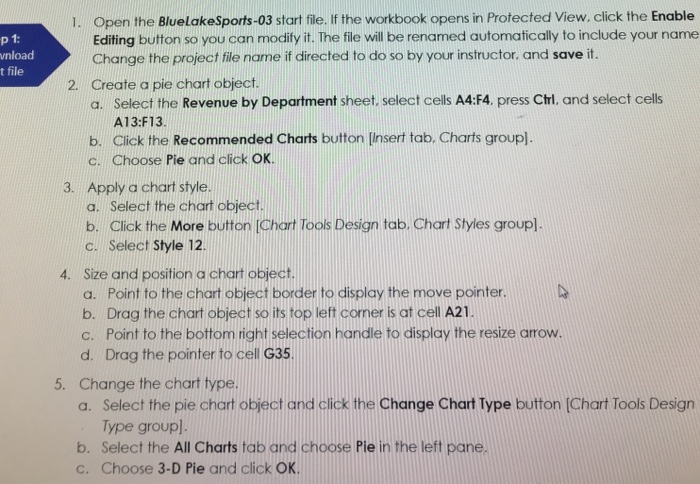

1. Open the BluelakeSports-03 start file. If the workbook opens in Protected View, click the Enable p 1: nload Editing button so you can modify it. The file will be renamed automatically to include your name Change the project file name if directed to do so by your instructor. and save it. 2. Create a pie chart object a. Select the Revenue by Department sheet. select cell A4:F4, press Chri, and select cells A13:F13. b. Click the Recommended Charts button [nsert tab. Charts group]. c. Choose Pie and click OK Apply a chart style. a. Select the chart object. b. Click the More button [Chart Tools Design tab. Chart Styles groupl. c. Select Style 12. 3. Size and position a chart object. a. Point to the chart object border to display the move pointer. b. Drag the chart object so its top left coner is at cell A21. c. Point to the bottom right selection handle to display the resize arrow. d. Drag the pointer to cell G35. 4. 5. Change the chart type a. Select the pie chart object and click the Change Chart Type button [Chart Tools Design Type groupl. b. Select the All Charts tab and choose Pie in the left pane. c. Choose 3-D Pie and click OK
Step by Step Solution
There are 3 Steps involved in it

Get step-by-step solutions from verified subject matter experts
 Study Help