


Question: To receive full points, your Pareto chart will be submitted as a MS Excel file and use the data provided in class. Scoring criteria is
To receive full points, your Pareto chart will be
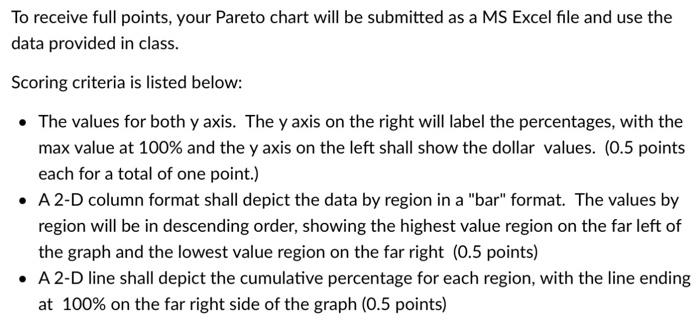
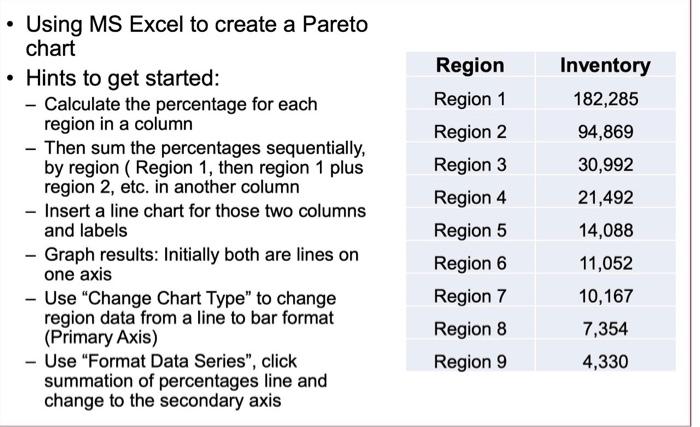
To receive full points, your Pareto chart will be submitted as a MS Excel file and use the data provided in class. Scoring criteria is listed below: The values for both y axis. The y axis on the right will label the percentages, with the max value at 100% and the y axis on the left shall show the dollar values. (0.5 points each for a total of one point.) A 2-D column format shall depict the data by region in a "bar" format. The values by region will be in descending order, showing the highest value region on the far left of the graph and the lowest value region on the far right (0.5 points) A 2-D line shall depict the cumulative percentage for each region, with the line ending at 100% on the far right side of the graph (0.5 points) Inventory 182,285 Using MS Excel to create a Pareto chart Hints to get started: - Calculate the percentage for each region in a column - Then sum the percentages sequentially, by region (Region 1, then region 1 plus region 2, etc. in another column - Insert a line chart for those two columns and labels - Graph results: Initially both are lines on one axis - Use "Change Chart Type" to change region data from a line to bar format (Primary Axis) - Use Format Data Series", click summation of percentages line and change to the secondary axis Region Region 1 Region 2 Region 3 Region 4 Region 5 Region 6 Region 7 Region 8 Region 9 94,869 30,992 21,492 14,088 11,052 10,167 7,354 4,330

Step by Step Solution

There are 3 Steps involved in it

1 Expert Approved Answer
Step: 1 Unlock blur-text-image

Question Has Been Solved by an Expert!

Get step-by-step solutions from verified subject matter experts

Step: 2 Unlock
Step: 3 Unlock

Students Have Also Explored These Related General Management Questions!