







Question: Use python and tkinter to create a mock GUI application. Like below. Problem (70 points): Learn about the fundamentals of tkinter widgets and GUI app
Use python and tkinter to create a mock GUI application. Like below.
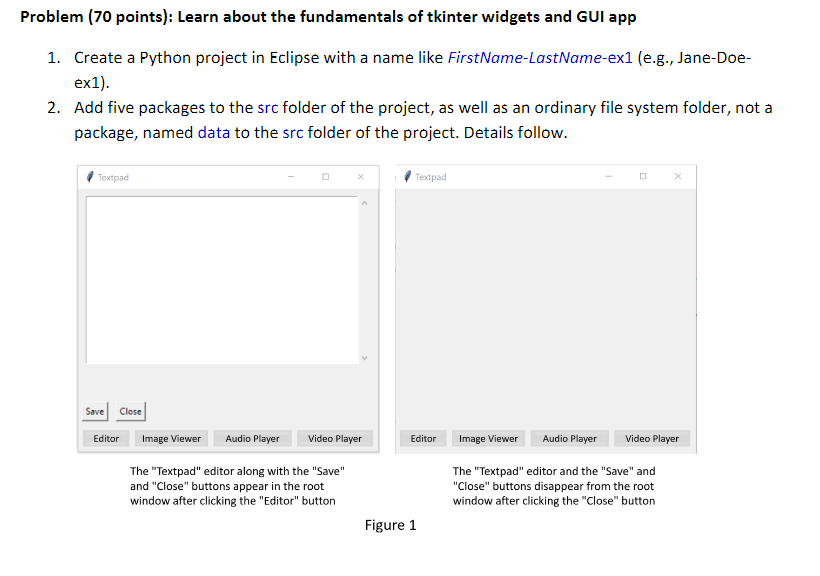
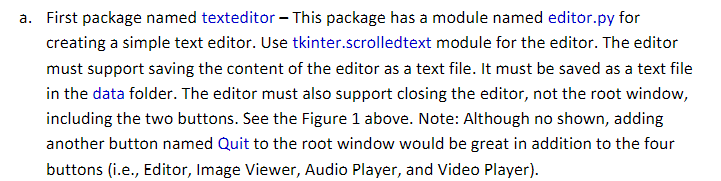
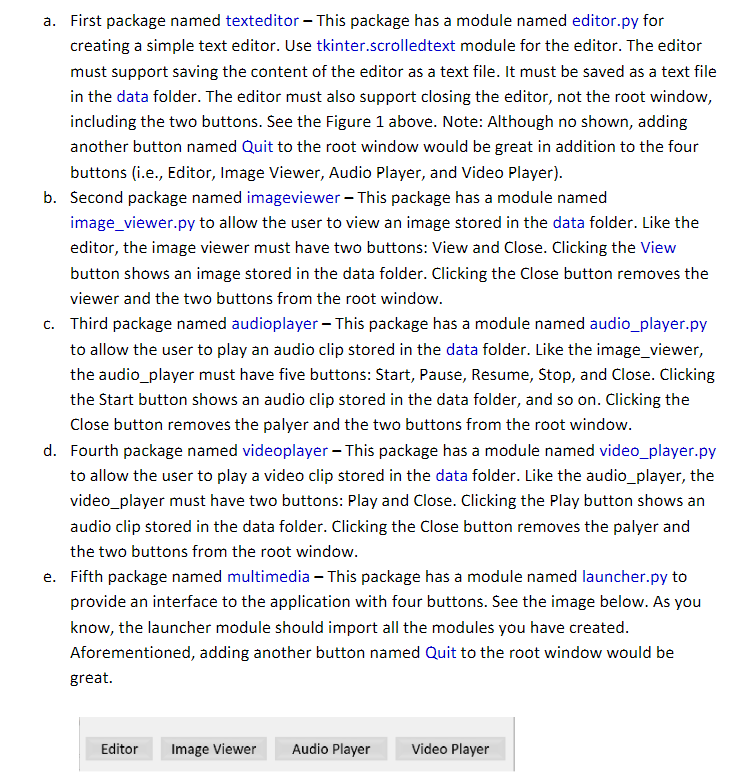
Problem (70 points): Learn about the fundamentals of tkinter widgets and GUI app 1. Create a Python project in Eclipse with a name like FirstName-LastName-ex1 (e.g., Jane-Doeex1). 2. Add five packages to the src folder of the project, as well as an ordinary file system folder, not a package, named data to the src folder of the project. Details follow. The "Textpad" editor along with the "Save" The "Textpad" editor and the "Save" and and "Close" buttons appear in the root "Close" buttons disappear from the root window after clicking the "Editor" button window after clicking the "Close" button First package named texteditor - This package has a module named editor.py for creating a simple text editor. Use tkinter.scrolledtext module for the editor. The editor must support saving the content of the editor as a text file. It must be saved as a text file in the data folder. The editor must also support closing the editor, not the root window, including the two buttons. See the Figure 1 above. Note: Although no shown, adding another button named Quit to the root window would be great in addition to the four buttons (i.e., Editor, Image Viewer, Audio Player, and Video Player). a. First package named texteditor - This package has a module named editor.py for creating a simple text editor. Use tkinter.scrolledtext module for the editor. The editor must support saving the content of the editor as a text file. It must be saved as a text file in the data folder. The editor must also support closing the editor, not the root window, including the two buttons. See the Figure 1 above. Note: Although no shown, adding another button named Quit to the root window would be great in addition to the four buttons (i.e., Editor, Image Viewer, Audio Player, and Video Player). b. Second package named imageviewer - This package has a module named image_viewer.py to allow the user to view an image stored in the data folder. Like the editor, the image viewer must have two buttons: View and Close. Clicking the View button shows an image stored in the data folder. Clicking the Close button removes the viewer and the two buttons from the root window. c. Third package named audioplayer - This package has a module named audio_player.py to allow the user to play an audio clip stored in the data folder. Like the image_viewer, the audio_player must have five buttons: Start, Pause, Resume, Stop, and Close. Clicking the Start button shows an audio clip stored in the data folder, and so on. Clicking the Close button removes the palyer and the two buttons from the root window. d. Fourth package named videoplayer - This package has a module named video_player.py to allow the user to play a video clip stored in the data folder. Like the audio_player, the video_player must have two buttons: Play and Close. Clicking the Play button shows an audio clip stored in the data folder. Clicking the Close button removes the palyer and the two buttons from the root window. e. Fifth package named multimedia - This package has a module named launcher.py to provide an interface to the application with four buttons. See the image below. As you know, the launcher module should import all the modules you have created. Aforementioned, adding another button named Quit to the root window would be great
Step by Step Solution
There are 3 Steps involved in it

Get step-by-step solutions from verified subject matter experts
 Study Help