







Question: Write a MATLAB code for the next excerise: The GUI should have the following elements: A static text label with a title for the app
Write a MATLAB code for the next excerise: The GUI should have the following elements:
A static text label with a title for the app
An input panel with numeric edit fields for Number of Targets and Grid Size In the previous
assignments, the grid size was fixed at In this assignment it is variable. Each of these edit
fields should have a nonzero default value set in the design view of App Designer.
A set of axes to display the robottarget locations one set of axes totalthe target locations
will only be displayed when a certain button is pressed
Two text labels: one to display the number of targets found so far, and one to display the
number of neighboring targets to the robot's current position. The second label can also be used
to display the warning message when the user tries to move outside the grid boundaries.
Four buttons to move in the Up Down, Right, and Left directions. For this assignment, the robot
will always move one square at a time, unlike in the earlier assignments, where it could move
arbitrary distances. Therefore, DO NOT USE the input function.
When one of these buttons is pressed:
The grid matrix should update with the movement
The axes should update with the new robot position
The number of targets found should be displayed on a text label
The neighboring targetserror message should be displayed on another text
label
A Start button. When this button is clicked, the grid size and number of targets edit fields should
be read in the grid and the target matrices should be initialized, and the robot's coordinates
should be set to the center of the grid.
A Reset button. When the button is clicked, the grid and target matrices should be reinitialized
back to the nonzero number you originally set them to be the robot's coordinates should be
set to the center of the grid, and the number of targets found should be set back to zero.
A Stop button. When this button is clicked, the remaining target locations are displayed in the
axes.
It is expected for this assignment that you will reuse some of your own code from Application
or Application if you did not complete App If you still have unanswered questions about
the earlier assignments, work with the TAs or instructor to address them before starting this
assignment.Note: You can use the same showimage function from Applications and ; provide the
axes handle as the second argument:
showimagematrixname, app.UIAxes
Callbacks
You must create and program callbacks for all buttons, so that when a button is clicked, the
program executes the correct action. The Up Down, Right, and Left callbacks will be nearly
identical, each containing most of the code from the movement section of your earlier
applications.
Global Variables and Startup Function
In this program, there is a lot of information that must be shared among the various functions
the grid and target matrices, number of targets found so far, robot coordinates, etc. The easiest
way to share this information among functions is to make the variables global. For example, if
you have a variable called that you want to make global, put this declaration at the beginning
of each callback that uses the variable:
global X
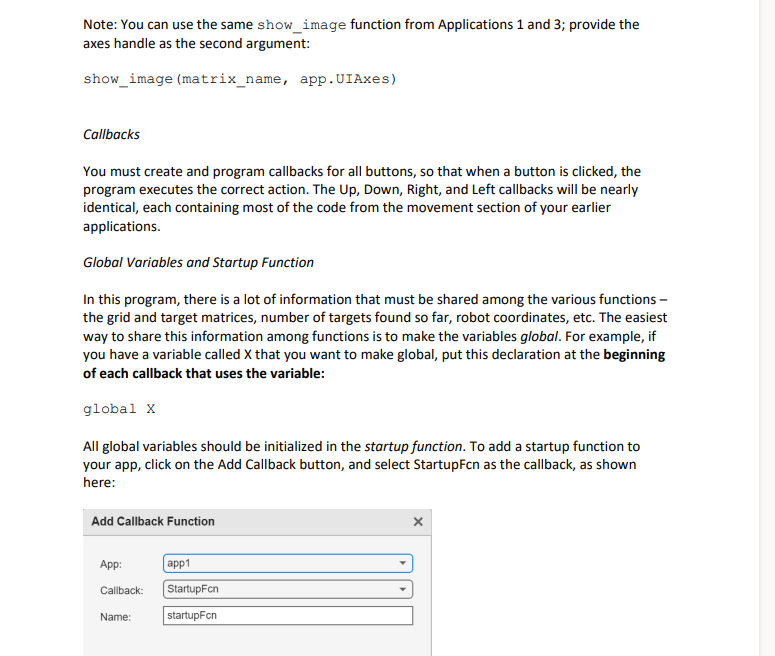
All global variables should be initialized in the startup function. To add a startup function to
your app, click on the Add Callback button, and select StartupFcn as the callback, as shown
here:
Add Callback Function
App:
app
Callback: StartupFen
Name:
startupFcn
Step by Step Solution
There are 3 Steps involved in it
1 Expert Approved Answer
Step: 1 Unlock

Question Has Been Solved by an Expert!
Get step-by-step solutions from verified subject matter experts
Step: 2 Unlock
Step: 3 Unlock
 Study Help