







Question: Bu using LabView 2009 the The front panel for the Sign VI Wustrating the edited icon and the connector terminals. E4.5 Create a VI called
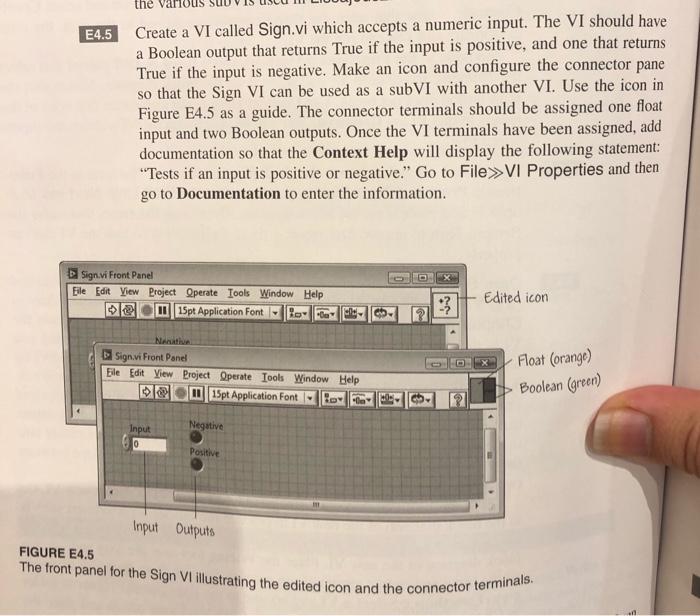
the The front panel for the Sign VI Wustrating the edited icon and the connector terminals. E4.5 Create a VI called Sign.vi which accepts a numeric input. The VI should have a Boolean output that returns True if the input is positive, and one that returns True if the input is negative. Make an icon and configure the connector pane so that the Sign VI can be used as a subVI with another VI. Use the icon in Figure E4.5 as a guide. The connector terminals should be assigned one float input and two Boolean outputs. Once the VI terminals have been assigned, add documentation so that the context Help will display the following statement: "Tests if an input is positive or negative." Go to File>>VI Properties and then go to Documentation to enter the information. Sign.vi Front Panel Eile Edit View Project Operate Tools Window Help Edited icon 115pt Application Font :3 lo- Next Sign.vi Front Panel Eile Edit View Project Operate Tools Window Help 15pt Application Font Negative FIGURE E4.5 - Float (orange) Boolean (green) TOV Input Positive Input Dutputs the The front panel for the Sign VI Wustrating the edited icon and the connector terminals. E4.5 Create a VI called Sign.vi which accepts a numeric input. The VI should have a Boolean output that returns True if the input is positive, and one that returns True if the input is negative. Make an icon and configure the connector pane so that the Sign VI can be used as a subVI with another VI. Use the icon in Figure E4.5 as a guide. The connector terminals should be assigned one float input and two Boolean outputs. Once the VI terminals have been assigned, add documentation so that the context Help will display the following statement: "Tests if an input is positive or negative." Go to File>>VI Properties and then go to Documentation to enter the information. Sign.vi Front Panel Eile Edit View Project Operate Tools Window Help Edited icon 115pt Application Font :3 lo- Next Sign.vi Front Panel Eile Edit View Project Operate Tools Window Help 15pt Application Font Negative FIGURE E4.5 - Float (orange) Boolean (green) TOV Input Positive Input Dutputs
Step by Step Solution
There are 3 Steps involved in it

Get step-by-step solutions from verified subject matter experts
 Study Help