







Question: by using LabView 2009 1. Create a VI whose front panel has a picture ring labeled Resistor color band and a numeric indicator labeled Value.
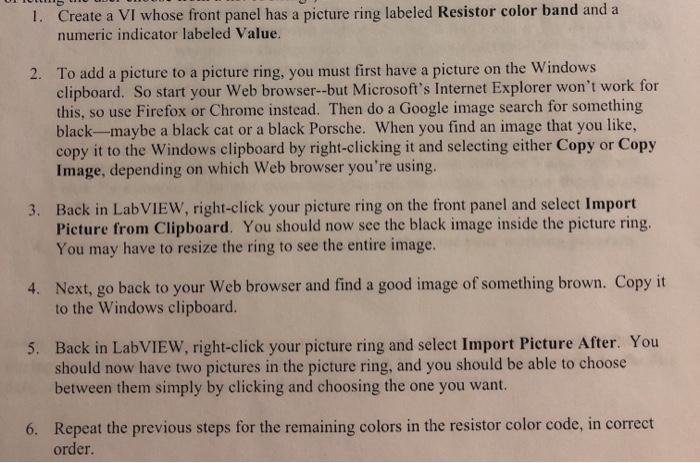

1. Create a VI whose front panel has a picture ring labeled Resistor color band and a numeric indicator labeled Value. 2. To add a picture to a picture ring, you must first have a picture on the Windows clipboard. So start your web browser--but Microsoft's Internet Explorer won't work for this, so use Firefox or Chrome instead. Then do a Google image search for something black-maybe a black cat or a black Porsche. When you find an image that you like, copy it to the Windows clipboard by right-clicking it and selecting either Copy or Copy Image, depending on which Web browser you're using. 3. Back in LabVIEW, right-click your picture ring on the front panel and select Import Picture from Clipboard. You should now see the black image inside the picture ring, You may have to resize the ring to see the entire image. 4. Next, go back to your web browser and find a good image of something brown. Copy it to the Windows clipboard. 5. Back in LabVIEW, right-click your picture ring and select Import Picture After. You should now have two pictures in the picture ring, and you should be able to choose between them simply by clicking and choosing the one you want. 6. Repeat the previous steps for the remaining colors in the resistor color code, in correct order. 7. On the block diagram, wire the picture ring to the numeric indicator. When you run the program, select a color, and the selected color's value will appear in the numeric indicator
Step by Step Solution
There are 3 Steps involved in it

Get step-by-step solutions from verified subject matter experts
 Study Help